
Although the Workbook object has many properties and methods, you will use only a handful of them regularly. In this chapter, you will examine these common properties and methods as well as some events associated with the Workbook object. It is important to remember that the Workbooks object represents all Workbook objects currently open in Excel.
There are several ways to modify a specific workbook:
- The ActiveWorkbook property of the Application object: This property returns the active workbook (that is, the workbook in the active window). Its syntax is
ApplicationObject.ActiveWorkbook. Specifying the ApplicationObject is optional. - The ThisWorkbook property of the Application object: This property returns the workbook in which the code is running. Its syntax is
ApplicationObject.ThisWorkbook. Specifying the ApplicationObject is optional.
Note that although most of the time, ActiveWorkbook is the same as ThisWorkbook, this is not always the case. The active workbook may be different from the one in which the code is executing.
Saving Workbooks
When saving a workbook, you need to know where to save it. To do this, use the ChDrive statement to set the drive and the ChDir statement to set the correct directory. Now, only the file name is missing. In the following example, take the name suggested by Excel with the Name property. Only then do you save the file.
Sub saveFile()
    Dim str As String
    Const theDrive = "C:\"
    Const theFolder = "C:\mon fichier"
    str = ActiveWorkbook.Name
    ChDrive theDrive
    ChDir theFolder
    ActiveWorkbook.SaveAs FileName:=str, FileFormat:= _
        xlNormal, Password:="", WriteResPassword:="", _
        ReadOnlyRecommended:=False, CreateBackup:=True
End Sub
The SaveAs method has several arguments. Its syntax is:
ActiveWorkbook.SaveAs(Filename, FileFormat, Password, _
    WriteResPassword, ReadOnlyRecommended, CreateBackup, _
    AddToMru, TextCodePage, TextVisualLayout)
Comments:
FileName: String indicating the name of the file to save. You can include a full path; if not, Microsoft Excel saves the file in the active folder.FileFormat: File format to use when saving the file. For a list of valid choices, see theXlFileFormatenumeration. For an existing file, the default format is the last one specified; for a new file, the default is the current version of Excel.Password: Case-sensitive string (maximum 15 characters) indicating the password to protect the file.WriteResPassword: String indicating the write-protection password. If a file is saved with a password and the password is not provided when opening, the file opens as read-only.ReadOnlyRecommended:Trueto display a message when the file is opened, suggesting read-only mode.CreateBackup:Trueto create a backup file.AccessMode: Access mode for the workbook.ConflictResolution:XlSaveConflictResolutionvalue that determines how conflicts are handled when saving. WithxlUserResolution, the conflict resolution dialog box appears. WithxlLocalSessionChanges, local user changes are automatically accepted. WithxlOtherSessionChanges, changes from other sessions are accepted instead. If not defined, the dialog box appears.AddToMru:Trueto add the workbook to the list of most recently used files. Default isFalse.TextCodePage: Ignored for all languages in Microsoft Excel.Local:Truesaves files using the language of Microsoft Excel (including Control Panel settings).False(default) saves using the VBA language (usually U.S. English unless the project was created in older Excel VBA projects).
Saving a Workbook
The following procedure shows two ways of saving a workbook:
Sub SaveWorkbook()
    ThisWorkbook.Save
    ThisWorkbook.SaveAs "C:\Users\Temp\Documents\monfichier.xlsx"
    MsgBox "Saved: " & ThisWorkbook.Saved
End Sub
Comments:
- The
Save()method of the Workbook object saves the workbook. - The
SaveAs()method saves the workbook in the specified directory.
Save Workbook Twice
An additional save function consists of saving the file to two different drives.
Sub DoubleSaveFile()
    Dim s As String
    Const theDrive1 = "C:\"
    Const theDrive2 = "D:\"
    Const theFolder1 = "C:\mes fichiers"
    Const theFolder2 = "D:\mes donnees"

    s = ActiveWorkbook.Name

    ChDrive theDrive1
    ChDir theFolder1
    ActiveWorkbook.SaveAs FileName:=s, FileFormat:= _
        xlNormal, Password:="", WriteResPassword:="", _
        ReadOnlyRecommended:=False, CreateBackup:=True

    ChDrive theDrive2
    ChDir theFolder2
    ActiveWorkbook.SaveAs FileName:=s, FileFormat:= _
        xlNormal, Password:="", WriteResPassword:="", _
        ReadOnlyRecommended:=False, CreateBackup:=True
End Sub
Comments:
ChDrivechanges the current drive.ChDirchanges the current directory.
Call the Save As Dialog Box
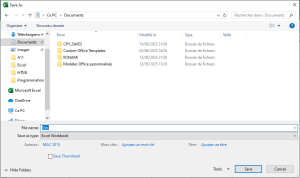
If you wish, you can also call the built-in Save As dialog box using the following macro:
Sub saveWithDialog()
    Application.Dialogs(xlDialogSaveAs).Show
End Sub
Determine Workbook Path
It is often necessary to access workbooks in the same directory or a subdirectory. To do this, determine the path of the current workbook:
Sub determinePath()
    Workbooks.Open "C:\monclasseur\Classeur3.xlsm"
    MsgBox "Classeur3 is located in " & ActiveWorkbook.Path
    MsgBox "This workbook is located in " & ThisWorkbook.Path
    Workbooks.Open ThisWorkbook.Path & "\Classeur1.xlsm"
    Workbooks.Open ThisWorkbook.Path & "\mesdoc\Inventaire.xlsx"
    MsgBox "Inventaire is located in " & ActiveWorkbook.Path
End Sub
Comments:
- Workbook
Classeur3.xlsmis first opened. It’s now the active workbook. - The
Pathproperty returns the path of the workbook containing the procedure. Classeur1.xlsmis opened from the same directory.Inventaire.xlsxis opened from a subdirectory.
NOTE: In Excel versions prior to 2007, file names must be: Classeur3.xls, Classeur1.xls, and Inventaire.xls.
Determine the Status of the Workbook
If you want to know whether changes have been made to the workbook since it was last saved—whether through links or user input—use the following macro:
Sub workbookModified()
    If ActiveWorkbook.Saved = False Then
        MsgBox "The workbook has been modified!"
    End If
End Sub
Comments:
- The
Savedproperty returnsTrueif the active workbook has not been changed since its last save. - If the property returns
False, changes have been made to the workbook.
Save Workbook After Specified Cell Is Modified
Sometimes you work with such important data that it’s worth saving it as soon as a change is made in a specific cell or range. The macro below defines a cell range in which any modification will trigger a save.
Private Sub Worksheet_Change(ByVal Target As Range)
    ' Step 1: Check if the modified cell is in the specified range.
    If Intersect(Target, Range("D5:D20")) Is Nothing Then
        ' Step 2: If not, exit
        Exit Sub
    Else
        ' Step 3: If it is, save the workbook
        ActiveWorkbook.Save
        ' Step 4: End the If statement
    End If
End Sub
Comments:
- Step 1 uses the
Intersectmethod to verify if the modified cell is within the range. - If it is not, the macro ends immediately.
- If it is within the range, the
Savemethod is executed. - The
If ... Then ... Elsestructure must always be closed withEnd If.
Save Workbook Before Closing
The following macro is a great way to prevent users from accidentally closing a workbook without saving it. It triggers the BeforeClose event and asks the user to confirm.
Private Sub Workbook_BeforeClose(Cancel As Boolean)
    ' Step 1: Display the message box and begin checking
    Select Case MsgBox("Save and close?", vbOKCancel)

        ' Step 2: Cancel button pressed – cancel closing
        Case vbCancel
            Cancel = True

        ' Step 3: OK button pressed – save and close the workbook
        Case vbOK
            ActiveWorkbook.Save

    ' Step 4: Close the Select Case statement
    End Select
End Sub
Comments:
- Step 1 activates a message box as the condition for
Select Case. - If the user clicks Cancel, the event
Workbook_Closeis canceled. - If the user clicks OK, Excel is instructed to save and continue closing.
- Step 4 ends the
Select Caseblock. EverySelect Casemust be closed withEnd Select.
Opening a Workbook
The following procedure opens an existing workbook:
Sub OpenWorkbook()
    Workbooks.Open "C:\Temp\chancelin.xlsm"
End Sub
Comments:
- The
Open()method of theWorkbooksobject opens the specified workbook. - A new item is added to the workbook collection.
- The example uses an absolute path. You can also use relative paths.
- If the workbook doesn’t exist, the program ends with an error.
Syntax of the Open method:
Workbooks.Open(Filename, [UpdateLinks], [ReadOnly], [Format], [Password], [WriteResPassword], _
    [IgnoreReadOnlyRecommended], [Origin], [Delimiter], [Editable], [Notify], [Converter], _
    [AddToMru], [Local], [CorruptLoad])
Only the first argument (Filename) is required.
Password: Password to open a protected workbook.ReadOnly:Trueopens the file in read-only mode.Filename: Required. Full path and name of the workbook to open.
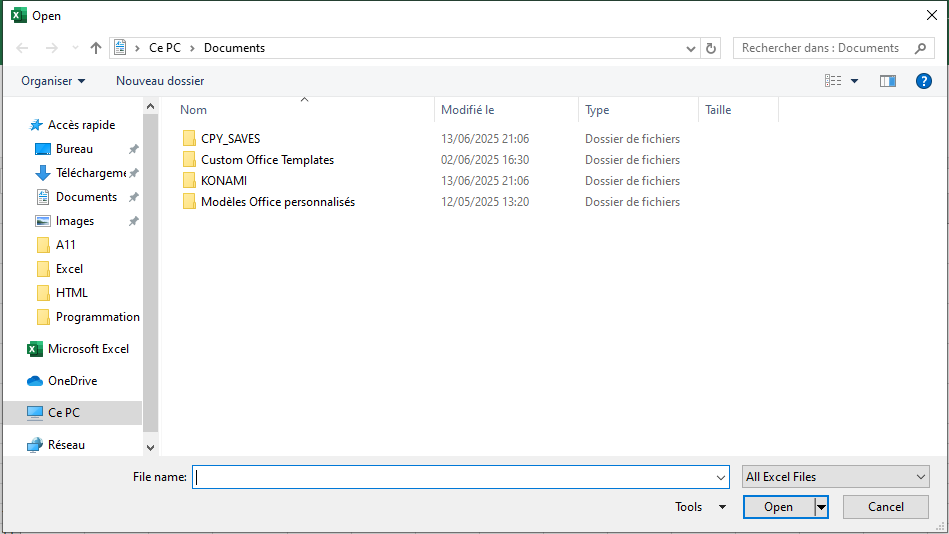
Call the Built-In Open Dialog Box
Sub openFileDialogBox()
    Application.Dialogs(xlDialogOpen).Show _
        "C:\Users\MAC 2015\Documents"
End Sub
Open a Workbook Selected by the User
This macro opens a dialog where the user can choose a file:
Sub OpenWorkbook()
    ' Step 1: Declare the variable
    Dim FileName As Variant

    ' Step 2: Open dialog using GetOpenFilename
    FileName = Application.GetOpenFilename( _
        FileFilter:="Excel Workbooks,*.xl*", _
        Title:="Select workbook to open", _
        MultiSelect:=False)

    ' Step 3: If a file is selected, open it!
    If FileName <> False Then
        Workbooks.Open Filename:=FileName
    End If
End Sub
Comments:
NomFstores the selected file name.GetOpenFilenamedisplays a file picker dialog.FileFilterrestricts file types;Titlechanges the dialog title;MultiSelectrestricts multiple selections.- If a file is selected,
Workbooks.Openopens it.
Open All Workbooks from a Folder
This macro opens all .xlsx files from a folder:
Sub OpenAllWorkbooks()
    ' Step 1: Declare variables
    Dim MyFiles As String

    ' Step 2: Set the target directory
    MyFiles = Dir("C:\Temp\*.xlsx")

    Do While MyFiles <> ""
        ' Step 3: Open workbook
        Workbooks.Open "C:\Temp\" & MyFiles
        MsgBox ActiveWorkbook.Name
        ActiveWorkbook.Close SaveChanges:=True

        ' Step 4: Next file
        MyFiles = Dir
    Loop
End Sub
Comments:
Dirlists file names from a directory.- You can filter file types (e.g.,
.xls,.csv). - Use
Dir[(pathname[, attributes])]for options likevbNormal,vbHidden,vbSystem, etc. - Each file is opened, processed (e.g.,
MsgBox), saved, and closed.
Note: Wildcards are supported in Dir — * for multiple characters, ? for one.
Count Open Workbooks
Sub WorkbookCount()
    MsgBox "Number of workbooks: " & Workbooks.Count
End Sub
Comments:
- The
Countproperty returns the number of open workbooks. - Macro-enabled files are included in the count.
Get the Name of the Active Directory
Use the CurDir function:
CurDir([drive])
Comments:
driveis optional. If omitted, VBA uses the current drive.CurDir$returns the result as a string.
Example in Immediate Window (Ctrl + G):
? CurDir
' Returns the current default directory for the active drive

? CurDir("D:\")
' Returns the current default directory on drive D:

monDrive = Left(CurDir$, 1)
? monDrive
' Returns the first character of the current directory path (typically the drive letter only)

monDrive = Left(CurDir$, 2)
? monDrive
' Returns the first two characters of the current directory path (e.g., "C:")
Closing a Workbook
If changes have been made, Excel asks whether to save. You can suppress this prompt with DisplayAlerts.
Close All Workbooks
Sub CloseWorkbooks()
    Workbooks.Close
End Sub
Comments:
- Closes all open workbooks.
- Excel application remains open.
- Prompts user to save if changes exist.
Close Multiple Workbooks at Once
Sub SimultaneousWorkbookClosure()
    ' Step 1: Declare variable
    Dim myWorkbook As Workbook

    ' Step 2: Loop through workbooks to save and close
    For Each myWorkbook In Workbooks
        myWorkbook.Close SaveChanges:=True
    Next myWorkbook
End Sub
Comments:
- Loops through all open workbooks.
- Saves and closes each one.
Close a Workbook and Save Changes
Sub closeWorkbook()
    With ActiveWorkbook
        .Sheets(1).Range("A1").Value = _
            "last change " & Now & " by user " & _
            Application.UserName
        .Close SaveChanges:=True
    End With
    Application.DisplayAlerts = False
End Sub
Comments:
- Saves changes before closing.
- Stores timestamp and user in cell A1.
- Suppresses confirmation messages.
Close All Except Active Workbook
Sub closeAllWorkbooksExceptThisOne()
    Dim myWorkbook As Workbook

    For Each myWorkbook In Application.Workbooks
        If myWorkbook.Name <> ThisWorkbook.Name Then
            myWorkbook.Close
        End If
    Next
End Sub
Comments:
- Loops through all workbooks and compares names.
- Closes all except the active one.
Sub countOpenWorkbooks()
    MsgBox "Currently " & _
        Application.Workbooks.Count & _
        " file(s) open.", vbInformation
End Sub
Create a New Workbook
Example 1
Sub NewWorkbook()
    Workbooks.Add
End Sub
Comments:
Add()creates a new workbook and makes it active.- Optional
Templateargument can specify a model workbook or sheet type.
Example 2: Copy and Save
Sub CreateNewWorkbook()
    ' Step 1: Copy data
    Sheets("Feuil1").Range("B4:C15").Copy

    ' Step 2: Create new workbook
    Workbooks.Add

    ' Step 3: Paste data
    ActiveSheet.Paste Destination:=Range("A1")

    ' Step 4: Disable alerts
    Application.DisplayAlerts = False

    ' Step 5: Save workbook
    ActiveWorkbook.SaveAs _
        Filename:="C:\Temp\monfichier.xlsx"

    ' Step 6: Enable alerts
    Application.DisplayAlerts = True
End Sub
Comments:
- Pastes copied data into the new workbook.
DisplayAlerts = Falsesuppresses overwrite warnings.SaveAssaves with specified path and name.
Example 3: Get Workbook Name
Sub workbookName()
    MsgBox "Name: " & ThisWorkbook.Name
    MsgBox "Name with path: " & ThisWorkbook.FullName
End Sub
Comments:
Namereturns the workbook file name.FullNamereturns the full path and name.