
Both the fine gridlines separating individual cells and the row and column headings in an Excel worksheet can be shown or hidden. While these are technically display settings associated with the window rather than the worksheet itself, they are presented here because they are closely related to the visual layout of the worksheet.
Below is a VBA procedure that hides both the gridlines and the headings:
Sub HideGridAndHeadings()
    ThisWorkbook.Activate
    Worksheets("Sheet3").Activate
    ActiveWindow.DisplayGridlines = False
    ActiveWindow.DisplayHeadings = False
End Sub
Explanation:
- First, the macro ensures that the correct workbook and worksheet are active using ThisWorkbook.Activate and Worksheets(« Sheet3 »).Activate.
- Once the target sheet is active, ActiveWindow refers to the window that displays this sheet.
- The property DisplayGridlines controls whether the gridlines between the cells are visible. Setting it to False hides the gridlines.
- The property DisplayHeadings controls whether the row numbers and column letters (A, B, C… and 1, 2, 3…) are visible. Setting it to False hides these headings.
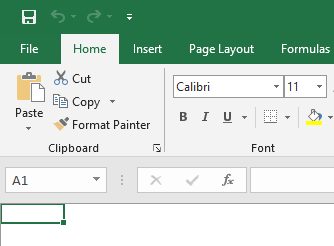
- As illustrated in Figure 2.15 (not shown here), the result is a clean sheet view without gridlines or headers.
To reverse the effect:
If you want to make the hidden elements visible again, simply change the values of the properties from False to True in the procedure. For example:
ActiveWindow.DisplayGridlines = True
ActiveWindow.DisplayHeadings = True
This will restore both the gridlines and the row/column headers to their default visible state.