
Excel allows you to insert hyperlinks into cells. There are many things you can do with hyperlinks in Excel (such as linking to an external website, linking to another sheet/workbook, linking to a folder, linking to an email address, etc.).
How to Insert Hyperlinks in Excel
There are several ways to create hyperlinks in Excel. You can:
■ Type the URL manually (or copy and paste it)
■ Use the HYPERLINK function
■ Use the Insert Hyperlink dialog box
Type the URL Manually
When you manually enter a URL in an Excel cell or copy and paste it into the cell, Excel automatically converts it into a hyperlink.
Here are the steps to turn a plain URL into a hyperlink:
-
Select a cell where you want to insert the hyperlink
-
Press F2 to enter edit mode (or double-click the cell)
-
Type the URL and press Enter. For example, if I type the URL – https://excelcorpo.com into a cell and press Enter, it will create a hyperlink to that address.
NOTE
Please note that you must include http or https for URLs that do not have www. If the URL starts with www, Excel will still create the hyperlink even if you do not add http/https.
When you copy a URL (document/file) and paste it into an Excel cell, it will automatically be hyperlinked.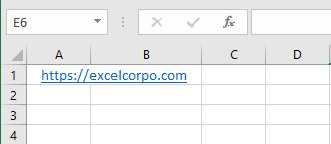
Insert a Link Using the Dialog Box
If you want the cell’s display text to be something other than the URL and still link it to a specific web address, you can use Excel’s Insert Hyperlink option.
Below are the steps to insert a hyperlink into a cell using the Insert Hyperlink dialog box:
Select the cell where you want to insert the hyperlink
Type the text you want to display as the hyperlink. For example: « ExcelCorpo Company »
Click the Insert tab on the ribbon
Click the Links button. This will open the Insert Hyperlink dialog box (you can also use the keyboard shortcut Ctrl + K)
In the Insert Hyperlink dialog box, enter the URL into the Address field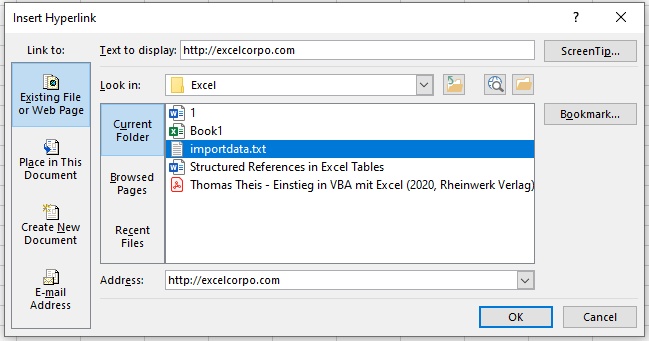
Click the OK button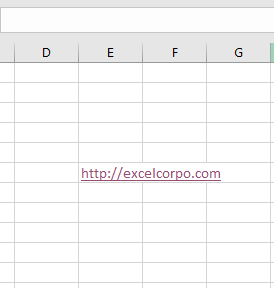
This will insert the hyperlink into the cell while keeping the display text unchanged.
NOTE:
There are many more things you can do with the Insert Hyperlink dialog box (such as creating a hyperlink to another worksheet in the same workbook, linking to a document/folder, linking to an email address, etc.).
Insert Using the HYPERLINK Function
Another way to insert a link in Excel is by using the HYPERLINK function. In general, the HYPERLINK function creates a shortcut that opens another location in the current document or opens a document stored on a network server, intranet, or the Internet.
When you click a cell that contains the HYPERLINK function, Excel opens the location indicated or launches the document you specified. Its syntax is:
HYPERLINK(link_location, [friendly_name])
with:
■ link_location: This can be the URL of a webpage, the path to a folder or file on your hard drive, or a reference within a document (such as a specific cell or named range in a worksheet or Excel workbook).
■ [friendly_name]: This is an optional argument. It’s the text you want to display in the cell that contains the hyperlink. If you omit this argument, Excel will use the link_location text as the display text.
Below is an example where I have company names in one column and their website URLs in another.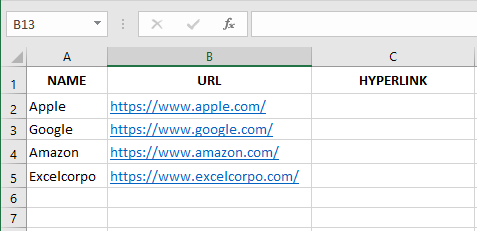
The HYPERLINK function shown below generates a result where the display text is the company name and it links to the company’s website.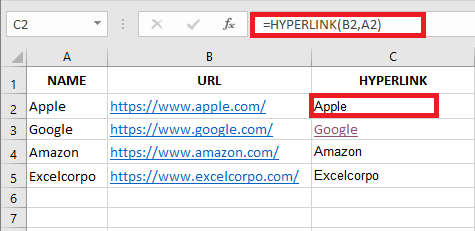
So far, we’ve seen how to create hyperlinks to websites. However, you can also create hyperlinks to worksheets within the same workbook, other workbooks, or files and folders on your hard drive.
Create a Hyperlink to a Worksheet in the Same Workbook
Here are the steps to create a hyperlink to Sheet2 within the same workbook:
Select the cell where you want to insert the hyperlink
Type the text you want to display as the hyperlink. In this example, I used the text « Link to Sheet2 »
Click the Insert tab
Click the Links button. This will open the Insert Hyperlink dialog box (you can also use the keyboard shortcut Ctrl + K)
In the Insert Hyperlink dialog box, select Place in This Document from the left pane
Enter the cell you want to hyperlink to (I’ll use A1 as the default)
Select the worksheet you want to link to (Sheet2 in this case)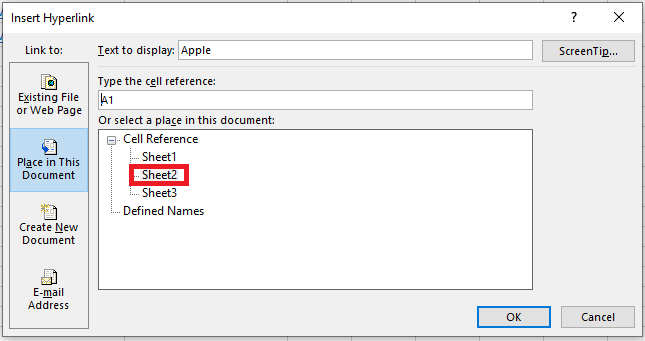
Click OK
NOTE:
You can also use the same method to create a hyperlink to any cell within the same workbook. For example, if you want to link to a distant cell (say K100), you can do so by entering that cell reference in Step 6 and selecting the appropriate worksheet in Step 7.
You can also use the same method to create a hyperlink to a named range. If you have named ranges in the workbook, they will be listed under the Defined Names category in the Insert Hyperlink dialog box.
In addition to the dialog box, Excel also provides a function that allows you to create hyperlinks.
So instead of using the dialog box, you can use the HYPERLINK formula to create a link to a cell in another worksheet. The following formula does exactly that:
Here’s how this formula works:
■ "#" tells the formula to refer to the same workbook
■ "Sheet2!A1" specifies the cell to be linked in the same workbook
■ "Link to Sheet2" is the display text in the cell
Create a Hyperlink to a File (in the Same Folder or Different Folders)
You can also use the same method to create hyperlinks to other Excel files located in the same folder or in different folders. For example, if you want to open a file named Test.xlsx located in the same folder as your current file, you can follow these steps:
Select the cell where you want the hyperlink
Click the Insert tab
Click the Links button. This opens the Insert Hyperlink dialog box (you can also use the shortcut Ctrl + K)
In the Insert Hyperlink dialog box, select Existing File or Web Page in the left pane
Choose Current Folder from the « Look in » options
Select the file you want to link to. Note that you can link to any type of file (Excel or non-Excel files)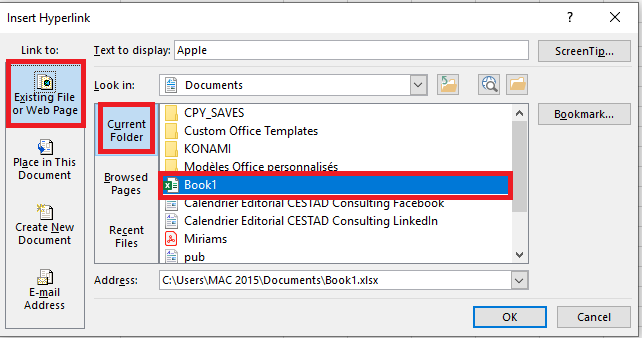
(Optional) Replace the display text if you wish
Click OK
If the file is not in the same folder, you can browse for the file and select it. To browse, click the folder icon in the Insert Hyperlink dialog box.
You can also do this using the HYPERLINK function. The formula below creates a hyperlink to a file in the same folder as the current file:
If the file is in a different folder, copy the full file path and use it as the link_location.
Create a Hyperlink to a Folder
Here are the steps to create a hyperlink to a folder:
Copy the path of the folder you want to link to
Select the cell where you want the hyperlink
Click the Insert tab
Click the Links button to open the Insert Hyperlink dialog box (or use Ctrl + K)
In the Insert Hyperlink dialog box, paste the folder path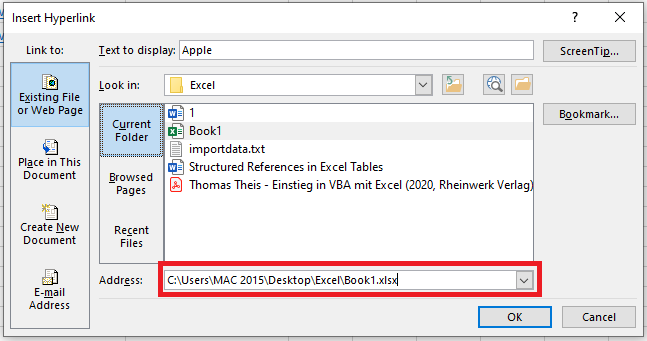
Click OK
You can also use the HYPERLINK function to create a hyperlink that points to a folder. For example, the formula below will create a hyperlink to a folder named data analysis. When you click the cell, the folder will open:
To use this formula, replace the folder path with the one you want to link to.
Create a Hyperlink to an Email Address
You can also create hyperlinks that open your default email client (such as Outlook) with the recipient’s address and subject line pre-filled.
Here are the steps to create an email hyperlink:
Select the cell where you want the hyperlink
Click the Insert tab
Click the Links button to open the Insert Hyperlink dialog box (or press Ctrl + K)
In the Insert Hyperlink dialog box, click Email Address under the « Link to » options
Enter the email address and subject line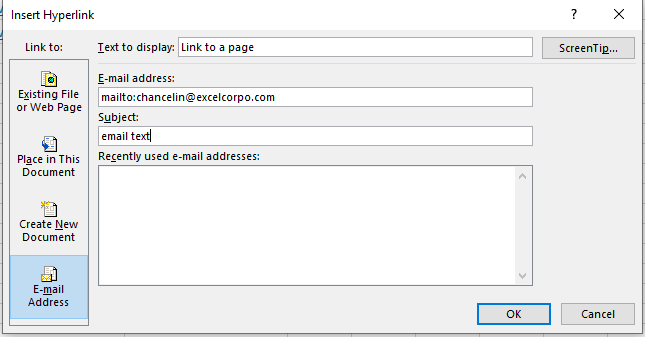
(Optional) Type the display text you want in the cell
Click OK
Now, when you click the cell containing the hyperlink, it will open your default email client with the recipient and subject line already filled in.
You can also do this using the HYPERLINK function. The formula below opens the default mail client and pre-fills the recipient’s address: