
Its returns the sum of all specified numbers or ranges.
Syntax:
SUM(number1; [number2]; …)
Arguments:
| Argument | Description |
| number1 | Required. First number or range to sum |
| number2,… | Optional. Additional values to sum (1-254 total) |
Key Features:
- Input Flexibility:
- Accepts individual numbers (=SUM(1,2,3))
- Accepts cell ranges (=SUM(A1:A10))
- Accepts mixed arguments (=SUM(A1:A5,10,B2:B4))
- Automatic Handling:
- Ignores empty cells, text, and logical values in ranges
- Converts numeric text (« 12 ») to numbers
- Treats TRUE as 1 and FALSE as 0
- Returns errors if arguments contain error values
Technical Specifications:
- Maximum 255 arguments
- Works with numbers up to 15-digit precision
- Processes up to 32,767 characters in formula text
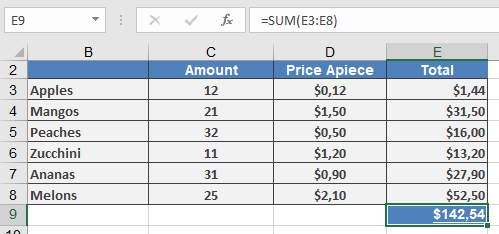
Examples:
Best Practices:
- Use the Alt+= shortcut for quick sum insertion
- For conditional sums, consider:
- SUMIF() for single criteria
- SUMIFS() for multiple criteria
- To sum only visible cells, use SUBTOTAL(9, range)
Common Errors:
| Error | Cause | Solution |
| #VALUE! | Non-numeric text argument | Verify data types |
| #REF! | Invalid reference | Check range addresses |
| #NAME? | Misspelled function | Correct to « SUM » |
Version Notes:
- Behavior consistent across all Excel versions
- Argument limit increased from 30 to 255 in Excel 2007
Related Functions:
- SUBTOTAL(): Ignore filtered/hidden rows
- SUMIF(): Conditional summation
- SUMPRODUCT(): Sum of products