
With variables and constants, you can store values. However, the limitation of using variables is that each variable can only store a single value at a time. Consider a situation where you want to store 20 values in variables. Declaring 20 variables and assigning values would be tedious and time-consuming. Therefore, variables are not a good option when a large number of values need to be stored. You can use arrays in such situations.
An array is a set of indexed data values stored sequentially. The values are stored in adjacent memory locations. Each set of data values stored as an array is treated as a separate variable. For the previous example, you can declare an array that can store 20 values. The values in an array can be referenced individually at any time in the program. All values in an array can be referenced by the same name (but with a different index number) and have the same data type. Just like variables, you must declare an array before using it.
Declaring Arrays
You can declare arrays the same way you declare variables using the Dim statement. When declaring an array, you must add a pair of parentheses to the array name. You can also specify the number of data values the array can store, i.e., the size of the array.
The syntax for declaring an array is:
Dim ArrayName(size1, size2, ...) As DataType
where the values size1, size2, … specify the size of the array, the number of indices, and the maximum allowed value for each specific index. In this case, array indexing by default starts at zero. So, the declaration:
Dim Names(5) As String
defines a one-dimensional array of 5 elements assigned the String data type, and the declaration:
Dim myArray(5, 7) As Variant
defines a two-dimensional array with 5 x 7 = 35 elements, which are Variant type variables.
You can assign any data type to an array. The default data type for an array is Variant. Each string is referenced by its index number. The index number starts at 0. The first string in the array has the index 0 and the last has the index 4:
Names(0)
Names(1)
Names(2)
Names(3)
Names(4)
VBA supports a maximum of 60 dimensions. You may want to declare a multi-dimensional array.
In many situations, you are not sure of the size of an array. However, if your estimate is too low and the array actually needs more memory than allocated, an error message is generated. On the other hand, if your estimate is too high, VBA still allocates memory to unused array slots, which wastes memory. To avoid these problems, you may need to allocate the size of an array at runtime. For example, if you want to run a procedure that will store each student’s name in a list and you don’t know how many students are in the list, you can use a dynamic array.
You can declare a dynamic array by adding an empty pair of parentheses to the array name. For example, a dynamic array Names is declared as follows:
Dim Names() As String
After declaring an array, you will want to store values in it. The next section deals with storing values in arrays.
Storing Values in an Array
To store values in an array, you must reference the array elements. Each element in an array is associated with an index number. The index number associated with a single data value in an array indicates its position in the array. The first element of an array has index 0, and the last element has an index one less than the array’s dimension. You can either address the entire set of values in an array or reference each value separately. For example, you can reference the third data element in the Names array using the following statement:
Names(2)
Similarly, you can use the index number and the assignment operator to assign a value to a specific data element in the array:
Names(2) = "Elie Chancelin"
The third element of the array Names receives the value « Elie Chancelin ».
By default, array indexing starts at 0. You can use the Option Base statement to change the default starting index. To do this, declare the Option Base statement at the beginning of the code. For example:
Option Base 2
Dim Names(5) As String
This changes the default array index from 0 to 2, giving:
Names(2)
Names(3)
Names(4)
Names(5)
Names(6)
Another way to modify the base index is by using the To keyword when declaring an array. For example:
Dim StockRate(2 To 6, 2 To 11) As Long
Dim Names(2 To 6) As String
You can change the size of an array after declaration using the ReDim statement.
Resizing an Array
Resizing an array refers to changing the size of the array. You may need to change an array’s size after declaring it. Once an array is declared, memory is allocated based on its size. If you want to increase or decrease the amount of memory allocated to the array, you can do so using the ReDim statement.
The syntax to declare and size a dynamic array is as follows:
Dim ArrayName() As DataType
ReDim ArrayName(size1, size2, ...)
Here’s an example of declaring, sizing, and using a dynamic array, and resizing it later:
Dim myArray() As Variant
ReDim myArray(1, 2)
myArray(0, 0) = 2
myArray(0, 1) = 3
k = myArray(0, 0) + myArray(0, 1)
ReDim myArray(k)
myArray(0) = "String1"
Note: In this example, myArray is first defined as a two-dimensional array of two elements, then redefined as a one-dimensional array, with the upper index limit set by the value of k.
If the array Names contains values, the ReDim statement will erase previously stored values. If you want to resize an array without erasing the previously stored values, use the ReDim Preserve statement:
ReDim Preserve Names(10)
The above statement resizes the Names array to 10 and retains the previously stored values.
Once arrays are declared and initialized, you can use them in functions and procedures like variables. For example, you may need to perform analysis based on the values stored in an array.
Extracting Information from an Array
Arrays can be used in functions and procedures to store multiple values. Array values can be extracted to perform operations on them. You must specify the index number of the array element to specify the position of the data value you want to extract. You can then use the MsgBox function to display the value stored in the array.
The following code declares an array Names, with dimension 5:
Dim Names(5) As String
The Names array stores the following data:
Names(0) = "Keukoua Elie Chancelin"
Names(1) = "Tchoutang Landry"
Names(2) = "Mbiada Vanina"
Names(3) = "Nana Kemajou Armel"
Names(4) = "Leudjeu Emilienne"
To extract the third value from the Names array and display it, use:
Names(2)
The above statement returns « Mbiada Vanina ».
Let’s now discuss the different functions and statements used to manipulate arrays.
Manipulating Arrays
VBA provides the IsArray, LBound, and UBound functions to manipulate arrays. You can also use the Erase statement to manage memory allocated to an array. The following sections describe each of these in detail.
The IsArray Function
At some point in the code, you may need to check whether a variable is an array. VBA provides the IsArray function for this.
IsArray(variableName)
The function returns True or False depending on whether the variable is an array. You can then act accordingly based on the return value.
You might also need to find the upper and lower bounds of an array. Use LBound and UBound functions.
The LBound and UBound Functions
These functions are used to find the lower and upper limits of an array. LBound retrieves the index of the first element, and UBound retrieves the index of the last element.
Syntax:
LBound(array, [dimension])
UBound(array, [dimension])
The optional dimension argument refers to the array dimension to return. The default is the first dimension.
Example:
Dim ElieChancelin(300, 200, 33) As Long
MsgBox UBound(ElieChancelin, 3)
MsgBox LBound(ElieChancelin, 1)
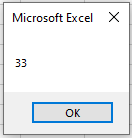
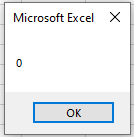
This code will display the upper bound of the 3rd dimension and the lower bound of the 1st.
Another example:
Dim A(1 To 100, 0 To 5)
MsgBox UBound(A, 1) & vbCr & UBound(A, 2)
The Erase Statement
When you declare an array, memory is automatically allocated. Arrays can be deleted when no longer needed. You can free the allocated memory using Erase.
Example:
Erase ElieChancelin
This removes the array ElieChancelin from memory.
The Array() Function
A convenient way to define one-dimensional arrays is with the Array() function, which converts a list of comma-separated items into a vector and assigns it to a Variant. You can initialize both 1D and 2D arrays using nested Array() functions.
Initialize a one-dimensional array:
Dim numberA As Variant
Dim s As Double
numberA = Array(10, 20)
s = numberA(0) + numberA(1)
MsgBox s
Initialize a multidimensional array:
Dim CityCountry As Variant
CityCountry = Array(Array("Douala", "Cameroon"), _
                    Array("Dakar", "Senegal"))
MsgBox CityCountry(0)(0)   'Displays "Douala"
MsgBox CityCountry(0)(1)   'Displays "Cameroon"v