
We can create four types of decision structures using the If statement:
■ If…Then;
■ If…Then…Else;
■ Nested If;
■ If combined with And and Or operators.
If…Then
In an If…Then block, the structure always begins with If and ends with End If. When the entered condition is true, all the statements between these two clauses are executed. If the condition is false, the code is executed from the line after the End If clause, and all previous instructions are skipped. The syntax is as follows:
If Condition Then
    Statement if condition is true
End If
The following example contains a condition that checks if the variable ProduitA is greater than 15; if so, its value will be entered in cell A5:
Sub ExempleConditionIf()
    Dim ProduitA As Integer
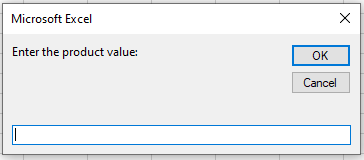
    ProduitA = InputBox("Enter the product value: ")
    If ProduitA > 15 Then
        Range("A5").Value = ProduitA
    End If
    MsgBox "See you soon!"
End Sub
Comments:
■ Once executed, this code will display an InputBox. If you enter a value greater than 15 and click OK, the condition will be true, and cell A5 will be filled with the entered value.
■ If a value less than 15 is entered, the cell will remain empty; no action will be taken.
■ Since the MsgBox command is placed after the End If statement, the message “See you soon!” will be displayed regardless of whether the condition is true or false.
It is possible to structure the If function in a single line of code. In this case, we do not use the End If clause:
If ProduitA > 15 Then Range("A5").Value = ProduitA
We can enter multiple procedures to execute if the condition is true. To do this, we must add one instruction per line, ending the block with the End If statement.
The following example contains instructions to insert the value of the variable ProduitA into cell A5 and apply italic font style to it. Then it adds 50 to the variable ProduitA and enters the result into cell A6, changes the font size of this cell to 20, and displays a message indicating that the operation was successful.
Sub ExempleConditionIf()
    Dim ProduitA As Integer
    ProduitA = InputBox("Enter the product value: ")
    If ProduitA > 15 Then
        Range("A5").Value = ProduitA
        Range("A5").Font.Italic = True
        Range("A6") = ProduitA + 50
        Range("A6").Font.Size = 20
        MsgBox "Congratulations! Operation successful."
    End If
End Sub
Comments:
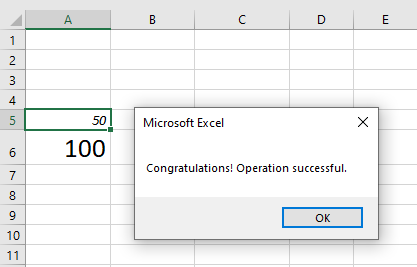
■ The following image shows the result of this code if the value entered by the user is 50.
■ Cell A5 is filled with the number 50, cell A6 with 100 (the result of 50 + 50), and a success message is displayed.
If…Then…Else
The If…Then…Else structure allows you to enter instructions to be executed not only when the condition is true but also when it is false. The block also starts with If and ends with End If, but includes an Else clause after the instructions for the true condition. All instructions between Else and End If are executed only if the condition is false.
Structure:
If Condition Then
    Instructions for true condition
Else
    Instructions for false condition
End If
Comments:
This structure is divided into three parts:
■ Condition (Required): An expression that returns either True or False. The value is considered True if the expression is correct, and False if not.
■ Instructions for the true condition: One or more instructions (separated by colons) executed if the condition returns True.
■ Instructions for the false condition: One or more instructions executed if the condition returns False.
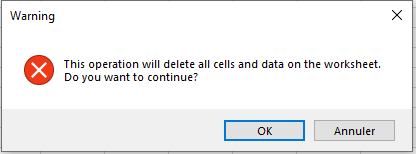
To illustrate, we’ll use MsgBox to create a message box with OK and Cancel buttons. Depending on the button clicked, a different action will occur: OK deletes all cells and data from a worksheet; Cancel cancels the operation and displays a message.
Basic deletion code:
Sub SuppressionFeuilles()
    Cells.Delete
End Sub
Now with decision logic:
Sub SuppressionFeuilles()
    Dim Decision As String
    Decision = MsgBox("This operation will delete all cells and data on the worksheet. Do you want to continue?", _
        vbOKCancel + vbCritical, "Warning")
    If Decision = vbOK Then
        Cells.Delete
        MsgBox "Cells and data deleted."
    Else
        MsgBox "Operation cancelled."
    End If
End Sub
Comments:
■ If the user clicks OK, Decision stores vbOK, making the condition true.
■ All cells and data will be deleted.
■ If Cancel is clicked, the condition is false, and only the cancellation message is shown.
You can use the ElseIf clause to test multiple conditions. The code checks each in order and executes the first that is true; if none are true, it executes the Else clause.
Structure:
If Condition1 Then
    Instructions for Condition1 = True
ElseIf Condition2 Then
    Instructions for Condition2 = True
Else
    Instructions if all conditions are False
End If
Example:
Sub ExempleIfElseif()
    Dim paiement As String
    paiement = UCase(InputBox("Specify the payment method"))
    If paiement = "D" Then
        MsgBox "Cash"
    ElseIf paiement = "C" Then
        MsgBox "Check"
    ElseIf paiement = "CC" Then
        MsgBox "Credit Card"
    Else
        MsgBox "Undefined payment. Cancel the sale!"
    End If
End Sub
Comments:
■ The message depends on the acronym entered. If the user types something else, the Else clause is executed.
■ Only uppercase values D, C, or CC are valid here. VBA is case-sensitive, so lowercase entries would not match.
■ The UCase() function is used to convert user input to uppercase to handle this case.
Nested If
You can nest If blocks—placing one If inside another. Each must end with End If.
Structure:
If Condition1 Then
    If Condition2 Then
        Instructions
    End If
End If
Example:
Sub ModeDePaiement()
    Dim commentP As String
    Dim paiement As String
    commentP = MsgBox("Cash payment?", vbYesNo)
    paiement = InputBox("Specify payment method")
    If commentP = vbYes Then
        If UCase(paiement) = "CASH" Then
            MsgBox "Offer 10% discount"
        End If
    End If
End Sub
Comments:
■ If the user clicks “Yes”, the second If is evaluated.
Combining Conditions with And and Or
Using And and Or operators allows you to check multiple conditions.
With And (all conditions must be true):
If Condition1 And Condition2 Then
    Instructions
Else
    Instructions if any condition is false
End If
Example:
Sub OperationAnd()
    Dim number As Double
    number = 10
    If number > 5 And number < 15 Then
        MsgBox "Value within range!"
    End If
End Sub
Comments:
■ number > 5 = True, number < 15 = True → Message is shown.
With Or (at least one condition must be true):
If Condition1 Or Condition2 Then
    Instructions
Else
    Instructions if all conditions are false
End If
Example:
Sub OperationOr()
    Dim amount As Byte
    Dim payment As String
    amount = 50
    payment = "cash"
    If amount > 200 Or payment = "cash" Then
        MsgBox "Offer 15% discount"
    End If
End Sub
Comments:
■ The message is shown if either the amount is above 200 or the payment method is cash.
Select Case
The Select Case statement allows decision-making where a single expression is compared against multiple possible values.
Structure:
Select Case expression
    Case value1
        Instruction 1
    Case value2
        Instruction 2
    Case Else
        Default instruction
End Select
Example:
Sub Fabricant()
    Dim Modele As String
    Modele = InputBox("Enter the car model:")
    Select Case UCase(Modele)
        Case "COROLLA"
            MsgBox "The manufacturer is Toyota."
        Case "CIVIC"
            MsgBox "The manufacturer is Honda."
        Case "FUSION"
            MsgBox "The manufacturer is Ford."
        Case Else
            MsgBox "Unable to identify the manufacturer."
    End Select
End Sub
Comments:
■ Compares the model entered by the user and displays the corresponding message.
■ If no match is found, the Case Else is triggered.
Another example with ranges:
Sub QuantiteStock()
    Dim stock As Integer
    stock = InputBox("Enter quantity:")
    Select Case stock
        Case 0 To 10
            MsgBox "Insufficient"
        Case 11 To 30
            MsgBox "Warning"
        Case Is > 30
            MsgBox "OK"
    End Select
End Sub