
What is a Procedure?
A procedure (or Sub procedure) is a piece of code that performs a set of actions or calculations, or a combination of both. It resides in a VBA module, which you access through the Visual Basic Editor (VBE). It can be a building block of a program and may sometimes need to be reused. It can be called multiple times in a VBA program.
The programmer only needs to write a procedure once, and it can then be called from anywhere in the program as many times as needed. However, it does not directly return a value; if it performs a calculation, there is no direct way to retrieve the result. It can modify variable values if parameters are passed using the ByRef statement, which will be explained later in this chapter. Most VBA code is contained in procedures.
Its syntax is as follows:
[Private | Public | Friend] [Static] Sub ProcedureName [(Arguments)]
instructions
Exit Sub
instructions
End Sub
Notes:
Just like variables, procedures also have scope:
Privateis a keyword indicating the procedure is private and its scope is at the module level. Thus, private procedures can be called by other procedures within the same module but not by procedures in other modules.Publicis a keyword indicating the procedure is open and available to all other procedures in all modules. By default, procedures are Public; in other words, using thePublickeyword is not required, but programmers often include it for clarity.Friendis a keyword, used only in a class module, to indicate that the procedure is friend-level and belongs to the project.Staticis a keyword indicating that the procedure’s variables are retained at the end of the procedure.ProcedureNameis the name of the procedure that follows standard variable naming rules. The name should describe what the procedure does. A good practice is to use a name that includes a verb and a noun. Avoid meaningless names.Argumentsis a list of parameters whose values are passed to or returned from the procedure when it is called.instructionsis a set of statements executed in the procedure.Exit Subis a statement that leads to an immediate exit from the procedure.
Example: Here’s a procedure that swaps two values:
Sub SwapValues()
    Dim CellContent As String
    CellContent = Range("A1").Value
    Range("A1").Value = Range("B1").Value
    Range("B1").Value = CellContent
End Sub
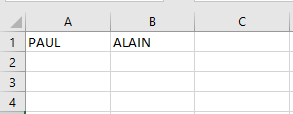
Comments:
■ First, we declare a variable called CellContent of type String.
■ We initialize CellContent with the value from cell A1 (CellContent = Range("A1").Value).
■ We can now safely write the value from cell B1 into cell A1 (Range("A1").Value = Range("B1").Value) since we stored the original value from A1 in CellContent.
■ Finally, we write the original value from A1 (stored in CellContent) into cell B1 (Range("B1").Value = CellContent).
A procedure can be of any length, but many prefer avoiding excessively long procedures that perform too many operations. You may find it easier to write several smaller procedures, each with a single objective, and then design a main procedure that calls those. This approach can make code maintenance easier.
NOTE:
With a few exceptions, all VBA statements in a module must be contained within procedures. Exceptions include variable declarations at the module level, user-defined data type definitions, and a few other statements that specify module-level options (e.g., Option Explicit).
Creating Custom Functions
In addition to Sub procedures, VBA has Function procedures (or simply functions). A Function is exactly like a procedure, except it returns a value. Functions start with Function (instead of Sub) and end with End Function (instead of End Sub). You can use these functions in your VBA code or in worksheet formulas. Functions generally return a single value (or an array), just like Excel’s built-in worksheet functions and VBA functions. Like built-in functions, your functions can use arguments.
Functions are versatile and can be used in two scenarios:
- As part of an expression in a VBA procedure
- In formulas created in a worksheet
You are undoubtedly familiar with Excel worksheet functions; even beginners know how to use common worksheet functions like SUM, AVERAGE, and IF. Excel includes over 450 built-in worksheet functions you can use in formulas. Additionally, you can create custom functions using VBA. With all the functions available in Excel and VBA, you might wonder why you’d need to create new ones. The answer is: to simplify your work. With a little planning, custom functions can be useful both in worksheet formulas and in VBA procedures.
The syntax to declare a function is:
[Public | Private | Friend] [Static] Function FunctionName _
    [(Arguments)] [As Type]
instructions
FunctionName = expression
[Exit Function]
instructions
FunctionName = expression
End Function
Comments:
The syntax of a function contains the same elements as a procedure. Therefore, the same rules apply:
- If you do not declare the scope of a function, its default is
Public. - The
Exit Functionstatement causes the function to exit immediately. - Functions declared as
Privatedo not appear in Excel’s Insert Function dialog box. Therefore, when creating a function that should only be used within a VBA procedure, you should declare itPrivateto prevent users from trying to use it in a formula. - If your VBA code needs to call a function defined in another workbook, you must set a reference to the other workbook using the Tools > References command in the VBE.
- You do not need to establish a reference if the function is defined in an add-in. Such a function is available in all workbooks.
Function names must follow the same rules as variable names. If you plan to use your custom function in a worksheet formula, avoid names that also represent cell addresses. For example, if you name a function ABC123, Excel will return a #REF! error when trying to use it in a worksheet formula because ABC123 is a valid cell address.
To call a function in an expression, use its name followed by a list of parameters in parentheses. To return a value from a function, assign a value to the function name.
Example:
Public Function SumFunction(x As Double, y As Double) As Double
    SumFunction = x + y
End Function
Comments:
- This function adds two values. Instead of passing literal values, we make the function more flexible by using variables as arguments.
- Each variable (x, y) represents a value you provide when calling the function.
- To specify the return value, assign the result to the function name (
SumFunction = x + y).
You can quickly test your custom function in the Immediate Window. To do so:
- Open the Immediate Window by choosing View > Immediate Window in the VBE or pressing Ctrl + G
- Then type:
? SumFunction(12, 13)and press Enter - The result,
25, will appear below
You can also add a function using the Add Procedure dialog box: in VBE, go to Insert > Procedure…
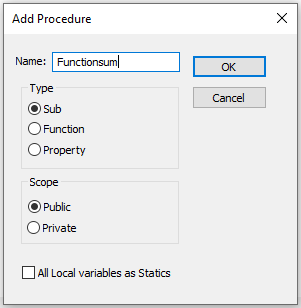
Note: The functions you create, also called User Defined Functions (UDFs), become available in the Insert Function list when entering formulas in Excel. To use a custom function:
- Go to the Formulas tab on the ribbon
- In the Function Library group, click Insert Function
- In the Insert Function dialog box, choose User Defined as the category, and select the function you created
Running a Procedure or a Function
There are two main ways to run a procedure:
- You can call the Sub procedure using the Run / Run Sub/UserForm command in the VBE menu. You can also press F5, or click the Run button on the Standard toolbar. This assumes the cursor is inside a procedure. If not, VBE will show the Macro dialog box so you can select a procedure to run.
- You can also call a procedure from Excel’s Macro dialog box by selecting Developer > Macros

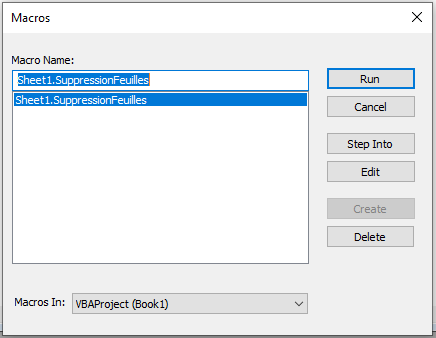
Excel’s Macro Dialog Box
You can also press Alt + F8 to access this dialog. Use the Macros in dropdown to filter the list of macros displayed.
The Macro dialog does not display the following:
- Functions
- Procedures declared with the
Privatekeyword - Procedures requiring one or more arguments
- Procedures in add-ins
- Event procedures
Once the macro is selected, click the Run button.
NOTE:
You can also run a procedure from:
- Another procedure
- An event
- The Immediate Window
- A custom context menu
- The ribbon
- A button on a worksheet
- A Quick Access Toolbar icon
- A UserForm control
While you can run a procedure in several ways, functions can only be executed in four ways:
- Called from another procedure
- Used in a worksheet formula
- Used in a formula for conditional formatting
- Called from the Immediate Window in VBE
Calling a Procedure or Function from Another
One of the most common ways to run a procedure or function is by calling it from another. If you’re new to programming, you might wonder why anyone would call a procedure or function from another one. Why not just put the code into the other procedure and keep it simple?
Reason 1: It simplifies your code. Simpler code is easier to read, debug, and modify.
Reason 2: It eliminates redundancy. Suppose you need to perform an operation in 5 different places. Instead of writing the same code 5 times, write one procedure and call it 5 times. If you need to update it, you only make one change.
You can call a procedure or function in two ways:
- Enter the procedure or function name followed by its arguments:
Name arguments
Name: the name of the procedure or functionarguments: a list of actual parameters matching in number and type with the parameter list in the procedure definition
Use the Call statement:
Call Name(arguments)
Note: When using Call, arguments must be placed inside parentheses and separated by commas. Without Call, parentheses are omitted.
A statement in a procedure can pass values to the called procedure using named arguments. Named arguments are specified as:
ArgumentName := value
Example:
Sub DemoSumFunction()
    MsgBox SumFunction(12, 13)
End Sub

Public Function SumFunction(x As Double, y As Double) As Double
    SumFunction = x + y
End Function
Comments:
- When
SumFunction = x + yis executed inside the function, VBA returns to theDemoSumFunctionprocedure and usesMsgBoxto display the result. - More information about
MsgBoxis available in Chapter 5.
Parameters and Arguments of Procedures or Functions
The arguments of a procedure or function provide it with data it uses in its instructions. The data passed through an argument can be a variable, a constant, an expression, an array, or an object.
You are probably familiar with many Excel worksheet functions. The arguments of procedures or functions are similar. Thus, a procedure or function may require no arguments, a fixed number of arguments, accept an indefinite number of arguments, may require some arguments while leaving others optional, or have all arguments optional.
For example, some Excel worksheet functions, such as RAND and NOW, use no arguments. Others, like COUNTIF, require two arguments. Still others, like SUM, can use up to 255 arguments. Some worksheet functions have optional arguments. The PV function, for instance, can have five arguments (three are required; two are optional).
Most procedures you have seen so far in this book have been declared without arguments. They have been declared with just the Sub keyword, the procedure name, and a set of empty parentheses. The empty parentheses indicate that the procedure accepts no arguments.
Each argument name refers to the value you provide when the function is called. When a procedure calls a function, it passes the required arguments as variables. Once the function is executed, the result is assigned to the function name. Note that the function name is used as if it were a variable. Like variables, functions can have types. The type of your function can be String, Integer, Long, etc. To specify the data type of your function’s result, add the keyword As and the desired data type name at the end of the function declaration line.
The parameter and argument list follows the syntax:
[Optional] [ByVal | ByRef] [ParamArray] myVariable()[As Type] [= DefaultValue]
■ Optional is a keyword indicating that the parameter is optional. When using this element, all subsequent parameters in the argument list must also be optional and described using the Optional keyword. All parameters described as optional must be of type Variant. The Optional keyword is not allowed for any parameters if the ParamArray keyword is specified.
■ ByVal is a keyword indicating that this parameter is passed by value.
■ ByRef is a keyword indicating that this parameter is passed by reference. ByRef is the default in VBA.
■ ParamArray is a keyword used only as the last item in the argument list to indicate that the final parameter is an array of Variant values described as optional. It cannot be used with the keywords ByVal, ByRef, or Optional.
■ Type is the type of parameter values passed to the procedure. Valid values: Byte, Boolean, Integer, Long, Currency, Single, Double, Date, String (variable-length only), Object, Variant. If the Optional keyword is missing, a user-defined type or object type can also be specified.
■ DefaultValue sets the default value the parameter takes. If Object is specified, the only default value is Nothing.
Passing Arguments by Reference and by Value
In some procedures or functions, when you pass arguments as variables, Visual Basic may modify the values of those variables. To ensure that the called function does not modify the values of passed arguments, you must precede the argument name in the function declaration line with the keyword ByVal. Let’s take a look at the following macro:
Sub ByValRefProcedure()
    Dim number1 As Double, number2 As Double
    number1 = 15
    number2 = 35
    MsgBox AverageValue(number1, number2)
    MsgBox number1
    MsgBox number2
End Sub

Function AverageValue(ByVal number1, ByVal number2)
    number1 = number1 + 1
    AverageValue = (number1 + number2) / 2
End Function
Comments
■ To prevent the function from modifying argument values, use the ByVal keyword before the argument names.
■ The ByValRefProcedure procedure assigns values to two variables, then calls the Average function to calculate and return the average of the numbers stored in these variables.
■ The function arguments are the variables number1 and number2. Note that all function arguments are preceded by the ByVal keyword. Also note that before calculating the average, the Average function modifies the value of the variable number1.
■ In the function, number1 becomes 16 (15 + 1). Therefore, when the function returns the calculated average to the ByValRefProcedure, the MsgBox function displays the result 25.5, not 25 as expected. The next two MsgBox functions display the contents of each variable. The values stored in these variables are the same as the original values assigned to them: 15 and 35.
What happens if you omit the ByVal keyword before the argument number1 in the function declaration line of Average? The function’s result will still be the same, but the content of the variable number1 displayed by MsgBox will now be 16. The Average function not only returned an unexpected result (25.5 instead of 25) but also modified the original data stored in the variable number1. To prevent Visual Basic from permanently changing the values passed to the function, use the ByVal keyword.
Since one of the variables passed to a procedure or function can be modified by the receiving procedure, it is important to know how to protect the original value of a variable. Visual Basic has two keywords: ByRef and ByVal, which respectively grant or deny permission to modify a variable’s content.
By default, Visual Basic passes information to a procedure or function by reference (ByRef keyword), referencing the original data specified in the function’s argument when the function is called. So, if the function changes the argument’s value, the original value is changed. This is what happens if you omit the ByVal keyword before the argument number1 in the Average function.
If you want the function to modify the original value, you don’t need to explicitly insert the ByRef keyword, since variables are passed ByRef by default. When you use the ByVal keyword before an argument name, Visual Basic passes the argument by value.
This means Visual Basic makes a copy of the original data and passes this copy to the function. If the function changes the value of a passed-by-value argument, the original data does not change—only the copy does. That’s why, when the Average function modified the value of the number1 argument, the original value of the number1 variable remained the same.
Function Examples
Function construction can be as simple or as complex as needed. Nevertheless, reviewing some examples can help you understand what’s going on.
The Maximum of Two Numbers
The following example calls the MaxValue() function. It determines the maximum of the two passed parameters and returns it to the call point.
Sub ExampleFunction()
    Dim x As Integer, y As Integer, z As Integer
    x = 15
    y = 40
    z = MaxValue(x, y)
    MsgBox z
End Sub

Function MaxValue(a As Integer, b As Integer) As Integer
    If a > b Then
        MaxValue = a
    Else
        MaxValue = b
    End If
End Function
Comments
■ With the instruction z = MaxValue(x, y), the following operations occur:
– The MaxValue() function is called, and two numeric values are transferred to the function.
– Inside the function, the maximum of these two numbers is determined using an If…Else condition and stored as the function’s return value.
– The function ends and program control returns to the calling line.
– The determined value is assigned to the variable z.
■ If the instruction had been just MaxValue(x, y), all these steps would have occurred except for the assignment to z. In this case, calling the function would have been pointless—a common beginner error.
The MaxValue() function can also be used in a worksheet. For example, enter in a cell: =MaxValue(A1, B1), and the expected result will appear.
Calculating the Last Day of the Month
The following EndOfMonth() function calculates the last day of the month for a specific year. As is known, the result is 30 or 31 depending on the month. For February, the result is 29 for leap years, otherwise 28. First, a test procedure that calls the EndOfMonth() function:
Sub EndOfMonthTest()
    ThisWorkbook.Worksheets("Sheet3").Activate
    Range("C3").Value = _
    EndOfMonth(Range("C1").Value, Range("C2").Value)
End Sub

Function EndOfMonth(Year As Integer, Month As Integer)
    If Month = 2 Then
        If Year Mod 4 = 0 And Year Mod 100 <> 0 _
        Or Year Mod 400 = 0 Then
            EndOfMonth = 29
        Else
            EndOfMonth = 28
        End If
    ElseIf Month = 4 Or Month = 6 Or Month = 9 Or Month = 11 Then
        EndOfMonth = 30
    Else
        EndOfMonth = 31
    End If
End Function
Comments
■ The two values for year and month are passed to the parameters Year and Month when the function is called.
■ If it’s February, the Mod operator checks whether the year is a leap year, meaning the year:
– is divisible by 4, but not by 100 without a remainder
– or is divisible by 400 without a remainder
Otherwise, the value is 30 or 31 depending on the month.
■ In the expression Year Mod 4 = 0 And Year Mod 100 <> 0 Or Year Mod 400 = 0, the following precedence applies to operators, from highest:
– Mod arithmetic operator
– Comparison operators = or <>
– Logical operator And
– Logical operator Or
Parentheses must not be used under any circumstances.
Voici la suite et fin de la traduction exacte en anglais :
Optional Parameters
The number and order of parameters in the call and declaration of a procedure (or function) must match. However, you can also use optional parameters. These do not need to be specified when calling the function.
Parameters are identified in the parameter list using the Optional keyword, must always be placed at the end of the parameter list, and can be initialized with a value.
In the following example, the Add() function is called three times in total: once with two parameters, once with three, and once with four. It calculates the sum of the transferred parameters and returns it.
Sub OptionalParameter()
    Dim a As Double, b As Double, c As Double, d As Double
    a = 3
    b = 10
    c = 15
    d = 7
    MsgBox Add(a, b, c, d)
    MsgBox Add(a, b, c)
    MsgBox Add(a, b)
    ' MsgBox Add(a)
End Sub

Function Add(x As Double, y As Double, _
    Optional z As Double = 0, Optional q _
    As Double = 0) As Double
    Add = x + y + z + q
End Function
Comments
■ The Add() function expects a total of four parameters of type Double. The last two parameters are optional. You can initialize optional parameters with a default value.
■ If the last two parameters are not specified when calling the function, they take the default value of 0.
■ For procedures or functions with optional parameters that must perform other tasks, different default values may be useful for initialization.
■ In the OptionalParameter() procedure, the Add() function is called with four, three, or two parameters. In all cases, this successfully leads to addition and the output of the values.
■ A call with only one parameter would have caused an error message since the parameter y is not optional.
Any Number of Parameters
Using the ParamArray keyword, you can define a procedure (or function) to which any number of parameters can be passed. ParamArray is incompatible with Optional, so you must choose one of the two options.
In the following example, the Average() function is called three times in total: once with no parameters, once with two, and once with four parameters. It calculates the average of the transferred parameters and returns it.
Sub ParamArrayExample()
    Dim a As Double, b As Double, c As Double, d As Double
    a = 3
    b = 10
    c = 15
    d = 7
    MsgBox Average()
    MsgBox Average(a, b)
    MsgBox Average(a, b, c, d)
End Sub

Function Average(ParamArray x() As Variant) As Double
    Dim i As Integer
    Dim total As Double
    Dim count As Double
    For i = 0 To UBound(x)
        total = total + x(i)
    Next
    count = UBound(x) + 1
    If count > 0 Then Average = total / count
End Function
Comments
■ The Average() function is called with a different number of parameters (0, 2, and 4).
■ The parameter array x (using ParamArray) is used to store the parameters. It is a data array, and its size is not fixed. This data array must be of data type Variant.
■ In the function, the parameters are summed using a loop. The upper bound of the loop (i.e., the highest index value) is determined using the UBound() function. First, you must determine the number of elements in the parameter array.
■ As is known, the average of a series of numbers is the sum of the values divided by their count. If the function is called without parameters, UBound() returns the value -1. A division by zero would occur in that case. It is important to avoid this.
■ If a value cannot be determined for the function during execution, the initial value applies—just like with variables. In the interest of clean programming style, this should be avoided. A function should always receive an explicit value during its course.
There is also the LBound() function, which you can use to determine the lower bound—that is, the lowest value—for the index of an array. The UBound() and LBound() functions can determine these indices for all dimensions of a one- or multi-dimensional array. They have an optional second parameter, the dimension number (1, 2, 3 …). If not specified, the limit for the first dimension is determined, as in the Average() function given above.
Using the Function in a Worksheet
Let’s take the example of a function called REMOVEVOWELS. This function removes all vowels from a sentence.
Function REMOVEVOWELS(text As String) As String
    ' Convert all vowels in the text argument to uppercase
    Dim i As Long
    REMOVEVOWELS = ""
    For i = 1 To Len(text)
        If Not UCase(Mid(text, i, 1)) Like "[AOEIU]" Then
            REMOVEVOWELS = REMOVEVOWELS & Mid(text, i, 1)
        End If
    Next i
End Function
Comments
■ This custom function uses a single argument (text), enclosed in parentheses. As String defines the data type of the function’s return value. Excel uses the Variant data type if no data type is specified.
■ The first line in the For-Next loop uses VBA’s Mid function to return a single character from the input string and converts this character to uppercase using the UCase function. This character is then compared to a list of characters using Excel’s Like operator. In other words, the If clause is true if the character is not A, E, I, O, or U. In that case, the character is appended to the variable REMOVEVOWELS.
■ When the loop is finished, REMOVEVOWELS consists of the input string with all vowels removed. This string is the value returned by the function.
This function is certainly not the most useful one, but it demonstrates some key concepts related to functions.
When you enter a formula that uses the REMOVEVOWELS function, Excel executes the code to obtain the value returned by the function. Here is an example of using the function in a formula:
=REMOVEVOWELS(A1)
See the following figure for examples of this function in action. The formulas are in column C and they use the text from column B as arguments. As you can see, the function returns the input string with the vowels removed.
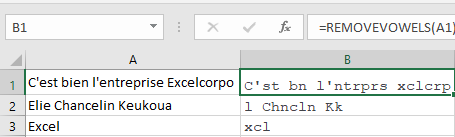
The REMOVEVOWELS function works just like any built-in worksheet function. You can insert it into a formula. You can also nest custom functions and combine them with other elements in your formulas.
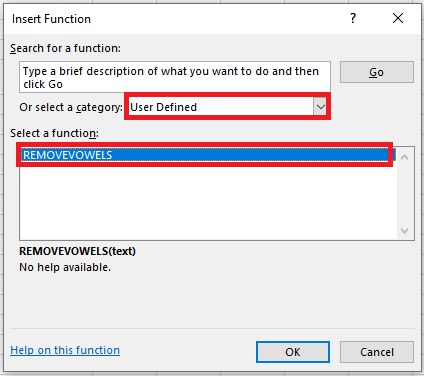
In the Insert Function dialog box, your custom functions are located by default in the User Defined category, as shown in the following figure.
Insert Function dialog box
In addition to using custom functions in worksheet formulas, you can also use them in other VBA procedures.
What Custom Worksheet Functions Cannot Do
When developing custom functions, it’s important to understand a key distinction between functions you call from other VBA procedures and those you use in worksheet formulas. Functions used in worksheet formulas must be passive. For example, the code of a function cannot manipulate ranges or modify worksheet elements.
You may be tempted to write a custom worksheet function that changes a cell’s formatting. For example, it may be useful to have a formula that uses a custom function to change the text color in a cell based on its value. No matter how hard you try, such a function is impossible to write. Whatever you do, the function will not change the worksheet. Remember: a function simply returns a value. It cannot perform actions on objects.
That said, there is one notable exception. You can modify the text of a cell comment using a custom VBA function.
Managing the Insert Function Dialog Box
Excel’s Insert Function dialog box is a useful tool. When creating a worksheet formula, this tool lets you select a particular worksheet function from a list of functions. These functions are grouped into different categories to make it easier to locate a particular one. When you select a function and click OK, the Function Arguments dialog box appears to help you enter the function’s arguments.
The Insert Function dialog box also displays your custom worksheet functions. By default, custom functions are listed under the User Defined category. The Function Arguments dialog prompts you to enter arguments for the custom function.
You can also search for a function by keyword in the Insert Function dialog. Unfortunately, you cannot use this search feature to find VBA custom functions.
Using the MacroOptions Method
You can use the MacroOptions method of the Application object to make your functions appear as built-in or user-defined functions (UDFs). Specifically, this method allows you to do the following:
■ Provide a description of the function.
■ Specify a function category.
■ Provide descriptions for the function’s arguments.
The syntax for the MacroOptions method is:
Application.MacroOptions Macro, Description, HasMenu, MenuText, HasShortcutKey, ShortcutKey, Category, StatusBar, HelpContextID, HelpFile, ArgumentDescriptions
Where:
- Macro – The name of the macro or user-defined function.
- Description – The description text.
- HasMenu – This argument is ignored.
- HasShortcutKey – Allows you to assign a shortcut key to your macro. If false, no shortcut key is assigned. Default is false.
- ShortcutKey – Contains the actual shortcut key when
HasShortcutKeyis true. - Category – An integer specifying the function category. You can also use a string for a custom category. If you use a name that matches a built-in category name, it maps to that category.
- StatusBar – The macro’s status bar text.
- HelpContextID – An integer specifying the help topic context ID.
- HelpFile – The name of the help file that contains the help topic.
- ArgumentDescriptions – (Added in 2010) A one-dimensional array containing descriptions of the user-defined function’s arguments. These are displayed in the Function Arguments dialog.
Another useful benefit of using the MacroOptions method is that it enables Excel to automatically correct the capitalization of your functions. For example, if you create a function called MyFunction and you enter the formula =myfunction(a), Excel will automatically change the formula to =MyFunction(a). This behavior provides a quick way to check if you’ve misspelled the function name. (If the lowercase letters are not corrected automatically, the function name is misspelled.)
Here is an example procedure that uses the MacroOptions method to provide information about a function:
Sub DescribeFunction()
    Dim strFunction As String   ' Name of the function you want to register
    Dim strDescription As String   ' Description of the function
    Dim strCategory As Long
    Dim strArguments() As String ' Description of function arguments

    ' LINEARINTER: 2D linear interpolation function
    ReDim strArguments(1 To 3) 'Upper limit is number of function arguments
    strFunction = "LINEARINTER"
    strDescription = "2D linear interpolation function that automatically selects the range" & _
                     " to interpolate between based on the KnownX value closest" & _
                     " to the NewX value for which you want to interpolate."
    strCategory = 3
    strArguments(1) = "1D range containing your known Y values."
    strArguments(2) = "1D range containing your known X values."
    strArguments(3) = "The value for which you want to perform linear interpolation."

    Application.MacroOptions Macro:=strFunction, _
                             Description:=strDescription, _
                             ArgumentDescriptions:=strArguments, _
                             Category:=strCategory
End Sub

Function LINEARINTER(ByVal KnownY As Range, ByVal KnownX As Range, NewX As Variant) As Double
End Function
Comments
■ You’ll notice we defined 3 variables at the top of the DescribeFunction macro:
– strFunction: The name of the function you want to register
– strDescription: A description of what the function does
– strArguments: An array containing the description of each argument of the function
If your user-defined function has 3 arguments, you must size the strArguments array with 3 elements and add a description for each one. We do this with the ReDim command, but you could also do it during the initial declaration if you prefer.
■ The function is assigned to category 3 (Math & Trig).
■ In this example, we’re not writing the actual code for the LINEARINTER function since that’s not the point of this section.
■ You need to run the DescribeFunction procedure only once. After that, the information assigned to the function is stored in the workbook. You can also omit arguments in the MacroOptions method if you don’t need them. For example, if you don’t need descriptions for the arguments, just omit the ArgumentDescriptions argument in the code.
You’re not required to place your UDFs into new categories. In fact, you don’t have to include the Category argument at all when calling MacroOptions. If you omit the Category argument completely, your custom function will appear in a new category named User Defined. Each of these categories is assigned an integer that you can refer to instead of a string.
Function Categories
| Integer | Category |
|---|---|
| 1 | Financial |
| 2 | Date & Time |
| 3 | Math & Trig |
| 4 | Statistical |
| 5 | Lookup & Reference |
| 6 | Database |
| 7 | Text |
| 8 | Logical |
| 9 | Information |
| 10 | Commands |
| 11 | Customizing |
| 12 | Macro Control |
| 13 | DDE/External |
| 14 | User Defined |
| 15 | First Custom Category |
The following figure shows the Insert Function and Function Arguments dialog boxes after executing this procedure.
Manually Adding a Function Description
Instead of using the MacroOptions method to provide a function description, you can use the Macro dialog box.
If you don’t provide a description for your custom function, the Insert Function dialog displays « No help available ».
Follow these steps to provide a description for a custom function:
- Create your function in the VBE.
- Activate Excel, making sure the workbook containing the function is the active workbook.
- Choose Developer / Macros (or press Alt+F8). The Macro dialog lists available procedures, but your function won’t appear in the list.
- In the Macro Name box, type the name of your function.
- Click the Options button to display the Macro Options dialog box.
- In the Description field, enter the function description. The Shortcut Key field is not relevant for functions.
- Click OK, then click Cancel.
After performing these steps, the Insert Function dialog will display the description you entered in step 6 when the function is selected.