
The COUNTBLANK function calculates the number of empty cells within a specified range in a worksheet.
The COUNTBLANK function requires a single argument:
=COUNTBLANK(range)
Range (Required Argument): This specifies the cell range where blank cells should be counted.
USING THE COUNTBLANK FUNCTION
Let’s determine the number of blank cells in the table below using the COUNTBLANK function.
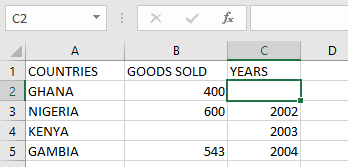
To count blank cells, follow these steps:
- Select an empty cell and enter:
=COUNTBLANK(A1:C5)
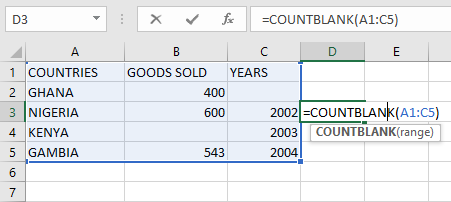
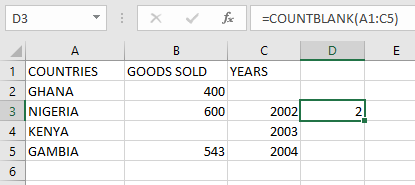
- Press Enter to display the result: 2 (as shown in the table below).
NOTE: Important notes when using the COUNTBLANK function:
- Excludes cells containing text, numbers, errors, or other non-blank values
- Counts cells with formulas that return empty results as blank
- Does not count cells containing zeros (0) as blank