
The COLUMN function returns the column number of a specified cell reference within a worksheet. This function provides the numerical position of a column in Excel’s grid system.
Syntax:
=COLUMN([reference])
Argument:
- reference (Optional):
The cell or range for which you want to determine the column number.- If omitted, returns the column number of the cell containing the formula.
USING THE COLUMN FUNCTION
Example: Finding Column Numbers
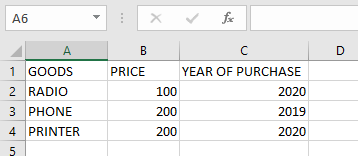
To find the column number of cell A4:
- Select a blank cell
- Enter the formula:
=COLUMN(A4)
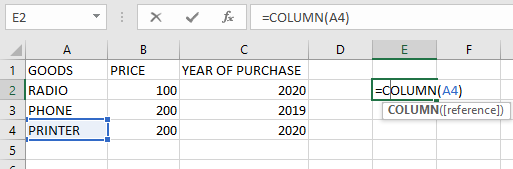
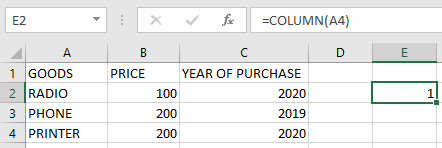
- Press Enter and the column number will be displayed
To find the column number of cell B3:
- Select a blank cell
- Enter the formula:
=COLUMN(B4)
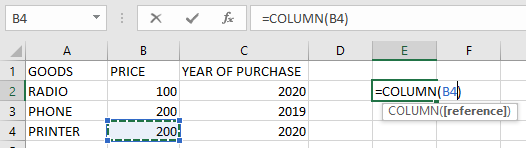
- Press Enter → Returns 2 (B is the second column)
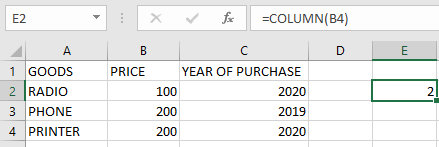
To find the column number of cell C1:
- Select a blank cell
- Enter the formula:
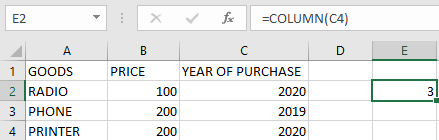
=COLUMN(C4)
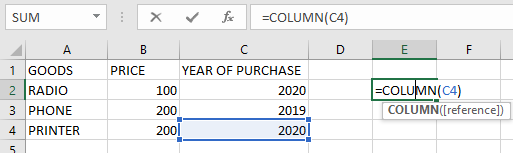
- Press Enter → Returns 3 (C is the third column)
Using COLUMN without reference:
=COLUMN()
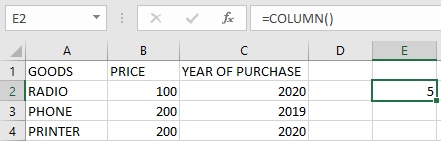
Returns the column number of the cell containing this formula.
IMPORTANT NOTES:
- Single Reference Only:
- Cannot process multiple cell references simultaneously
- Reference Types Accepted:
- Works with single cells or range references
- Returns the leftmost column number for ranges
- Optional Argument:
- When omitted, automatically references the formula cell
- Practical Applications:
- Useful in combination with other functions like INDEX, OFFSET
- Helps create dynamic column references in formulas