
The IFS function serves as an alternative to nested IF functions. This function evaluates one or more conditions and returns the value corresponding to the first TRUE condition found.
The IFS function operates using the following syntax:
=IFS(Logical_test1; Value1; [Logical_test2, Value2]; …; [Logical_test127; Value127])
Arguments:
- Logical_test1 (Required): The first condition Excel evaluates as TRUE or FALSE
- Value1 (Required): The result returned if Logical_test1 is TRUE
- Additional logical tests and values (Optional): You can include up to 127 condition/value pairs
USING THE IFS FUNCTION
Let’s apply the IFS function to assign letter grades based on student marks from the table below:
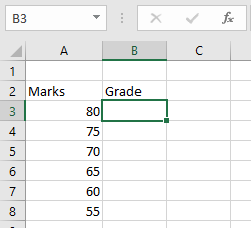
To assign grades:
- Select an empty cell
- Enter the formula:
=IFS(A3>75; »A »; A3>70; »B »; A3>65; »C »; A3>60; »D »; A3>55; »E »; A3>50; »F »)
- Press Enter to see the grade for the first student
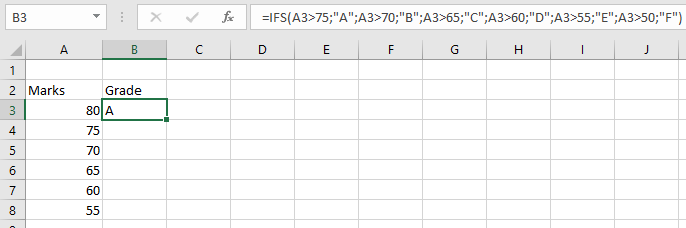
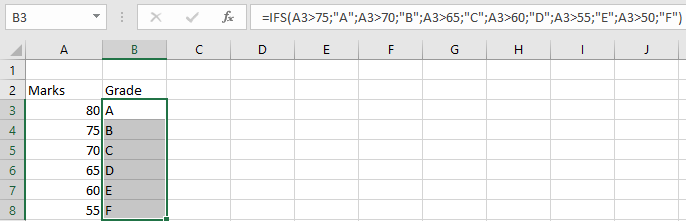
To apply this to other students:
- Use the fill handle to drag the formula down to adjacent cells
IMPORTANT NOTES ABOUT THE IFS FUNCTION
- #N/A Error: Occurs when none of the specified conditions are met
- #VALUE! Error: Appears when a logical test returns a value that isn’t TRUE or FALSE
- Evaluation Order: The function checks conditions sequentially and stops at the first TRUE result
- Default Case: Unlike IF, IFS doesn’t have a built-in « else » clause – all possible outcomes must be explicitly defined