
Converts a date stored as text into a serial number that Excel recognizes as a date.
Syntax
DATEVALUE(date_text)
Arguments
- date_text (required): A text string representing a date in any valid Excel date format.
Background
- Essential for converting imported or text-formatted dates into numeric values for calculations.
- While Excel often auto-converts text dates, DATEVALUE() ensures reliability with:
- Imported data
- Third-party add-in outputs
- Non-standard date formats
Key Features
- Date Systems:
- Windows (1900 system): Accepts dates from 1/1/1900 to 12/31/9999
- Mac (1904 system): Accepts dates from 1/1/1904 to 12/31/9999
- Out-of-range dates: Return #VALUE! error
- Partial Dates:
- Missing year: Uses current system year
- Missing day: Defaults to 1st of month
- Time values: Always ignored
- Format Flexibility:
- Supports multiple text date formats (MM/DD/YYYY, DD-MM-YYYY, Month YYYY, etc.)
Examples
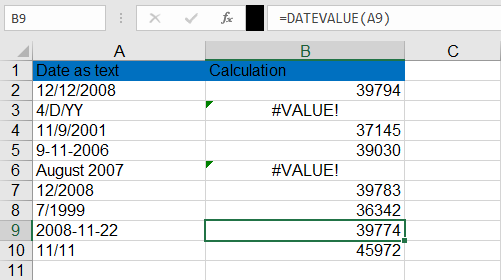
| Formula | Result (Windows) | Notes |
| =DATEVALUE(« 12/12/2008 ») | 39794 (displays as 12/12/2008) | Full date conversion |
| =DATEVALUE(« 11/11 ») | 11/11/[current year] | Auto-fills current year |
| =DATEVALUE(« August 2007 ») | 08/01/2007 | Month-year becomes 1st of month |
| =DATEVALUE(« 2008/11/22 ») | 11/22/2008 | Handles YYYY/MM/DD format |
as shown below;
Note: Combine with error checking for imported data:
=IFERROR(DATEVALUE(A2), « Invalid Date »)