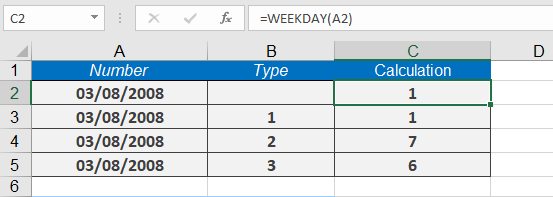
This function converts a date (serial number) into a weekday number, returning an integer from 1 (Sunday) to 7 (Saturday) by default.
Syntax:
WEEKDAY(serial_number, [return_type])
Arguments:
- serial_number (required): The date for which to calculate the weekday number.
- return_type (optional): A number (1, 2, or 3) that determines the numbering system for weekdays:
- 1 (or omitted): 1 = Sunday, 2 = Monday, …, 7 = Saturday (default).
- 2: 1 = Monday, 2 = Tuesday, …, 7 = Sunday.
- 3: 0 = Monday, 1 = Tuesday, …, 6 = Sunday.
additional return types are available:
-
- 11: 1 = Monday, 2 = Tuesday, …, 7 = Sunday.
- 12: 1 = Tuesday, 2 = Wednesday, …, 7 = Monday.
- 13: 1 = Wednesday, 2 = Thursday, …, 7 = Tuesday.
- 14: 1 = Thursday, 2 = Friday, …, 7 = Wednesday.
- 15: 1 = Friday, 2 = Saturday, …, 7 = Thursday.
- 16: 1 = Saturday, 2 = Sunday, …, 7 = Friday.
- 17: 1 = Sunday, 2 = Monday, …, 7 = Saturday.
Background:
Use WEEKDAY() to extract the day of the week from a date. As an alternative, the TEXT() function can return the weekday as a text string (e.g., =TEXT(TODAY(), « dddd »)).
Example:
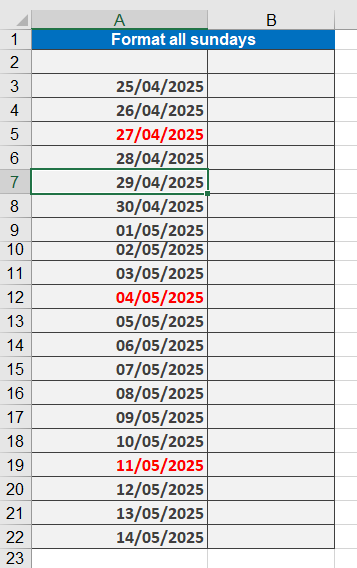
To highlight Sundays in red within a date column:
- Select the date column.
- Apply conditional formatting:
- Go to Format > Conditional Formatting, select Formula, and enter:
=WEEKDAY(A1, 1) = 1
- Go to Format > Conditional Formatting, select Formula, and enter:
OR
- Click Conditional Formatting > New Rule > « Use a formula », then enter the formula above.
- Set the formatting to red.
Enter the formula
=WEEKDAY($B11,1)=1
and click the Format button to format the text
The following examples show how the type parameter works:
=WEEKDAY(« 08/03/2008 »,1) returns 1 (Sunday).
=WEEKDAY(« 08/03/2008 »,2) returns 7.
=WEEKDAY(« 08/03/2008 »,3) returns 6.