
This function extracts the four-digit year (1900–9999) from a date value.
Syntax:
YEAR(serial_number)
Arguments:
- serial_number (required): The date from which to extract the year. This can be:
- A date serial number
- A reference to a cell containing a date
- A date string in Excel-recognized format
Background:
The YEAR() function is one of Excel’s date component functions (along with MONTH() and DAY()). It:
- Returns values from 1900 to 9999
- Follows the Gregorian calendar
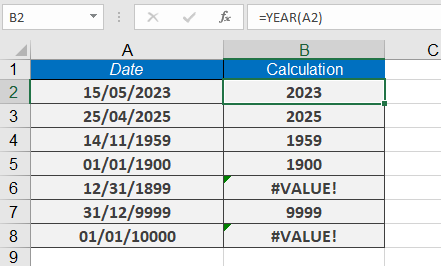
- Returns #VALUE! for invalid dates (before 1/1/1900 or after 12/31/9999)
- Is commonly used with other date functions for calculations and analysis
Examples:
- Basic extraction:
=YEAR(« 5/15/2023 ») returns 2023 - With TODAY():
=YEAR(TODAY()) returns current year (e.g., 2023) - Edge cases:
=YEAR(« 1/1/1900 ») returns 1900
=YEAR(« 12/31/9999 ») returns 9999
=YEAR(« 1/1/1899 ») returns #VALUE!
Notes:
- For pre-1900 dates, consider using TEXT() or other methods
- Combine with MONTH() and DAY() for complete date breakdown
- Useful for filtering, sorting, and conditional formatting by year
Common Errors:
- #VALUE! if input isn’t a valid date
- Incorrect results if dates are entered as text without proper formatting