
The following procedure saves the current workbook in two different ways:
Sub SaveWorkbook()
    ThisWorkbook.Save
    ThisWorkbook.SaveAs "C:\Users\MAC 2015\Desktop\woorbook.xls"
    MsgBox "Saved: " & ThisWorkbook.Saved
End Sub
Explanation:
This macro performs two main saving actions using VBA:
- ThisWorkbook.Save
This line calls the Save method on the ThisWorkbook object, which refers to the workbook containing the macro. It saves the current state of the workbook using its existing name and location. If the workbook hasn’t been saved before (i.e., it’s a new workbook), this would usually trigger a save prompt or fallback to a default path. - ThisWorkbook.SaveAs « C:\Users\MAC 2015\Desktop\titanic.csv »
This command performs a « Save As » operation, creating a copy of the current workbook under the new name Workbook2.xlsm in the specified folder C:\Users\MAC 2015\Desktop.
⚠️ After this line is executed, your VBA session continues within this newly saved copy. That is, any further operations now apply to Workbook2.xlsm, not the original file. - MsgBox « Saved: » & ThisWorkbook.Saved
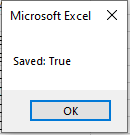
This displays a message box showing the status of the workbook’s Saved property. This property is a Boolean (True or False) that indicates whether the workbook has unsaved changes:- True means the workbook is currently saved (no changes made since last save).
- False means the workbook has been modified and those changes haven’t been saved yet.
Since the workbook was just saved (twice), the Saved property should return True at this point.
Note:
You can use the Saved property in conditional logic (like If…Then statements) to determine whether saving is necessary. For instance, if ThisWorkbook.Saved = False, it would be a good idea to prompt the user to save the workbook to avoid losing changes.