
As explained earlier in Section 2.4.3 (« Moving or Copying Cell Contents »), it’s possible to copy the content of cells to the clipboard. This becomes especially useful when you want to copy only specific parts of a cell’s content—such as just the values or just the formats, rather than everything.
The following VBA example illustrates how to do exactly that:
VBA Example: Copying Only Values or Only Formats
Sub CopyCellParts()
    ThisWorkbook.Worksheets("Sheet1").Activate
    ' Copy values only from A1:A2 to C1:C2
    Range("A1:A2").Copy
    Range("C1").PasteSpecial xlPasteValues
    ' Copy formatting only from A5:A6 to C5:C6
    Range("A5:A6").Copy
    Range("C5").PasteSpecial xlPasteFormats
End Sub
Explanation of the Procedure:
- Activating the Worksheet:
The macro starts by activating the « Sheet1 » worksheet to ensure all operations are performed on the correct tab. - Copying Only the Cell Values:
- Range(« A1:A2 »).Copy
- Range(« C1 »).PasteSpecial xlPasteValues
-
- This copies the range A1:A2 to the clipboard.
- Then, it pastes only the cell values (no formulas, no formatting) into the target range starting at C1.
Copying Only the Cell Formats:
Range(« A5:A6 »).Copy
Range(« C5 »).PasteSpecial xlPasteFormats
-
- This copies the formatting (such as font style, background color, borders) from the cells A5:A6.
- These formats are pasted onto the cells starting from C5, without affecting the existing values there.
Visual Outcome:
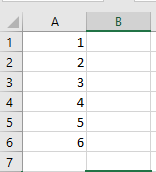
- Before Running the Procedure:
The cells A1:A2 and A5:A6 contain both values and formatting.
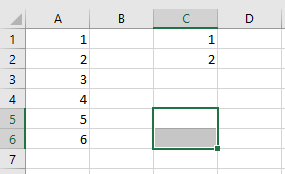
- After Running the Procedure:
- C1:C2 will contain only the values from A1:A2, with default formatting.
- C5:C6 will have their appearance updated to match A5:A6, but their original content remains unchanged.
Why Use PasteSpecial?
The PasteSpecial method gives you fine control over what part of the copied cell content is pasted:
| PasteSpecial Parameter | Description |
| xlPasteValues | Pastes only the plain values |
| xlPasteFormats | Pastes only formatting (e.g., colors) |
| xlPasteFormulas | Pastes only the formulas |
| xlPasteColumnWidths | Pastes the column width of source |
| xlPasteAll (default) | Pastes everything (same as .Paste) |
By using PasteSpecial, your VBA code becomes more precise, efficient, and less prone to disrupting unintended parts of the worksheet.