
The following VBA procedure demonstrates how to delete specific parts of cell content from a worksheet—whether that be the content itself, the formatting, or everything including comments.
VBA Example: Clearing Different Aspects of Cell Content
Sub ClearCellContent()
    ThisWorkbook.Worksheets("Sheet1").Activate
    ' Clear everything: values, formatting, and comments
    Range("A1:A2").Clear
    ' Clear only the values; keep formatting and comments
    Range("A3:A4").ClearContents
    ' Clear only the formatting; keep values and comments
    Range("A5:A6").ClearFormats
End Sub
Explanation of the Procedure:
Worksheet Activation:
The macro begins by activating the « Sheet1 » worksheet to ensure all operations are targeted correctly.
Clear() – Remove All:
Range(« A1:A2 »).Clear
-
- This removes everything from cells A1:A2:
- Cell values (data)
- Cell formatting (colors, fonts, borders, etc.)
- Any cell comments or notes
- This removes everything from cells A1:A2:
ClearContents() – Remove Only the Values:
Range(« A3:A4 »).ClearContents
-
- This deletes only the content (the actual data inside the cell).
- The cell’s appearance (formatting) and comments remain unchanged.
ClearFormats() – Remove Only the Formatting:
Range(« A5:A6 »).ClearFormats
-
- This deletes all formatting (like background colors, fonts, borders).
- The cell content (values) and comments remain untouched.
Visual Outcome:
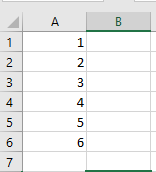
- Before the Procedure Runs:
Cells contain values, colors, font styles, and possibly comments.
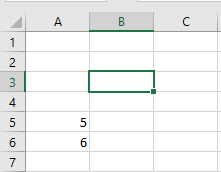
- After the Procedure Runs:
- A1:A2 are completely cleared—empty with default formatting.
- A3:A4 still look the same but are now empty (values are gone).
- A5:A6 retain their content, but their formatting resets to default .
Summary of Methods:
| Method | Removes… |
| Clear() | Values + Formatting + Comments |
| ClearContents() | Only Values |
| ClearFormats() | Only Formatting |
These tools help automate precise cleanup operations in worksheets, ideal when preparing data or resetting user inputs.