This function converts a numeric value to text formatted as currency, using the local currency symbol and formatting conventions.
Syntax:
DOLLAR(number, [decimals])
Arguments:
- number (required):
The numeric value to convert (can be a number, cell reference, or formula) - decimals (optional):
Number of decimal places to display:- Positive: Rounds to specified decimal places
- Negative: Rounds left of decimal point
- Omitted: Defaults to 2 decimal places
Key Features:
- Conversion Behavior:
- Converts numbers to text strings with currency formatting
- Uses local currency symbol based on system settings
- Default format: $#,##0.00;($#,##0.00)
- Comparison to Cell Formatting:
| Feature | DOLLAR() | Format Cells |
| Data Type | Text | Number |
| Display Overflow | Truncates | Shows ### |
| Calculations | Auto-converts | Directly usable |
- Rounding Rules:
- Uses standard rounding (≥0.5 rounds up)
- Negative decimals round to 10s, 100s, etc.
Examples:
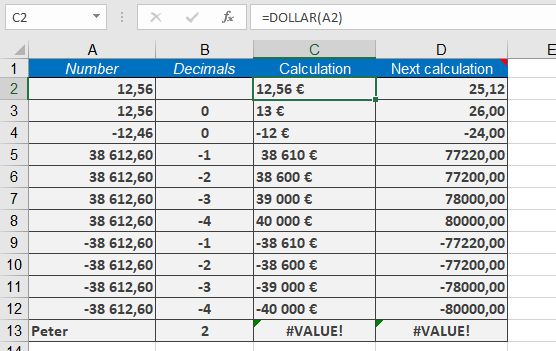
Assume that you want to ensure that a price column used for a mail merge in Microsoft Word is not changed. For this reason, you use the DOLLAR() function to convert the values in the price column into the corresponding currency text in a calculated column. The calculated column is used for the mail merge process in Word. Here are some other examples:
=DOLLAR(12.56) returns $12.56.
=DOLLAR(38612.60,-1) returns $38,610.
=DOLLAR(12.56,0) returns $13.
=DOLLAR(38612.60,-2) returns $38,600.
=DOLLAR(12.46,0) returns $12.
=DOLLAR(38612.60,-3) returns $39,000.
=DOLLAR(PI(),3) returns $3.142.
=DOLLAR(38612.60,-4) returns $40,000.
As shown below;