
This function performs a case-sensitive comparison of two text strings, returning TRUE if they are identical and FALSE otherwise.
Syntax:
EXACT(text1, text2)
Arguments:
- text1 (required): First text string for comparison
- text2 (required): Second text string for comparison
Key Features:
- Case Sensitivity:
- =EXACT(« Word », « word ») → FALSE
- =EXACT(« Word », « Word ») → TRUE
- Format Ignorance:
- Only compares raw text content
- Ignores font styles, colors, or cell formatting
- Array Compatibility:
- Can compare a value against a range using array formulas
Practical Applications:
- Data Validation:
=EXACT(A2, PROPER(A2)) // Checks for proper capitalization
- Password Verification:
=EXACT(B1, B2) // Compares two password entries
- Array Search (Ctrl+Shift+Enter):
{=OR(EXACT(D22,B23:B48))} // Checks if D22 exists in range
Comparison with Equal Sign (=):
| Feature | EXACT() | = Operator |
| Case-Sensitive | Yes | No |
| Format-Aware | No | No |
| Array-Friendly | Yes | Limited |
Examples:
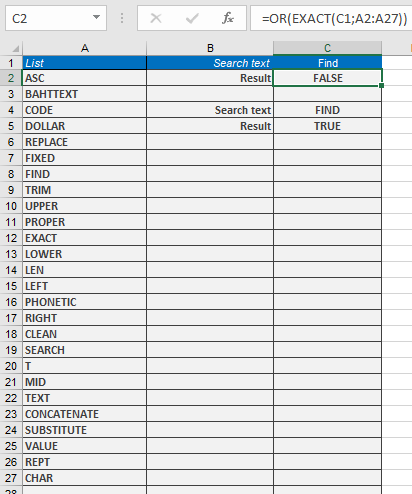
Assume that after you have entered a list of data, you want to examine the array to check whether it contains a specific character string. The list is entered in the cell range B23:B48, and cell D22 contains the search string. Enter the following formula in a cell:
=OR(EXACT(C1;A2:A27))
and press Ctrl+Shift+Enter. The formula looks like this (see Figure 8-3):
{=OR(EXACT(C1;A2:A27))}
If you use the function as an array expression, you need the OR() function to return a single value from the list.
Here are a few further examples:
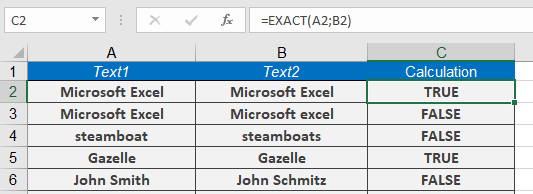
=EXACT(« Microsoft Excel », »Microsoft excel ») returns FALSE.
=EXACT(« steamboat », »steamboats ») returns FALSE.
=EXACT(« gazelle », »gazelle ») returns TRUE.
=EXACT(« John Smith », »Jeff Smith ») returns FALSE.
Limitations:
- Does not support wildcards (*, ?)
- For case-insensitive checks, use =A1=B1
- Array formulas require Ctrl+Shift+Enter in Excel 2019