
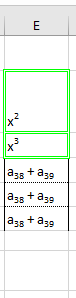
The following VBA procedure is used to apply a background color to two specific cells — E2 and E6:
Sub ZellformatMuster()
    ThisWorkbook.Worksheets("Tabelle2").Activate
    Rane("E2, E6").Interior.Color = vbYellow
End Sub

Explanation:
Interior Property
The Interior property in Excel VBA is used to format the interior (or fill) of a cell or a range of cells. This includes settings like background color and pattern.
Key Sub-properties:
- Color – Defines the solid background color of the cell. You can assign:
- Predefined color constants, such as vbYellow, vbRed, vbBlue, vbGreen, etc.
- Or custom colors using the RGB() function, e.g.:
- Range(« A1 »).Interior.Color = RGB(255, 200, 0)
Note: In this example, the cells E2 and E6 are filled with yellow using the vbYellow constant.
Summary of What the Code Does:
- Activates the worksheet named « Tabelle2 ».
- Applies a yellow background color to cells E2 and E6.
If you’d like to go further (e.g., apply patterned fills or combine colors and patterns), you can also use the following Interior properties:
- Pattern: to set a fill pattern (e.g., xlGray16, xlSolid, xlUp, etc.)
- PatternColor: to define the color of the pattern itself
Example with pattern:
Range(« E2 »).Interior.Pattern = xlGray16
Range(« E2 »).Interior.PatternColor = vbRed
Range(« E2 »).Interior.Color = vbYellow
This fills the cell with a yellow background and overlays it with a red-gray pattern.