
The Sort() method of the Range object allows for flexible sorting of data in Excel. It can be applied to sort by one or more sort keys (columns), and optionally take headers into account.
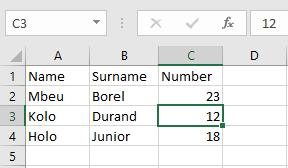
Later, a more complex example shows how to sort by more than three keys using the worksheet’s Sort object.
- Sorting by a Single Column (e.g., “Number”)
Sub SortingNummer()
    ThisWorkbook.Worksheets("Tabelle4").Activate
    Range("A1:C4").Sort Key1:=Range("C1:C4"), Header:=xlYes
End Sub
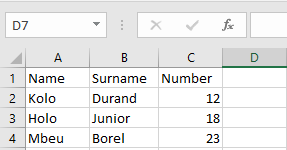
Explanation:
- Range(« A1:C4 ») defines the full data table.
- Key1:=Range(« C1:C4 ») tells Excel to sort by column C (e.g., Number).
- Header:=xlYes indicates that the first row is a header and should not be included in sorting.
- Order1 (ascending or descending) is optional. Default is ascending (xlAscending).
- Sorting by Two Columns (e.g., Last Name, then First Name)
Sub SortierenName()
    ThisWorkbook.Worksheets("Tabelle4").Activate
    Range("A1:C4").Sort Key1:=Range("A1:A4"), _
                        Key2:=Range("B1:B4"), Header:=xlYes
End Sub
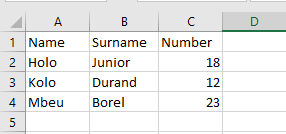
Explanation:
- Sorts first by Last Name (Column A), then by First Name (Column B).
- Up to three keys can be specified (Key1, Key2, Key3) with corresponding sort orders (Order1, Order2, Order3).
- Each key is processed in priority order.
- Sorting by More Than Three Keys
To sort with more than three criteria, use the SortFields collection of the worksheet’s Sort object.
Sub SortierenVieleSchluessel()
    ThisWorkbook.Worksheets("Tabelle5").Activate
    ' Clear old sort settings
    ActiveSheet.Sort.SortFields.Clear
    ' Add up to five sort keys
    ActiveSheet.Sort.SortFields.Add Range("A1:A6")
    ActiveSheet.Sort.SortFields.Add Range("B1:B6")
    ActiveSheet.Sort.SortFields.Add Range("C1:C6")
    ActiveSheet.Sort.SortFields.Add Range("D1:D6")
    ActiveSheet.Sort.SortFields.Add Range("E1:E6")
    ' Define the full range to be sorted
    ActiveSheet.Sort.SetRange Range("A1:E6")
    ' Apply the sorting
    ActiveSheet.Sort.Apply
End Sub
Explanation:
- .SortFields.Clear removes any previous sort configuration.
- .SortFields.Add adds each column that will serve as a sorting key.
- .SetRange(…) defines the total area of data to sort.
- .Apply executes the sort operation.
- By default, sorting is ascending. To specify order, add parameters to .Add, like:
- .Add Key:=Range(« A1:A6 »), Order:=xlDescending
Summary
| Feature | VBA Method | Notes |
| Sort one or two columns | Range().Sort | Use Key1, Key2, Header, optional Order1 |
| Sort more than 3 columns | ActiveSheet.Sort.SortFields | Add fields with .Add(), finalize with .Apply() |
| Header row | Header:=xlYes | Prevents header from being sorted |
| Order (optional) | Order:=xlAscending / xlDescending | Can be added per key |
| Clear old sort settings | .Sort.SortFields.Clear | Resets sort configuration |