
The return value of the InputBox() function is always a string. The input field can be pre-filled with a default value, which helps guide the user or speeds up data entry. To make it clear what the user should enter, both a prompt message and a dialog title can be displayed.
In the following example, the user is asked successively to enter a text, a number, and a date:
Sub SimpleInput()
    ThisWorkbook.Worksheets("Sheet1").Activate
    Dim userInput As String
    Range("A1").Value = InputBox("Please enter text", "Text", "Moyo")
    userInput = InputBox("Please enter a number", "Number", "2")
    If userInput = "" Then
        Range("A2").Value = ""
    Else
        Range("A2").Value = CDbl(userInput)
    End If
    userInput = InputBox("Please enter a date (D.M.YY)", "Date", "04.06.25")
    If userInput = "" Then
        Range("A3").Value = ""
    Else
        Range("A3").Value = CDate(userInput)
    End If
End Sub

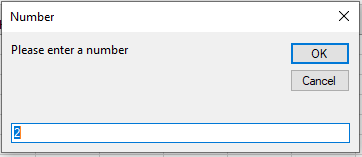
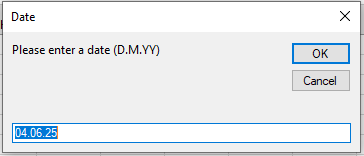
Figure illustrates the result after the second call to the InputBox() function.
Explanation:
Each time, a dialog box appears showing the prompt text, a title, and a default value.
- If the user clicks OK, the contents of the input field are returned as a string.
- If the user clicks Cancel, an empty string is returned.
When the user is expected to enter a number, you should check the returned string and then convert it to a Double using the CDbl() function. The user can use the familiar decimal comma to separate fractional parts, depending on regional settings.
Similarly, when the user is expected to enter a date, you should check the returned string and convert it to a date value using the CDate() function.