
The following example demonstrates how to read all lines from a text file. In this case, the file document.txt is read. Each value is recognized as a date, number, or string and written into Excel cells.

Sub ReadLines()
    Dim lineContent As String
    Dim i As Integer
    Dim numberValue As Double
    Dim dateValue As Date
    ThisWorkbook.Worksheets("Sheet1").Activate
    On Error GoTo ErrorHandler
    ' Open the file for reading
    Open ThisWorkbook.Path & "C:\Users\POPOLY\Desktop\Document.txt" For Input As #1
    i = 7
    ' Loop until end of file is reached
    Do Until EOF(1)
        ' Read one line from the file
        Line Input #1, lineContent
        ' Check if the line content is numeric
        If IsNumeric(lineContent) Then
            ' Check if the numeric string contains a decimal point
            If InStr(lineContent, ".") > 0 Then
                ' Convert to Date type
                dateValue = CDate(lineContent)
                Cells(i, 1).Value = dateValue
                Cells(i, 2).Value = "Date"
            Else
                ' Convert to Double type (number)
                numberValue = CDbl(lineContent)
                Cells(i, 1).Value = numberValue
                Cells(i, 2).Value = "Number"
            End If
        Else
            ' Treat as a text string
            Cells(i, 1).Value = lineContent
            Cells(i, 2).Value = "String"
        End If
        i = i + 1
    Loop
    ' Close the file
    Close #1
    Exit Sub
ErrorHandler:
    MsgBox Err.Description
End Sub
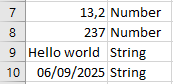
Explanation:
The file is opened for reading using the Open statement with the Input mode.
A Do Until loop runs repeatedly until the EOF() function returns True. EOF stands for « End Of File, » and the function detects when the end of the file is reached. This approach is crucial because the number of lines in the file is typically unknown in advance. Therefore, the loop processes all lines in the file dynamically.
Within the loop, the Line Input statement reads one entire line from the file (file number 1) and stores it as a string in the variable lineContent.
The IsNumeric() function checks whether the string represents a numeric value. If it does, the InStr() function determines if the string contains a decimal point:
- If a decimal point is found, the string is interpreted as a date. It is converted to the Date data type using the CDate() function and stored in the dateValue variable. This date value is then output to the worksheet.
- If no decimal point is present, the string is treated as a numeric value without decimals and converted to a Double using CDbl(). The numeric value is stored in numberValue and output accordingly.
If the string does not represent a numeric value, it is treated as plain text and written as-is to the worksheet.
The variable i is incremented in each loop iteration to write each line to the next row in Excel, ensuring the data appears in successive cells vertically.
Finally, the file is closed using the Close statement to free the resource.