
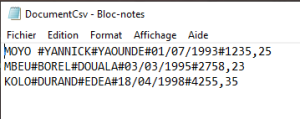
The following example demonstrates how to read all lines from a CSV file. In this case, the file linesCsv.txt is read. Each line is split into parts using the Split() function and each part is individually written into Excel cells:
Sub ReadCsv()
    Dim lineContent As String
    Dim parts() As String
    Dim i As Integer, k As Integer
    Dim numberValue As Double
    Dim dateValue As Date
    ThisWorkbook.Worksheets("Sheet2").Activate
    On Error GoTo ErrorHandler
    ' Open the file for reading
    Open ThisWorkbook.Path & "C:\Users\POPOLY\Desktop\DocumentCsv.txt" For Input As #1
    i = 6
    ' Loop until the end of the file is reached
    Do Until EOF(1)
        ' Read one line from the file
        Line Input #1, lineContent
        ' Split the line into parts using "#" as delimiter
        parts = Split(lineContent, "#")
        ' Process each part of the line
        For k = 0 To UBound(parts)
            If IsNumeric(parts(k)) Then
                If InStr(parts(k), ".") > 0 Then
                    ' Convert to Date type
                    dateValue = CDate(parts(k))
                    Cells(i, k + 1).Value = dateValue
                Else
                    ' Convert to Double type (number)
                    numberValue = CDbl(parts(k))
                    Cells(i, k + 1).Value = numberValue
                End If
            Else
                ' Treat as a text string
                Cells(i, k + 1).Value = parts(k)
            End If
        Next k
        i = i + 1
    Loop
    ' Close the file
    Close #1
    Exit Sub
ErrorHandler:
    MsgBox Err.Description
End Sub

Explanation:
A dynamic array variable is declared to store the result of the Split() function. The delimiter # is used to split the line into its individual components.
The number of elements in a record, and thus the upper bound of the dynamic array, is determined with the UBound() function.
Each element of the array is checked to determine if it represents a date, number, or string. After converting to the appropriate data type, the value is stored in the corresponding Excel cell horizontally (side by side).