
The UPDATE statement is used to modify the contents of one or more fields in one or multiple records within a database table. Its syntax is similar to the SELECT statement. Selection criteria should be chosen carefully to avoid accidentally modifying more records than intended.
Example 1: Updating All Records
SQLCommand = "UPDATE personen SET gehalt = 3800"
- This command sets the value of the gehalt (salary) field to 3800 for all records in the personen table, which is usually unrealistic.
Example 2: Updating a Specific Record
SQLCommand = "UPDATE personen SET gehalt = 3800 WHERE personalnummer = 2296"
- This command updates the gehalt field only for the record where personalnummer (personnel number) equals 2296.
- The result after re-importing the data shows that only one record was changed.
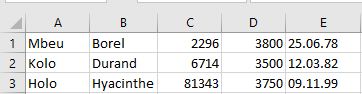
- It is recommended to filter updates by fields with a unique index, such as personalnummer, to avoid unintended modifications.
Common Errors and Their Messages
When attempting changes that violate the table structure or data integrity, Access returns error messages which are passed to VBA through error handling (On Error) in the Aktionsabfrage() procedure. These messages help diagnose the cause:
Error 1: Inserting a Null or Empty Value into a Required Field
- Attempting to assign an empty string to a field defined as not allowing nulls triggers an error.
SQLCommand = "UPDATE personen SET name = '' WHERE personalnummer = 2296"
Error 2: Inserting a Duplicate Value into a Field with a Unique Index
- Attempting to insert a value that already exists in a uniquely indexed field triggers an error.
SQLCommand = "UPDATE personen SET personalnummer = 6714 WHERE personalnummer = 2296"
Error 3: Inserting an Invalid Date or Number
- Assigning an invalid date or number—often due to incorrect format or type mismatch—results in an error.
SQLCommand = "UPDATE personen SET geburtstag = '32.12.1980' WHERE personalnummer = 2296"