
In the class module ThisWorkbook, you will find the procedure Workbook_Open(). This procedure initializes the game board right after the workbook is opened:
Private Sub Workbook_Open()
    ' Clear all cells and set them to square shape
    ThisWorkbook.Worksheets("Sheet1").Activate
    Cells.Delete
    Cells.RowHeight = 20
    Cells.ColumnWidth = 3.5
    ' Add borders and formatting to the game board area
    With Range("B2:G7")
        .Borders.Weight = xlMedium
        .HorizontalAlignment = xlCenter
        .VerticalAlignment = xlCenter
        .Font.Size = 14
    End With
    ' Setup START button cell
    Range("I2").Value = "Start"
    With Range("I2:K2")
        .Interior.Color = RGB(192, 192, 192)
        .MergeCells = True
        .HorizontalAlignment = xlCenter
        .VerticalAlignment = xlCenter
    End With
    ' Setup INFO button cell
    Range("I7").Value = "Info"
    With Range("I7:K7")
        .Interior.Color = RGB(192, 192, 192)
        .MergeCells = True
        .HorizontalAlignment = xlCenter
        .VerticalAlignment = xlCenter
    End With
End Sub
Explanation:
- The worksheet Sheet1 is first activated.
- Using the Delete method on Cells, all cell contents are cleared.
- The row height and column width of all cells are set to create square-shaped cells (row height = 20, column width = 3.5).
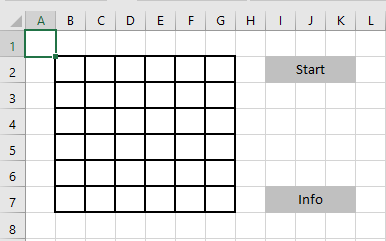
- The game board area, defined as the range from B2 to G7, is formatted with medium-weight borders. Cell content is centered horizontally and vertically, and the font size is set to 14.
- The cells for the START button (range I2:K2) are merged into one large cell, filled with a gray background color, and the text is horizontally and vertically centered.
- The same setup is applied for the INFO button in cells I7:K7.