
This function removes all spaces from text except for single spaces between words.
Syntax:
TRIM(text)
Arguments:
- text (required): The text containing leading, trailing, or excessive intermediate spaces you want to clean.
Background:
The TRIM() function is particularly useful for:
- Processing text imported from other applications that may contain irregular spacing
- Preparing data for mail merges or text searches where extra spaces could cause errors
- Cleaning datasets while preserving intentional single spaces between words
Unlike the Find and Replace command (Ctrl+H), TRIM() specifically targets:
→ Leading spaces (at the start of text)
→ Trailing spaces (at the end of text)
→ Multiple consecutive spaces between words (reducing them to single spaces)
If the input string has no excess spaces, TRIM() returns the original text unchanged.
Examples
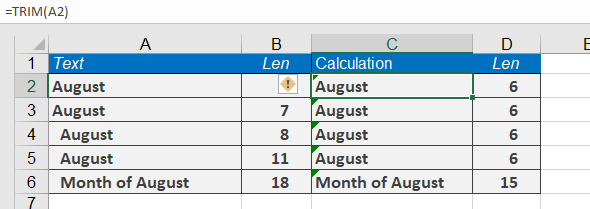
| Formula | Result | Explanation |
| =TRIM(« August ») | « August » | No spaces to remove |
| =TRIM(« August « ) | « August » | Removes 1 trailing space |
| =TRIM( » August ») | « August » | Removes 2 leading spaces |
| =TRIM( » August « ) | « August » | Removes 1 leading + 2 trailing spaces |
| =TRIM( » August the Strong « ) | « August the Strong » | Reduces multiple spaces between words to singles + removes leading/trailing spaces |
Practical Use Case
After importing data from a CSV file, you notice entries like:
» Product A » (with irregular spacing)
Solution:
=TRIM(A1) converts this to « Product A » – clean and ready for analysis.
Note: Unlike some string functions, TRIM():
✓ Preserves meaningful single spaces between words
✗ Doesn’t affect non-breaking spaces (ASCII 160) – use SUBSTITUTE() for those
Key Takeaways
- Essential for data cleaning, especially with imported text
- Only affects space characters (ASCII 32)
- Returns text values (wrap with VALUE() if numbers need conversion)