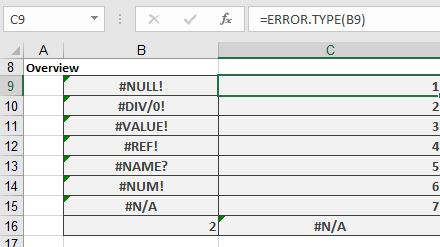
This function returns a number corresponding to an error value in Excel. If no error exists in the cell or in the calculation, the function returns the #N/A error.
Syntax
ERROR.TYPE(error_value)
Arguments
- error_value (required) – The error value (either the actual error in a cell or the result of a calculation) for which you want to find the error code.
Background
You can use this function in an IF() function to replace an error value with a descriptive string. To do this, you need to know the relationship between error values and their corresponding return codes (see Table 1).
Table 1. Error Values and Results of the ERROR.TYPE Function
| Error Value | Return Value |
| #NULL! | 1 |
| #DIV/0! | 2 |
| #VALUE! | 3 |
| #REF! | 4 |
| #NAME? | 5 |
| #NUM! | 6 |
| #N/A | 7 |
| No error | #N/A |
Examples
The following examples illustrate how to use the ERROR.TYPE() function.
- Conditional Formatting
Assume you want to use conditional formatting to highlight cells with errors in different colors.
- Figure below shows an example using the ISERROR() function to highlight error cells in a user-defined color.
- A critical error (e.g., division by zero, where ERROR.TYPE() returns 2) can be highlighted in a second color (e.g., red).
Note: Pay attention to the order of conditions. If ISERROR() is checked first, a specific error check (like #DIV/0!) may be ignored.
- Custom Functions
If you frequently need to map error types (1–7) to their descriptions (e.g., #DIV/0!), you can create a custom function for efficiency.
The following VBA code provides a solution:
Function ErrorDescription(Range As Range)
If WorksheetFunction.IsError(Range.Value) Then
Select Case CStr(Range.Value)
Case « Error 2000 »
ErrorDescription = « Intersection is empty »
Case « Error 2007 »
ErrorDescription = « Division by zero »
Case « Error 2015 »
ErrorDescription = « Noncalculable expression »
Case « Error 2023 »
ErrorDescription = « Lost reference »
Case « Error 2029 »
ErrorDescription = « Name not defined »
Case « Error 2036 »
ErrorDescription = « Number cannot be shown »
Case « Error 2042 »
ErrorDescription = « Nonexistent value »
End Select
Else
ErrorDescription = « No error »
End If
End Function