This function returns TRUE if the value argument refers to an empty cell. Otherwise, it returns FALSE.
Syntax
ISBLANK(value)
Arguments
- value (required) – The expression (a number, text, a formula without an equal sign, a logical value, an error value, a reference, or a name) that you want to check.
Background
This function is one of the nine IS() functions that return a logical value based on the argument. The argument in IS() functions is not converted for evaluation. This means that a string representing a number is treated as text, not as a numeric value.
IS() functions are often used with the IF() function to pre-test calculation results. The output of an IS() function can also be used in conditional formatting and data validation rules.
The function returns FALSE not only for non-empty cell references but also for arguments that are not valid references (e.g., text, numbers, logical values, or errors).
Example
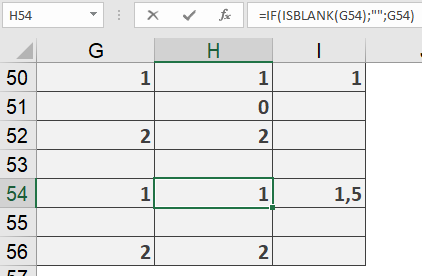
Using cell references to display values can sometimes produce unexpected results. In Figure below, column H contains references to cells in column G. Rows 50–52 use =G50, =G51, and =G52, and column I calculates the average of the three numbers in column H (0, 1, 2). However, this is incorrect because column G does not contain the number 0—it has a blank cell.
The correct solution is shown in rows 54–56. Here, the values in column H are pre-tested for blank cells, avoiding the assumption that a blank entry equals 0. The formula used is:
=IF(ISBLANK(G54); « »; G54)