
This function returns TRUE if the value is any error value (including #N/A). Otherwise, it returns FALSE.
- Unlike ISERR(), this function does recognize #N/A as an error.
Syntax
ISERROR(value)
Arguments
- value (required) – The expression to check (a number, text, a formula without an equal sign, a logical value, an error value, a reference, or a name).
Background
- Part of the IS() function family, which returns a logical value based on the argument.
- The input is not converted during evaluation (e.g., a numeric string remains text).
- Often paired with IF() to validate calculations before processing.
- Useful for conditional formatting and data validation rules.
- For detailed error identification, see ERROR.TYPE() examples.
Example
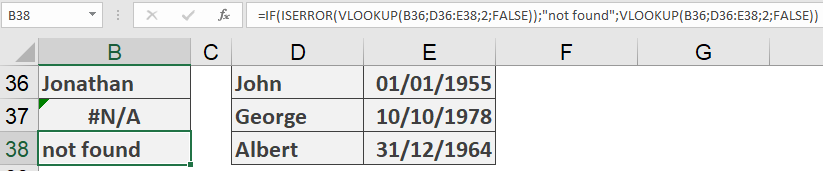
Suppose you use VLOOKUP() to search a list (e.g., birthdays, order numbers, or contact details).
- Problem:
Entering =VLOOKUP(B36; D36:E38; 2; FALSE) in B37 returns #N/A if no match exists—undesirable in printed reports. - Solution:
Replace the formula in B38 with:
=IF(ISERROR(VLOOKUP(B36; D36:E38; 2; FALSE)); « not found »; VLOOKUP(B36; D36:E38; 2; FALSE))
-
- If VLOOKUP() results in any error (including #N/A), it displays « not found ».
- Otherwise, it returns the lookup result.
Note: Adjust the delimiter (comma/semicolon) based on your Excel regional settings.