
Returns TRUE if the value is a numeric value (including dates/times, percentages, and formulas that return numbers). Returns FALSE for all other types (text, logical values, errors, blank cells).
Syntax
ISNUMBER(value)
Key Features
- Part of the IS() function family – evaluates without type conversion
- Returns FALSE for empty cells (though references to empty cells may display as 0)
- Critical for numeric validation in formulas and data processing
Practical Applications
- Handling Empty Cells vs. Zero Values
=IF(ISNUMBER(N42); L42+N42; L42)
- Safely sums values only when N42 contains a number
- Avoids errors when N42 is blank or contains text
- Data Validation (Numbers Only)
=ISNUMBER(A1)
Use in Data Validation → Custom to:
- Restrict cells to numeric entries only
- Allow numbers but block text/errors
- Conditional Formatting
Highlight cells containing numbers:
=ISNUMBER(B2)
Special Notes
- Blank Cell Behavior:
- Direct blank cells → FALSE
- References to blanks → May show as 0 (adjust via Excel Options)
- Text Numbers:
- « 123 » → FALSE (text string)
- 123 → TRUE (actual number)
- Error Handling:
- All error types return FALSE
Example Solutions
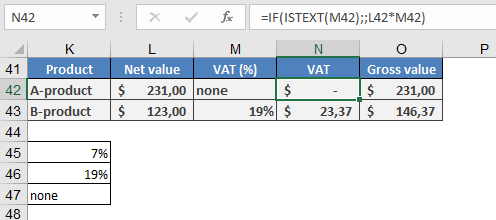
Problem 1: Display Blanks Instead of Zeros
Original formula showing 0:
=IF(ISTEXT(M42); ; L42*M42)
Improved version:
=IF(ISTEXT(M42); « »; L42*M42)
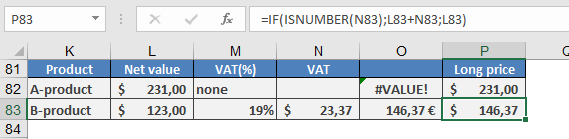
Problem 2: Safe Summation
Error-prone formula:
=L83+N83
Robust solution:
=IF(ISNUMBER(N83); L83+N83; L83)
Pro Tip
Combine with other functions for advanced checks:
=IF(AND(ISNUMBER(A1); A1>0); « Valid »; « Invalid »)
Validates positive numbers only.