
Its returns TRUE if the number is odd, and FALSE if it is even.
Syntax
ISODD(number)
Arguments
- number (required) – The value to check (can be a cell reference, formula, or direct input).
Key Behavior
✅ Integers: Evaluates normally (e.g., 3 → TRUE, 4 → FALSE).
Decimals: Truncates decimal places before checking (e.g., 5.9 → TRUE, -2.3 → FALSE).
❌ Non-numbers: Returns #VALUE! for text/logical values (e.g., « ABC », TRUE).
Counterpart: ISODD(number) = NOT(ISEVEN(number)).
Practical Examples
- Conditional Formatting for Odd Rows
Goal: Shade every odd-numbered row.
=ISODD(ROW())
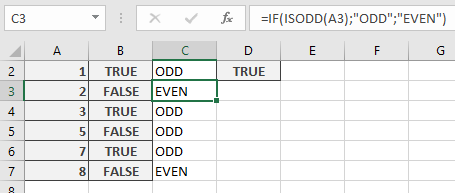
Data Categorization
Label numbers as odd/even:
=IF(ISODD(A3), « Odd », « Even »)
Notes
⚠️ Add-In Requirement: In Excel, ISODD() requires the Analysis ToolPak. The workaround avoids this.
Alternate Formula: For compatibility, use modulo:
=MOD(TRUNC(A1), 2) = 1