
This function returns the #N/A error value, indicating that a value does not exist.
Syntax: NA
Arguments:
- This function does not take any arguments.
Background:
- Although the NA() function does not require arguments, you must include the parentheses; otherwise, Excel will interpret it as text.
- Similar to TRUE() and FALSE(), where you can directly enter logical values (TRUE or FALSE), you can also manually enter #N/A instead of using NA() to achieve the same result.
- This function is primarily included for compatibility with other spreadsheet applications.
Usage Notes:
- You can use NA() (or #N/A) to explicitly mark empty cells, ensuring they are excluded from calculations.
- However, formulas referencing cells containing #N/A will also return the error, so use this function with caution.
Example:
- In the example for the ISBLANK() function, empty cells were checked to exclude them from calculations. If NA() were used instead, the desired result would not be obtained.
- Scenario:
- Column C references Column B, and the average is calculated in cell D2.
- If C3 contained a 0, it would not match Column B, so the empty cell in B is marked as =NA() or #N/A.
- However, the #N/A error propagates into all calculations.
Workaround:
=IF(ISNA(B7), « », B7)
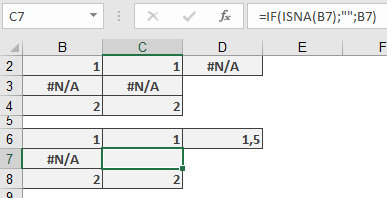
This formula returns the correct result, similar to what the ISBLANK() function would provide.