
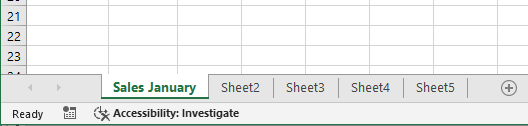
You can improve clarity and navigation in your Excel workbooks by giving each worksheet a name that reflects its content. Excel provides worksheets with generic names such as Sheet1, Sheet2, Sheet3… You can replace these with more descriptive names, such as January Sales, for example.
To rename a worksheet:
-
Display the worksheet you want to rename.
-
Click the Home tab,
-
Then click Format,
-
And finally click Rename Sheet.
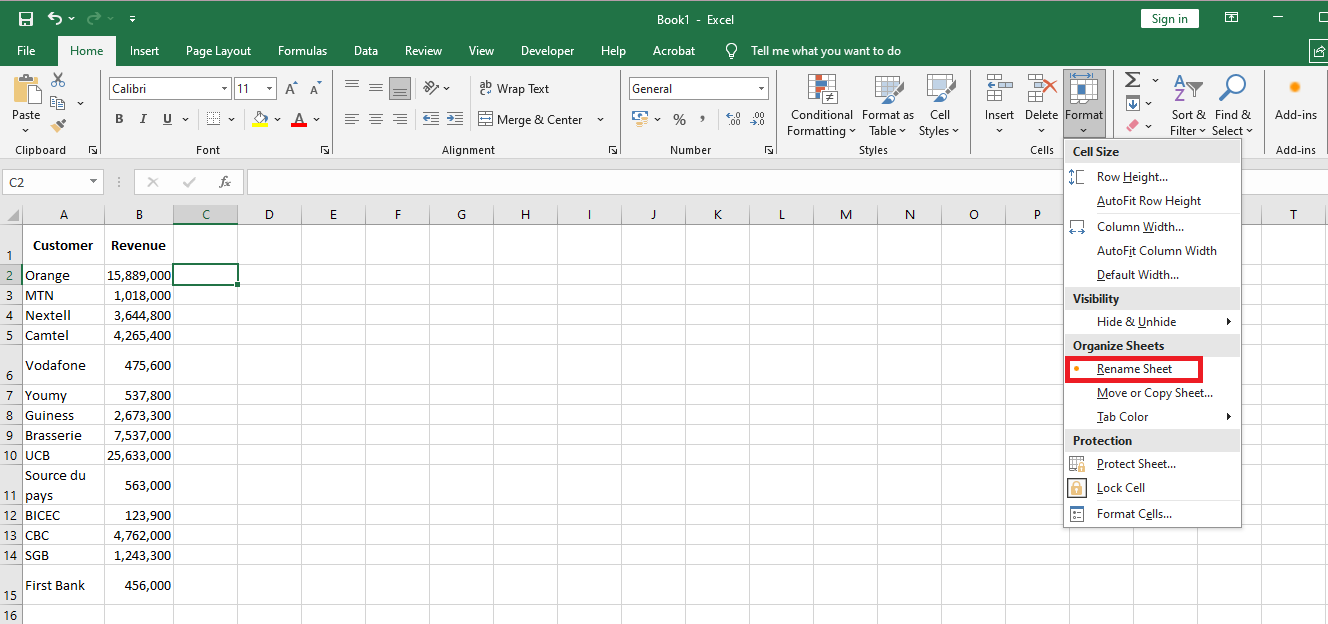
Excel will open the worksheet name for editing and highlight the existing text.

NOTE:
You can also double-click the worksheet tab to rename it.
Please note, however, that although worksheet names can include any combination of letters, numbers, symbols, and spaces, they cannot exceed 31 characters.
NOTE:
If you want to edit the existing name, press the ← or → arrow key to deselect the text, then type the new worksheet name and press Enter. Excel will assign the new name to the worksheet.