
If you are working on a worksheet containing numerous formulas, it can become difficult to understand how all these formulas are related to each other. Displaying formulas in Excel instead of results can help you track the data used in each calculation and quickly identify errors in your formulas. When you enter a formula into a cell and press the Enter key, Excel immediately displays the calculated result. To display all formulas in the cells that contain them, use one of the following methods.
Display Formulas from the Excel Ribbon
In your Excel worksheet, go to the Formulas tab and, in the Formula Auditing group, click the Show Formulas button. Microsoft Excel will immediately display the formulas in the cells instead of their results. To revert to calculated values, click the Show Formulas button again to deactivate it.

Display Formulas from Excel Options Box
Go to File / Options. Select Advanced in the left pane, scroll down to the Display options for this worksheet section, and check the option Show formulas in cells instead of their calculated results.
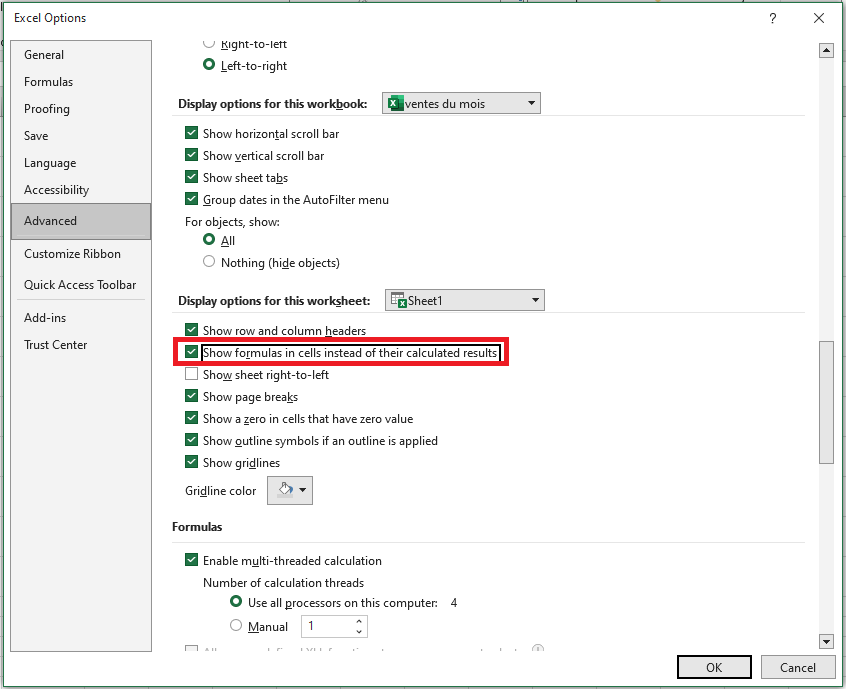
At first glance, this may seem like a longer path, but you may find it useful when you want to show formulas in several Excel sheets in the currently opened workbooks. In this case, you simply need to select the sheet name from the drop-down list and check the option Show formulas in cells… for each sheet.
NOTE:
Regardless of the method you use above, Microsoft Excel will display all formulas in the current worksheet. To display formulas in other sheets and workbooks, you will need to repeat the process for each sheet individually.
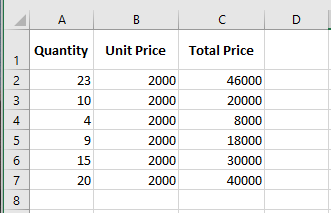
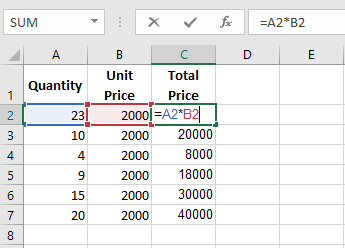
If you want to display the data used in a formula’s calculation, use one of the above methods to show formulas in the cells, then select the cell containing the formula in question, and you will see a result similar to the following:
If you click on a cell with a formula, but the formula does not appear in the formula bar, it is most likely that the formula is hidden and the worksheet is protected.