
When working with large amounts of data in Excel, you may need to copy and paste something you’ve already written or perhaps move an entire selection. Whether you’re working with data in a single worksheet, across multiple sheets, or even in different workbooks, there are simple shortcuts you can use to cut, copy, and paste.
Copying Data in Microsoft Excel
Copying data in Excel is useful when you need to duplicate functions, formulas, charts, and other data. The new location can be on the same worksheet, a different worksheet, or even a completely different workbook. As in all Microsoft programs, there are several ways to accomplish a task. In Excel, you can copy and move data in three ways:
■ Using a keyboard shortcut
■ Using the right-click context menu
■ Using menu options on the Home tab of the ribbon
When the copy command is activated, the clipboard temporarily stores a duplicate of the selected data until you paste it into the destination cell(s). Other methods of copying data that do not involve using the clipboard include using the fill handle and dragging and dropping with the mouse.
Copying and Pasting Data in Excel Using Keyboard Shortcuts
The easiest way to cut, copy, and paste data is to use keyboard shortcuts. The keyboard key combinations for copying and pasting data are:
■ Ctrl + C: activates the copy command
■ Ctrl + V: activates the paste command
The arrow keys on the keyboard can be used instead of the mouse pointer to select both the source and destination cells when copying and pasting data.
■ To select multiple adjacent cells using the arrow keys, press and hold the Shift key.
■ To select multiple non-adjacent cells using the arrow keys, use the Ctrl key.
Copying Data in Excel Using the Context Menu
While the options in the context menu generally change depending on the selected object, the cut, copy, and paste commands are always available.
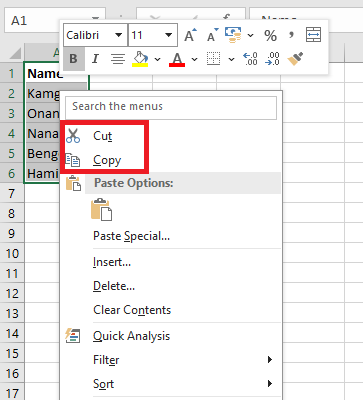
- Click one or more cells to highlight them.
- Right-click the selected cell(s) to open the context menu.
- Choose Copy from the available menu options.
- A moving black border will appear around the selected cell(s).
- Click the destination cell – when copying multiple data cells, click the cell in the top-left corner of the destination range.
- Right-click the selected destination cell(s) to open the context menu.
- Choose Paste from the available menu options.
- The duplicated data should now appear in both the original and destination locations.
Copying Data Using the Ribbon
The Copy and Paste commands are located in the Clipboard section on the left side of the Home tab on the ribbon.
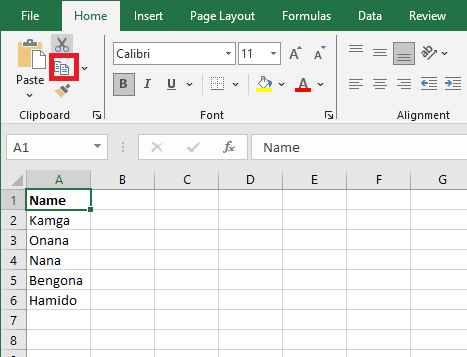
- Click one or more cells to highlight them.
- Click the Copy icon on the ribbon.
- A moving black border will appear around the selected cell(s).
- Click the destination cell – when copying multiple data cells, click the cell in the top-left corner of the destination range.
- Click the Paste icon on the ribbon.
- The duplicated data should now appear in both the original and destination locations.
Moving Data in Excel
There is no specific Move command in Excel. To move data, you must cut and paste it from one location to the new one. You can use cut/paste in Excel to move functions, formulas, charts, and other data. The new location can be on the same worksheet, another worksheet, or even in a completely different workbook.
As with copying, there are three ways to cut data in Excel:
■ Using a keyboard shortcut
■ Using the right-click context menu
■ Using the menu options on the Home tab of the ribbon
When you cut data in Excel, the clipboard temporarily stores it, just as it does when you copy data.
Moving Data Using Keyboard Shortcuts
The keyboard combinations used to move data are:
■ Ctrl + X: activates the cut command
■ Ctrl + V: activates the paste command
The arrow keys on the keyboard can be used instead of the mouse pointer to select both the source and destination cells during cut/paste operations.
■ To select multiple adjacent cells using the arrow keys, press and hold the Shift key.
■ To select multiple non-adjacent cells using the arrow keys, use the Ctrl key.
Moving Data in Excel Using the Context Menu
When you right-click on a cell, the context menu always includes the cut, copy, and paste commands.
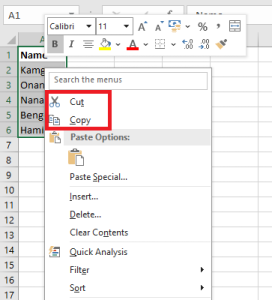
- Click one or more cells to highlight them.
- Right-click the selected cell(s) to open the context menu.
- Choose Cut from the available menu options.
- A moving border (sometimes called « marching ants ») will appear around the selected cell(s).
- Click the destination cell – when moving multiple data cells, click the cell in the top-left corner of the destination range.
- Right-click the selected destination cell(s) to open the context menu.
- Choose Paste from the available menu options.
- The selected data should now appear only in the destination location.
Moving Data in Excel Using the Ribbon
The Cut and Paste commands are located in the Clipboard section of the Home tab on the ribbon.
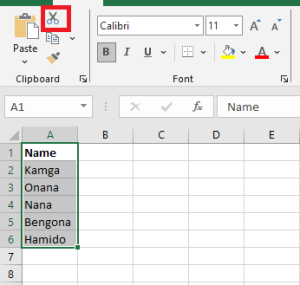
- Click one or more cells to highlight them.
- Click the Cut icon on the ribbon.
- A moving black border will appear around the selected cell(s).
- Click the destination cell – when moving multiple data cells, click the cell in the top-left corner of the destination range.
- Click the Paste icon on the ribbon.
- The selected data should now appear only in the destination location.