
When it comes to copying formatting in Excel, Format Painter is one of the most useful — yet often underused — features. This tool copies the formatting from one cell and applies it to other cells. In just a few clicks, it can help you reproduce most, if not all, formatting settings, including:
- Number formats (General, Percentage, Currency, etc.)
- Font, size, and color
- Font attributes such as bold, italic, and underline
- Fill color (background color of the cell)
- Text alignment, direction, and orientation
- Cell borders
To use the Format Painter tool, follow these steps:
- Select the text or graphic that has the formatting you want to copy.
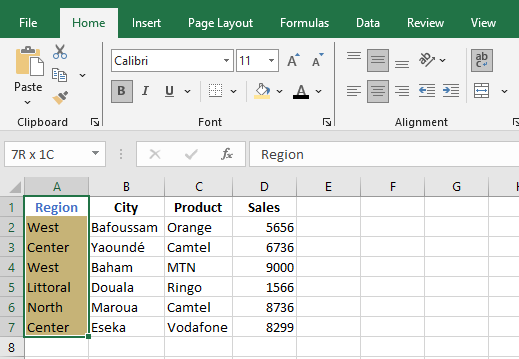
- On the Home tab, click Format Painter.
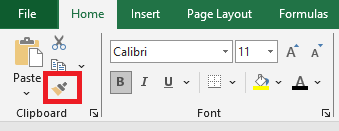
The pointer changes to a paintbrush icon.
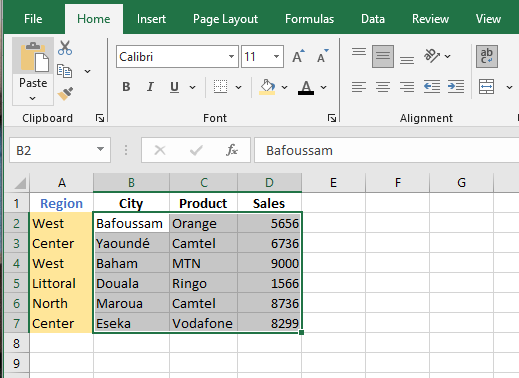
- Use the brush to « paint » over a selection of text or graphics to apply the formatting. This works only once.
If you want to apply the formatting to multiple selections, first double-click the Format Painter button.
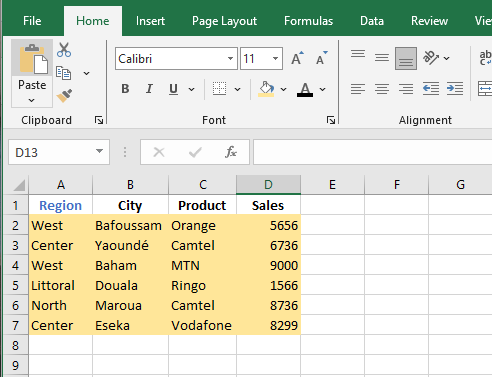
- To stop formatting, press ESC.