
Unlike copying a formula, Excel does not adjust cell references when a formula is moved.
There are two ways to move a formula in Excel: using the Cut and Paste commands, or by dragging and dropping the formula to its new location.
To drag and drop a formula:
- Select the range D4:D10.
- Position your mouse pointer on the edge of the selected range; when it turns into a four-headed arrow, click and drag the selection to cell E4.
- Release the mouse button to drop the range in its new location.
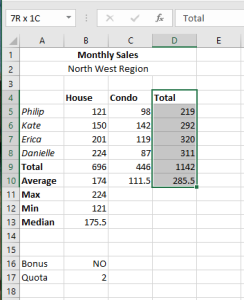
Quickly move a range of cells to a new location with a simple click and drag-and-drop.
To move a formula using Cut and Paste:
- Select the range E4:E10.
- On the Home tab, click Cut. A blinking dashed border will appear around the selected range.
- Click cell D4, then on the Home tab, click Paste.
Excel pastes the selected range in the new location.