
The COUNT function is a statistical function in Excel. This function is used to count the number of cells that contain numeric values, as well as the number of arguments that contain numbers. It also counts numbers in a given array. It was introduced in Excel 2000.
Syntax:=COUNT(value1, value2, …)
Where:
■ value1 (required argument) – The first reference or range of items or cells in which you want to count numbers.
■ value2… (optional argument) – You can add up to 255 additional items, cell references, or ranges where you want to count numeric values.
Using the COUNT Function to Count Cells Containing Numeric Data
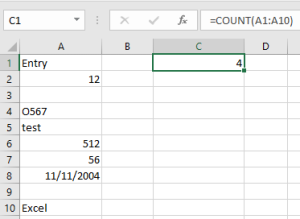
To count all the cells that contain numbers, use the COUNT function. Blank cells, logical values, text, and error values are ignored.
To count the number of cells with numbers:
NOTE: This function only counts numbers and ignores everything else.
-
In cells A1:A10, enter various data (numeric and text).
-
Select cell C1 and type the following formula:
=COUNT(A1:A10) -
Press Enter.
Using the COUNTA Function to Count Cells Containing Data
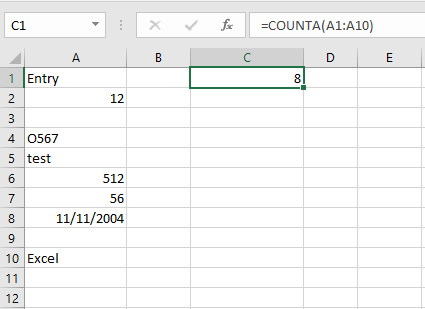
To count all non-empty cells containing any type of data in a range or table, use the COUNTA function.
Syntax:=COUNTA(value1, value2, …)
value1, value2, …: 1 to 30 arguments representing the values to count.
To count all cells containing data:
-
In cells A1:A10, enter any type of data (numbers and text).
-
Select cell C1 and type the formula:
=COUNTA(A1:A10) -
Press Enter.
Using COUNTA and COUNT to Count Cells Containing Text
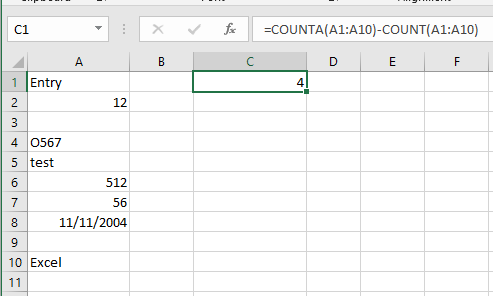
To count all cells that contain text values, combine functions in a formula.
The number of cells with any type of data is counted with COUNTA.
Numeric cells are counted with COUNT.
Simply subtract the result of COUNT from COUNTA for the same range to get the number of text cells.
To count only cells with text:
-
In cells A1:A10, enter any data (numbers and text).
-
Select cell C1 and type the following formula:
=COUNTA(A1:A10) - COUNT(A1:A10) -
Press Enter.
NOTE: The COUNTA function does not count empty cells.
Using the COUNTBLANK Function to Count Empty Cells
Sometimes, it is useful to determine how many cells in a range are empty.
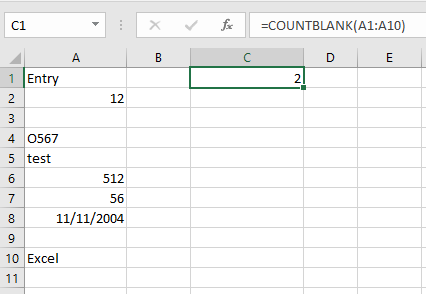
You can use the COUNTBLANK function to count all empty cells in a range.
Syntax:=COUNTBLANK(range)
range: The range in which to count the blank cells.
To count all empty cells in a given range:
-
In cells A1:A10, enter data (numeric and text), leaving some cells blank.
-
Select cell C1 and type the formula:
=COUNTBLANK(A1:A10) -
Press Enter.
Using COUNTA to Determine the Last Filled Row
In this example, you need to determine the last row that has been filled in a worksheet.
If all the cells in a column contain data and are not empty, you can use the COUNTA function.
Set the range to the entire column to count all filled cells.
To determine the last filled row:
-
In cells A1:A10, enter data (numbers and text).
-
Select cell B1 and type the formula:
=COUNTA(A:A) -
Press Enter.
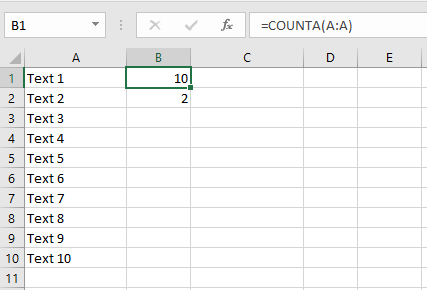
NOTE:
To determine the last filled column in a worksheet, use the formula =COUNTA(1:1), as shown in cell B2.