The COUNTIF function is used to count the number of cells in a specified range that meet a certain condition or criterion.
For example, you can write a COUNTIF formula to find how many cells in your worksheet contain values greater or less than a specified number.
Another common use of COUNTIF in Excel is to count cells containing a specific word or starting with one or more specific letters.
Syntax:
=COUNTIF(range, criteria)
As you can see, the function takes only two required arguments:
■ range – Defines one or more cells to count. You enter the range just like any other range in Excel (e.g., A1:A20).
■ criteria – Defines the condition that tells the function which cells to count. It can be a number, text string, cell reference, or expression.
Use the COUNTIF Function to Count Phases Costing More Than 1,000
In this example, different project phases are listed in a worksheet. To determine how many of them cost more than 1,000, use the COUNTIF function.
This function counts how many cells in a range meet the specified condition.
To count the specified phases:
- In cells A2:A11, enter the names of the various project phases.
- In cells B2:B11, enter the cost of each phase.
- In cell D1, enter
1000as the given threshold. - Select cell D2 and type the following formula:
=COUNTIF(B2:B11, ">" & D1) - Press Enter.
NOTE:
If you don’t want to link the criteria to a cell reference, use the formula:
=COUNTIF(B2:B11, ">1000")
Use the COUNTIF Function to Calculate Attendance
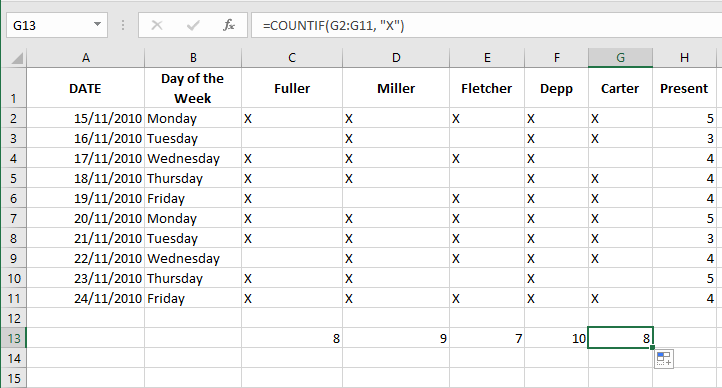
In this task, you want to generate an attendance list and determine how many people were present each day.
Create a table similar to the one shown in Figure 6–7.
Column A contains dates, and column B uses a custom format to display the weekday.
In columns C to G, the letter « X » is entered for each person present.
To calculate daily attendance:
- Select cells H2:H11 and type the formula:
=COUNTIF(C2:G2, "X")
This counts attendance per day. - Press Ctrl+Enter.
- To calculate total attendance for each employee, select cells C13:G13 and type:
=COUNTIF(C2:C11, "X"),=COUNTIF(D2:D11, "X"), etc. (or use relative references like=COUNTIF(G2:G11, "X")) - Press Ctrl+Enter.