
Use the UPPER Function to Convert Text from Lowercase to Uppercase
The UPPER function is used to convert a text string to all uppercase letters. Its syntax is:
UPPER(text)
- text: The text you want to convert to uppercase. This can be a text string or a cell reference.
To convert text to uppercase:
- In cells A2:A8, enter any text in lowercase.
- Select cells B2:B8 and enter the following formula:
=UPPER(A2) - Press Ctrl + Enter.

Use the LOWER Function to Convert Text from Uppercase to Lowercase
To convert all letters in a text string to lowercase, use the LOWER function. Its syntax is:
LOWER(text)
- text: The text you want to convert to all lowercase. It can be a text string or a reference.
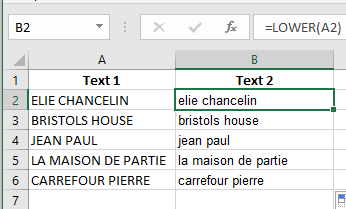
To convert text to lowercase:
- In cells A2:A8, enter any text in uppercase.
- Select cells B2:B8 and enter the following formula:
=LOWER(A2) - Press Ctrl + Enter.
Use the PROPER Function to Capitalize the First Letter of Each Word
To convert the first letter of each word to uppercase and the remaining letters to lowercase, use the PROPER function. This function capitalizes the first letter of a text string and each letter that follows a non-letter character (such as a space). All other letters are converted to lowercase.
Syntax:
PROPER(text)
- text: Text in quotation marks, a formula that returns text, or a reference to a cell containing the text to be capitalized.
To convert text to title case:
- In cells A2:A6, enter any type of text with different capitalization patterns.
- Select cells B2:B7 and enter:
=PROPER(A2) - Press Ctrl + Enter.

Change Text to Uppercase, Lowercase, or Title Case
Excel provides three helpful functions to convert text to uppercase, lowercase, or title case.
As shown in rows 6, 7, and 8 of the following figure, these functions only need a pointer to the text you want to convert.
- The UPPER function converts text to all uppercase.
- The LOWER function converts text to all lowercase.
- The PROPER function converts text to title case (the first letter of each word is capitalized).
What Excel lacks is a built-in function to convert text to sentence case (only the first letter of the first word capitalized). However, you can use the following formula to force sentence case:
=UPPER(LEFT(C4,1))&LOWER(RIGHT(C4,LEN(C4)-1))
If you look closely at this formula, you’ll see it consists of two parts joined by an ampersand &.
The first part uses Excel’s LEFT function:
UPPER(LEFT(C4,1))
The LEFT function extracts a specified number of characters from the start of a text string.
It takes two arguments: the text and the number of characters to extract.
In this case, it extracts the first character of cell C4 and converts it to uppercase with the UPPER function.
The second part is more complex. It uses the RIGHT function:
LOWER(RIGHT(C4,LEN(C4)-1))
Like LEFT, the RIGHT function takes two arguments: the text and how many characters to extract from the end.
Instead of hardcoding the number, it calculates it by subtracting 1 from the total length of the text using the LEN function.
This is because the first character has already been capitalized by the LEFT/UPPER part.
Finally, the RIGHT portion is wrapped in the LOWER function to convert the rest of the text to lowercase.
Putting it all together gives you sentence case:
=UPPER(LEFT(C4,1))&LOWER(RIGHT(C4,LEN(C4)-1))