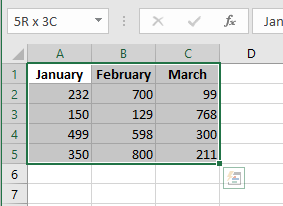
Creating a chart is fairly straightforward:
- Make sure your data is appropriate for a chart.
- Select the range that contains your data.
- Go to the Insert tab and select a chart type from the Charts group. These icons open drop-down lists that display subtypes. Excel creates the chart and places it in the center of the window.
There are three entry points for creating a chart:
- Quick Analysis icon
- Recommended Charts
- Insert tab on the ribbon
Creating a Chart Using the Quick Analysis Icon
When you select a data range in Excel, the Quick Analysis icon appears just below the data.
Clicking it opens a menu with options for formatting, charts, totals, tables, and sparklines.
Click the Charts tab and the Quick Analysis tool will display a few recommended charts.
Hover over any thumbnail to see a live preview.
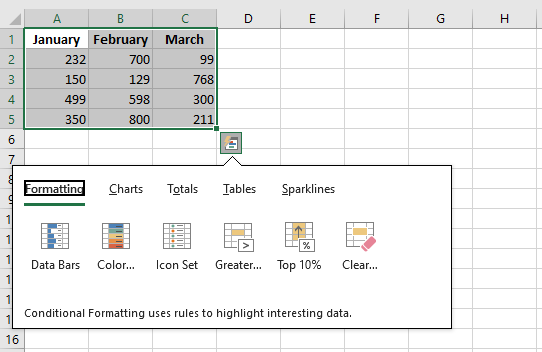
If none of the thumbnails suit your needs, you can click the More Charts icon at the end—equivalent to selecting the Recommended Charts icon.
Although this tool is handy, it often takes at least three clicks and some hovering to access suitable charts. It’s usually easier to go directly to Recommended Charts.
Inserting a Recommended Chart
You’ll likely prefer the Recommended Charts method to create charts.
This icon appears as a large button in the Charts group on the Insert tab.
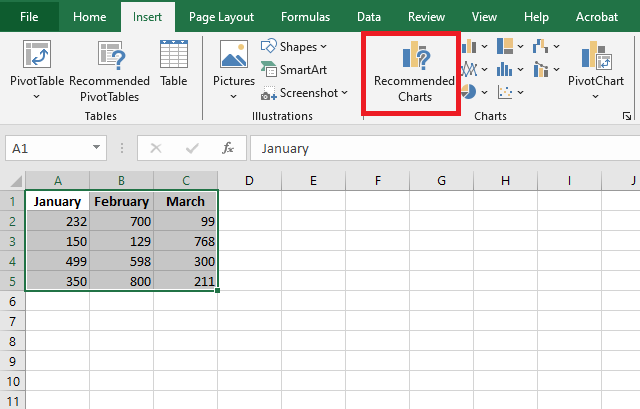
Select your data range and click Recommended Charts.
Excel opens the Insert Chart dialog box, starting with the Recommended Charts tab.
You’ll see chart previews without needing to hover over each one.
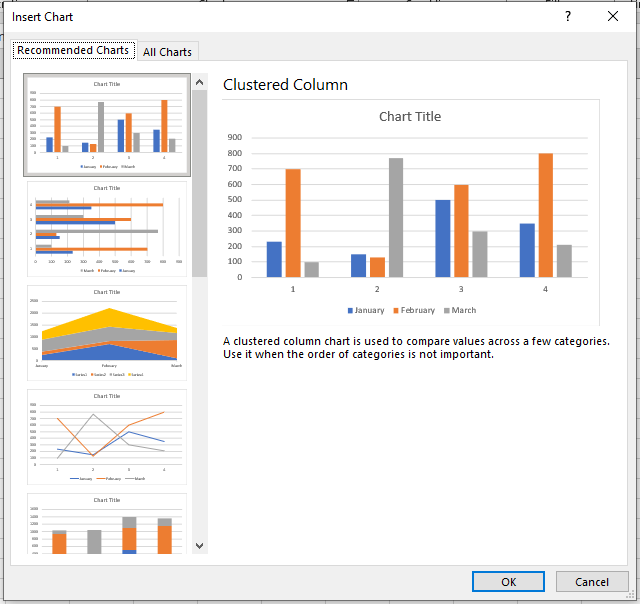
If none of the recommended charts fits your needs, switch to the All Charts tab to browse the 73 built-in chart types.
This tab is easier to navigate than the icons on the ribbon and includes chart types like Surface and Stock, which are hidden from the main ribbon.
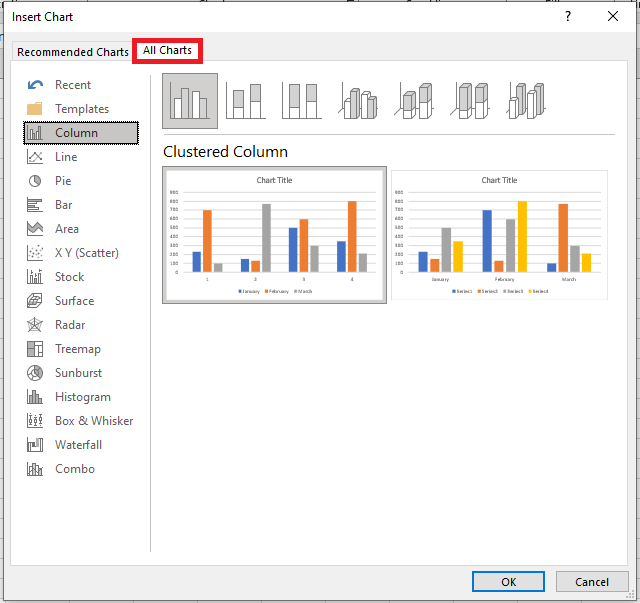
Each category shows thumbnails, typically including:
- Clustered – Displays each series as a separate bar, column, or marker starting from the axis.
- Stacked – Shows how series add up to a total. Good for total sales by region, less useful for analyzing individual series trends.
- 100% Stacked – Converts values into percentages; each bar/line/column totals 100%. Not ideal for comparing raw values.
- 3D Column – Adds depth by showing series front to back. May obscure data if front series are taller than the back.
Creating a Chart Using Other Insert Icons
If you don’t use the Recommended Charts icon, you can directly access one of the eight other chart type dropdowns in the Insert tab.
There are 11 chart categories, but only eight icons are visible.
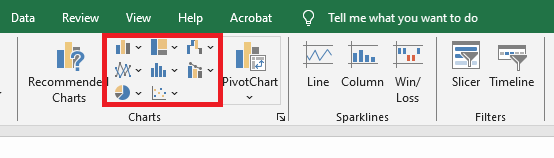
- Bubble charts are found under the Scatter chart icon.
- Stock and Surface charts are under the Radar icon.
- Cone, Pyramid, and Cylinder options were moved to the Format Pane.
To access chart templates or recently used charts, go to Insert Chart → All Charts.
NOTE
You can create a chart with a single keystroke. Select the range you want to use in the chart, and then press Alt+F1 (for an embedded chart) or F11 (for a chart on a chart sheet). Excel displays the chart of the selected data using the default chart type. The default chart type is a column chart, but you can change it. To change the default chart type, select any chart and choose Chart Tools / Design / Change Chart Type. The Change Chart Type dialog box appears. Choose a chart type from the list on the left, then right-click a chart in the row of thumbnails and choose Set as Default Chart.
Exploring Other Chart Types
Although a clustered column chart might work well, it’s worth trying other chart types.
Choose:
Chart Tools → Design → Change Chart Type → All Charts
To change the default chart type:
- Select any chart
- Go to Chart Tools → Design → Change Chart Type
- In the dialog box, right-click a chart thumbnail and choose Set as Default Chart.
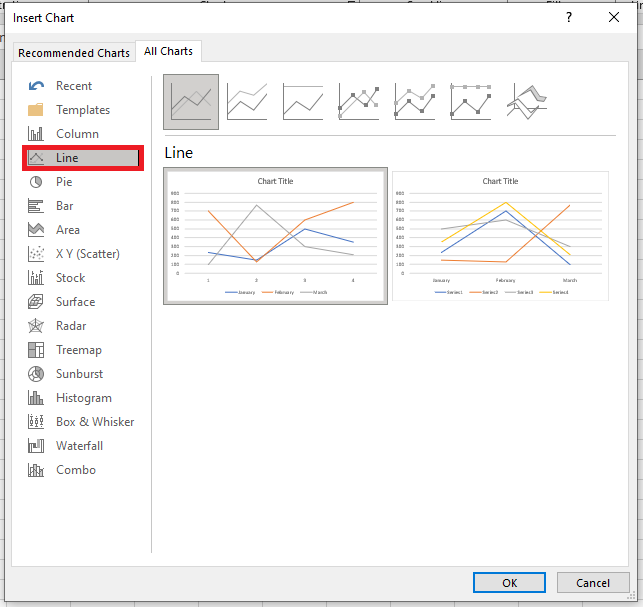
The dialog displays a preview of each chart for both data orientations. Click OK to apply your selection.
NOTE:
Chart styles shown depend on the workbook theme. Changing the theme via Page Layout → Themes alters available styles and colors.
Working with Charts
This section covers common chart tasks:
■ Resizing and Moving Charts
- To resize: Click the chart. Drag a corner handle when the pointer becomes a double arrow.
- Alternatively, select the chart, go to Chart Tools → Format → Size, and adjust the Height and Width fields.
- To move: Click and drag the chart’s border.
- To move it to another sheet or workbook, use Cut (Ctrl+X) and Paste (Ctrl+V).
To move between embedded and chart sheet:
Chart Tools → Design → Move Chart
■ Copying Charts
To duplicate a chart on the same sheet:
- Ctrl+drag the chart’s border.
To copy a chart to another location or workbook:
- Use Copy (Ctrl+C) and Paste (Ctrl+V).
Charts pasted in another workbook remain linked to their original data.
■ Deleting Charts
To delete an embedded chart:
- Ctrl+click to select it, then press Delete.
- You can select multiple charts with Ctrl+Click.
To delete a chart sheet:
- Right-click the sheet tab → Delete
■ Adding Chart Elements
Click the chart to activate it, then use the Chart Elements (+) icon to add elements like:
- Titles
- Legends
- Data Labels
- Gridlines
Or use:
Chart Tools → Design → Add Chart Element
■ Moving and Deleting Chart Elements
To move items like titles or legends:
- Click and drag their border.
To delete:
- Select the item and press Delete, or use the Chart Elements (+) menu.
■ Printing Charts
Embedded charts print like any other worksheet content.
Use Print Preview or Page Layout view to avoid page breaks splitting your chart.
Charts on chart sheets always print one per page.
To exclude a chart from printing:
- Open Format Chart Area pane → Size & Properties → uncheck Print Object
NOTE:
If you select an embedded chart and go to File → Print, Excel prints the chart by itself—not the entire worksheet.
Understanding Chart Types
Charts are typically used to support a message or highlight a point. That message may appear in the title or a textbox.
Choosing the right chart type is key. It’s often worth testing several chart types to find the most effective one.
Underlying most charts is a comparison, such as:
- Item comparison: Sales by region
- Time comparison: Sales over months
- Relative comparison: Pie charts for percentages
- Relationship comparison: XY scatter plot
- Frequency comparison: Histogram of grade distribution
- Outlier detection: Large datasets revealing anomalies
Choosing a Chart Type
A common question is:
“How do I know which chart type to use?”
There’s no one-size-fits-all answer. The best advice:
Use the chart type that communicates your message most clearly.
Recommended Charts is a good starting point:
Insert → Charts → Recommended Charts
On the ribbon, the Charts group offers nine dropdowns, each giving access to multiple types (e.g., column/bar under one button, scatter/bubble under another).
The All Charts tab in the Insert Chart dialog box shows a categorized list of all types and subtypes.
Choosing a Chart Type
A common question among Excel users is: “How do I know which chart type to use for my data?” Unfortunately, there’s no one-size-fits-all answer. The best advice is probably vague: use the chart type that conveys your message most clearly. Excel’s Recommended Charts feature is a good starting point. Select your data and choose Insert > Charts > Recommended Charts to see the types Excel suggests. Keep in mind, though, that these suggestions are not always the best choice.
In the ribbon, the Charts group on the Insert tab displays the Recommended Charts button, along with nine other dropdown buttons. Each of these dropdowns contains multiple chart types. For example, column and bar charts are accessed from a single dropdown, as are scatter and bubble charts. The easiest way to pick a specific chart type is probably to select Insert > Charts > Recommended Charts, which opens the Insert Chart dialog box. Select the All Charts tab to get a concise list of all chart types and their subtypes.
Column Charts
The most common chart type is probably the column chart, which displays each data point as a vertical column, with the height representing the value. The value axis is shown vertically, typically on the left side of the chart. You can include any number of data series, and data points in each series can be stacked. Typically, each data series is displayed in a different color or pattern.
Column charts are often used to compare discrete items and can show differences between elements within a series or across multiple series. Excel offers seven column chart subtypes.
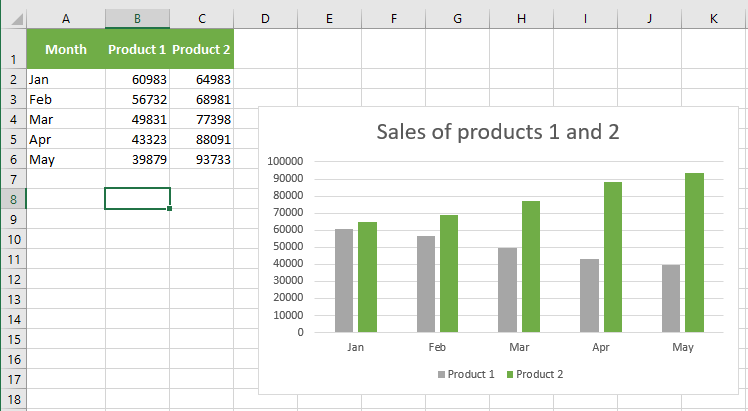
The following figure shows an example of a clustered column chart representing monthly sales of two products.
From this chart, it’s clear that Product 1 consistently outsold Product 2. Also, sales of Product 2 declined over the five-month period, while sales of Product 1 increased.
The same data is shown in the next figure as a stacked column chart.
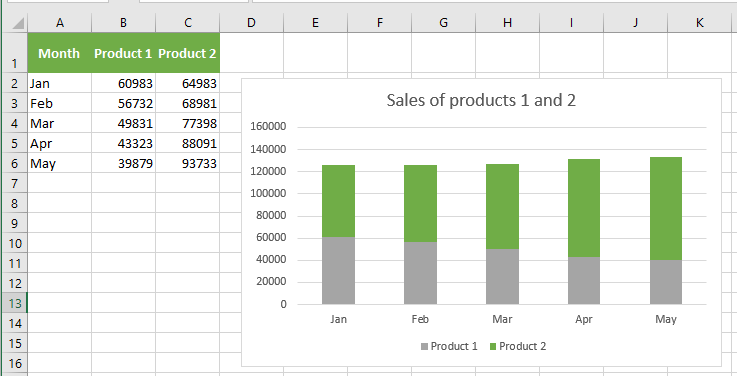
This chart has the added benefit of displaying combined sales over time. It shows that total sales remained fairly steady each month, but the relative proportions of the two products shifted.
A 100% stacked column chart of the same data appears in the next figure.
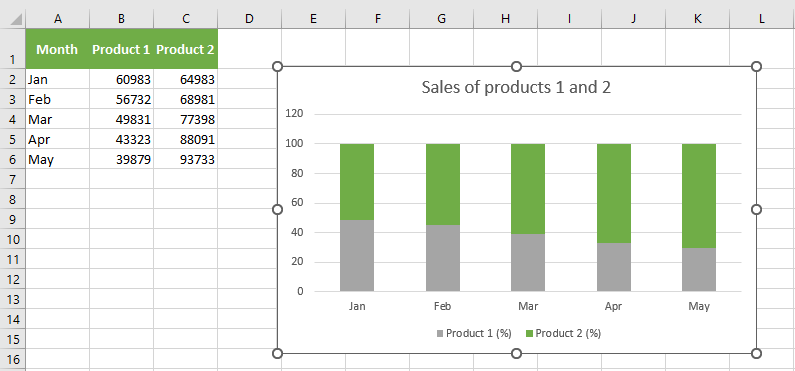
This chart highlights each product’s relative contribution by month. Note that the vertical axis displays percentages, not actual sales amounts. This chart provides no information about total sales volume, though that could be added using data labels. This type of chart is often a good alternative to multiple pie charts. Rather than using a pie for each year to show relative sales volume, this chart uses one column per year.
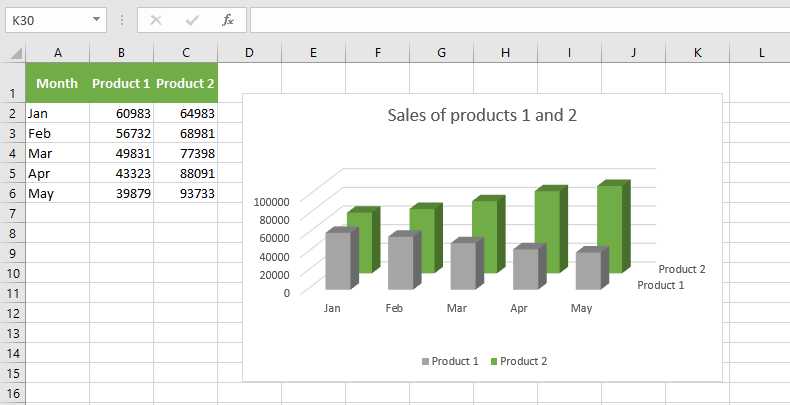
The next figure displays the same data as a 3-D clustered column chart.
The name is a bit misleading, as the chart only uses two dimensions. Many people use this chart type for its visual appeal. Compare it to a “true” 3-D column chart (with a second category axis), as shown in the next figure.
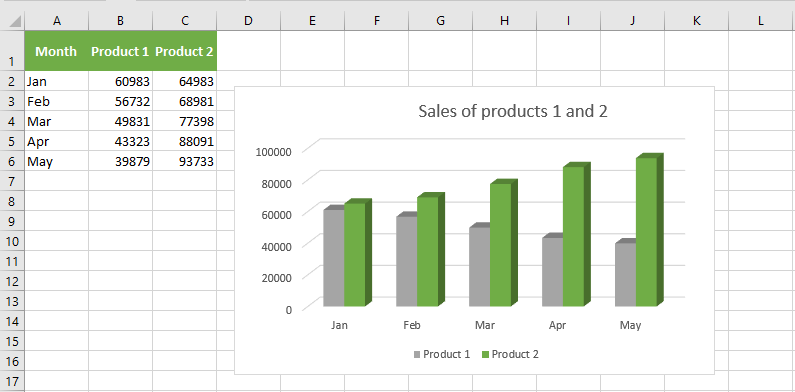
This chart may be visually striking, but precise comparisons are difficult due to the distorted perspective.
For 3-D columns, you can choose a different column shape in the Format Data Series dialog box. Excel offers variants such as cylinder, cone, and pyramid.
Bar Charts
A bar chart is essentially a column chart rotated 90 degrees clockwise. One advantage of bar charts is that category labels are often easier to read. The next figure shows a bar chart displaying one value for each of ten survey items.
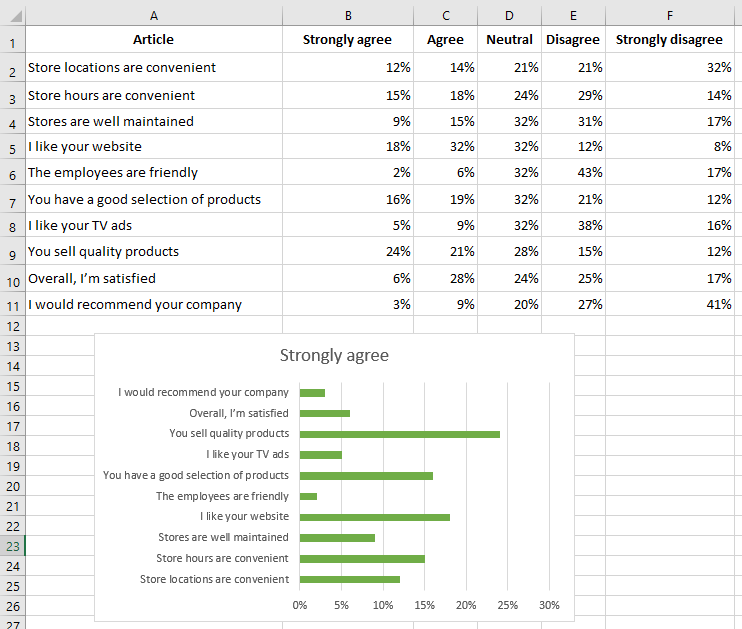
The category labels are long and would be hard to read clearly on a column chart. Excel provides six bar chart subtypes.
Unlike column charts, no bar chart subtypes display multiple series along a third axis (i.e., Excel does not offer 3-D bar chart subtypes). You can add a 3-D effect to a bar chart, but it will still use only two axes.
You can include any number of data series in a bar chart. Also, bars can be “stacked” from left to right.
Line Charts
Line charts are often used to plot continuous data and are useful for identifying trends. For example, plotting daily sales as a line chart may help you spot fluctuations over time. Typically, the x-axis of a line chart displays evenly spaced intervals. Excel supports seven line chart subtypes.
See the next figure for an example of a line chart that plots monthly data (676 data points).
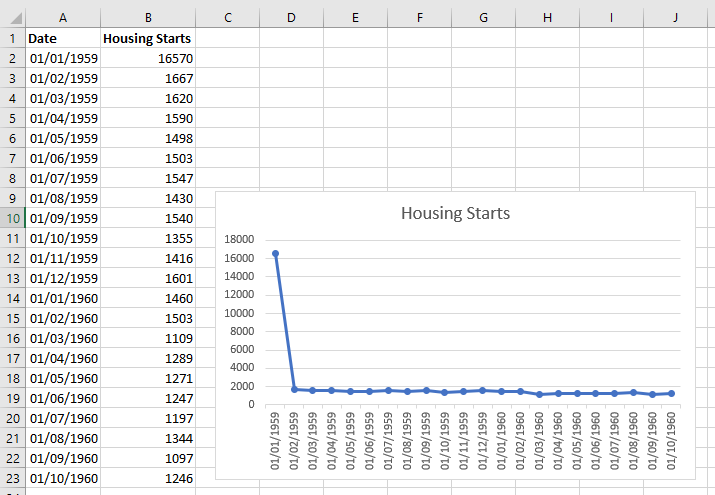
Although the data varies significantly month-to-month, the chart clearly outlines cycles.
A line chart can use any number of data series. You distinguish the lines using different colors, line styles, or markers. The next figure shows a line chart with three series.
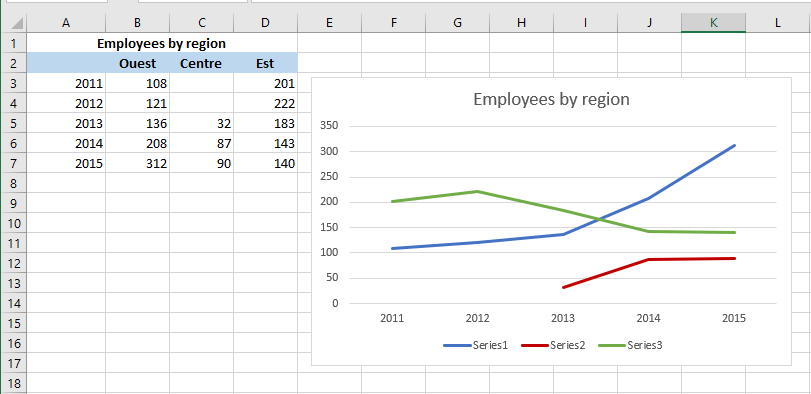
Series are differentiated using markers (circles, squares, triangles) and line colors. When printed in black and white, markers are the only way to distinguish the lines.
The final example, shown in the next figure, is a 3-D line chart.
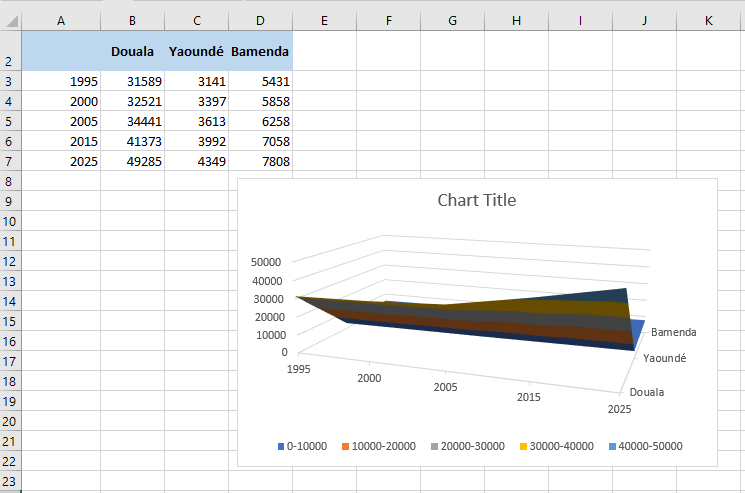
Although visually appealing, it’s certainly not the clearest way to present data—in fact, it’s quite poor.
Pie Charts
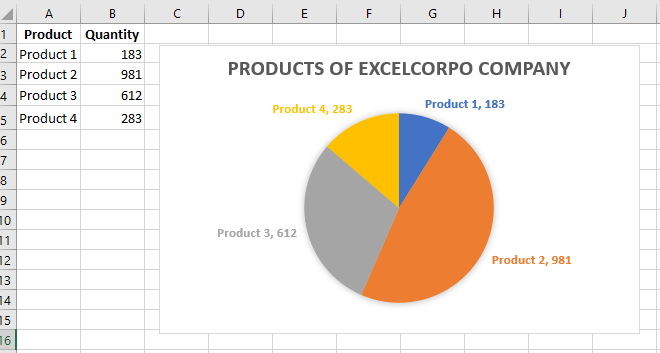
A pie chart is useful when you want to show relative proportions or contributions to a whole. A pie chart uses a single data series. Pie charts are most effective with a small number of data points. As a general rule, a pie chart should not use more than five or six data points (or slices). A pie chart with too many data points can be difficult to interpret.
All values in a pie chart must be positive numbers. If you create a pie chart using one or more negative values, the negative values will be converted to positive values, which is likely not what you intended.
You can « explode » one or more slices in a pie chart to emphasize them. Activate the chart and click on any slice to select the whole pie. Then click again on the slice you want to explode and drag it away from the center.
XY (Scatter) Charts
Another common chart type is the XY chart (also called a scatter chart). An XY chart differs from most other chart types in that both axes display values.
This chart type is often used to show the relationship between two variables.
The following figure shows an example of an XY chart that plots the relationship between sales calls made (horizontal axis) and sales (vertical axis).
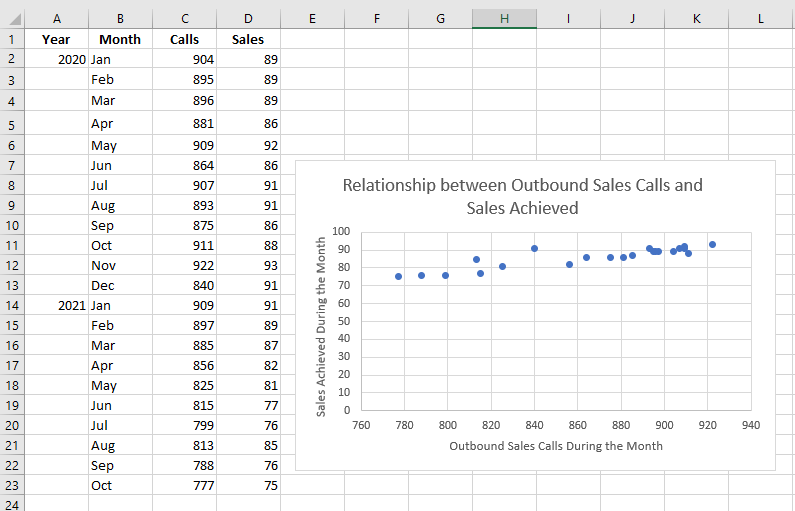
Each point on the chart represents a month. The chart shows that these two variables are positively correlated: months with more sales calls generally had higher sales volumes.
Although the data points relate to time, the chart doesn’t convey any time-related information. In other words, the points are plotted based solely on their two values.
Area Charts
Think of an area chart as a line chart where the area beneath the line is filled with color. The following figure shows an example of a stacked area chart.
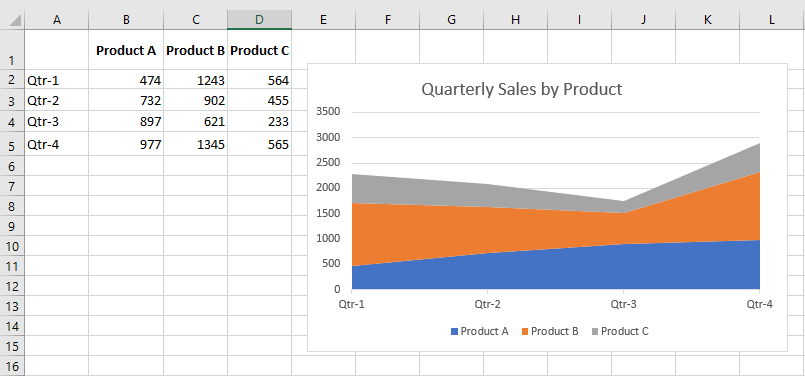
Stacking data series makes it easy to see the total as well as the contribution of each series.
The next figure shows the same data plotted as a 3-D area chart.
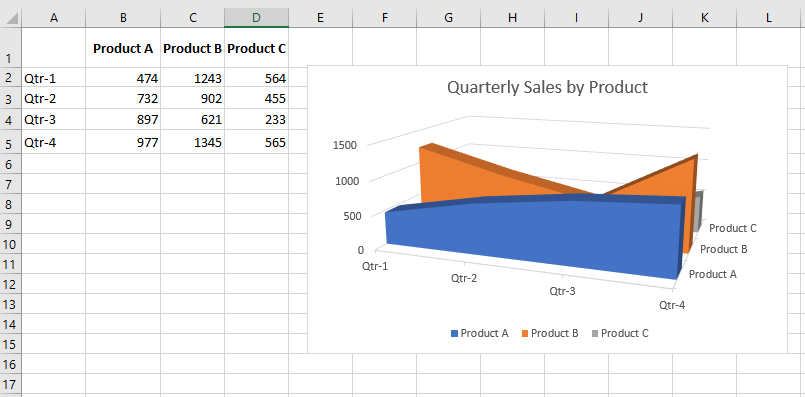
As you can see, this is not an effective chart. The data for Products B and C is obscured. In some cases, rotating the chart or using transparency may solve the problem. But generally, the best solution is to select a different chart type.
Radar Charts
You may not be familiar with this chart type. A radar chart is a specialized chart that has a separate axis for each category, and the axes extend outward from the center of the chart. The value of each data point is plotted on the corresponding axis.
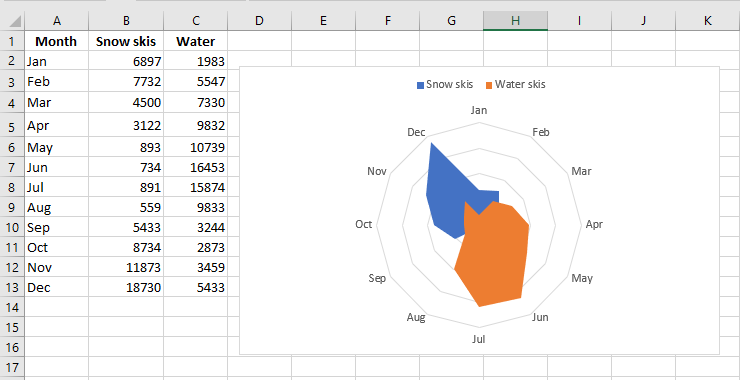
This chart displays two data series across 12 categories (months) and illustrates the seasonal demand for snow skis versus water skis. Note that the water ski series partially obscures the snow ski series.
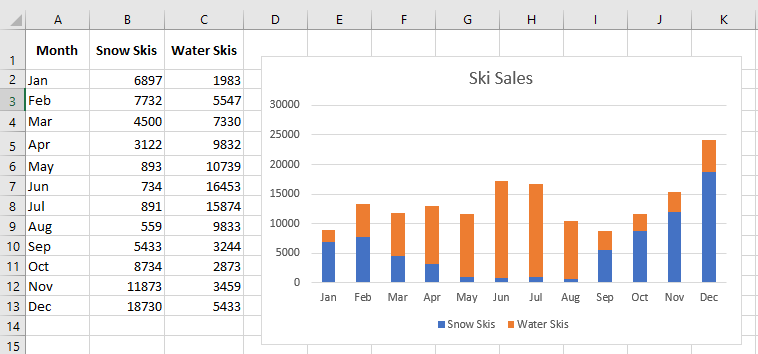
Using a radar chart to display seasonal sales can be visually interesting, but it’s certainly not the most effective chart type. As shown in the next figure, a stacked bar chart communicates the information much more clearly.
Surface Charts
Surface charts display at least two data series on a surface. As shown in the following figure, these charts can be quite eye-catching.
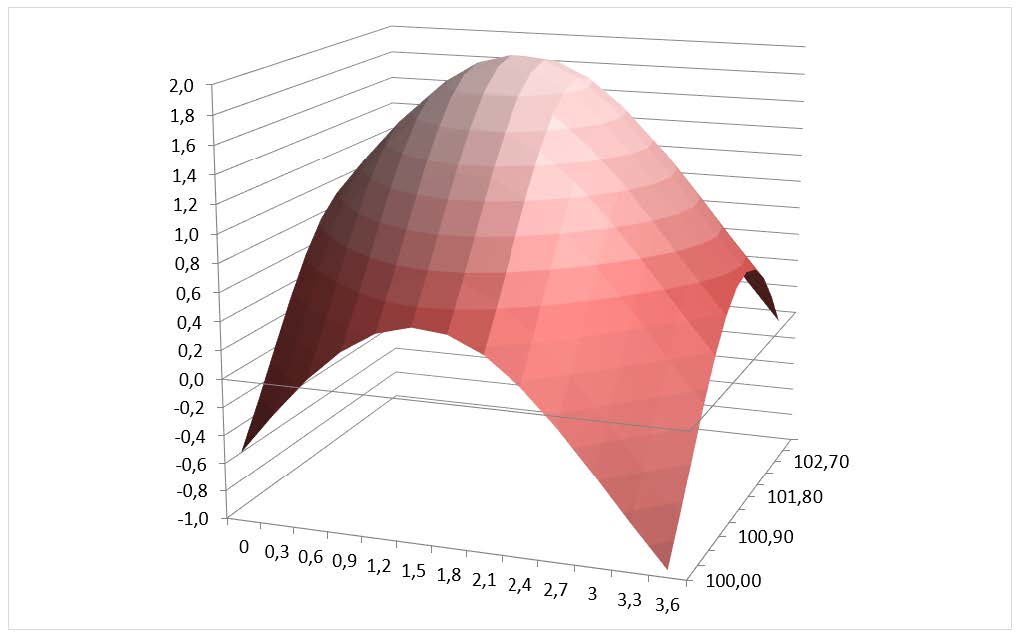
Unlike other charts, Excel uses color to distinguish values—not data series. The number of colors used is determined by the major unit setting on the value axis scale. Each color corresponds to one major unit.
NOTE:
A surface chart does not plot true 3-D data points. The series axis for a surface chart, like all other 3-D charts, is a category axis, not a value axis. In other words, if you have data represented by x, y, and z coordinates, it cannot be plotted accurately on a surface chart unless the x and y values are equally spaced.
Bubble Charts
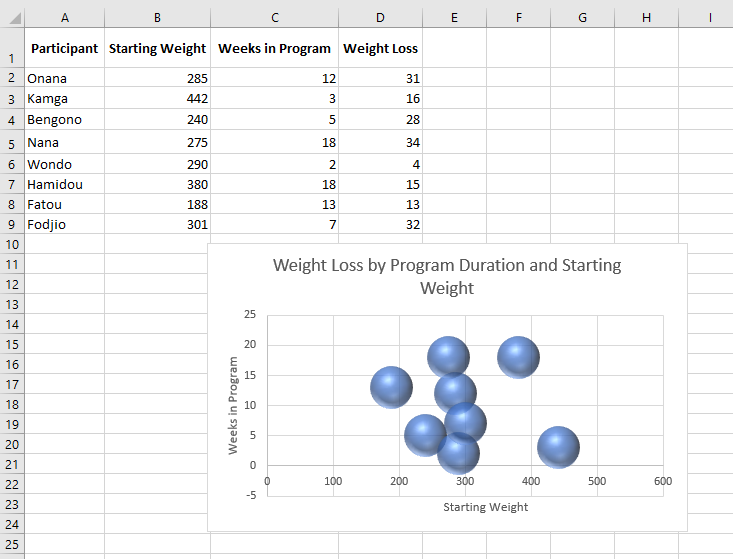
A bubble chart is essentially an XY chart that can display an additional data series represented by bubble size. Like an XY chart, both axes are value axes (there is no category axis).
The following figure shows an example of a bubble chart illustrating the results of a weight loss program. The horizontal axis represents initial weight, the vertical axis shows the number of weeks in the program, and the size of the bubble represents the amount of weight lost.
Stock Charts
Stock charts are most useful for displaying stock market data. These charts require three to five data series, depending on the subtype.
The figure below shows an example of each of the four stock chart types.
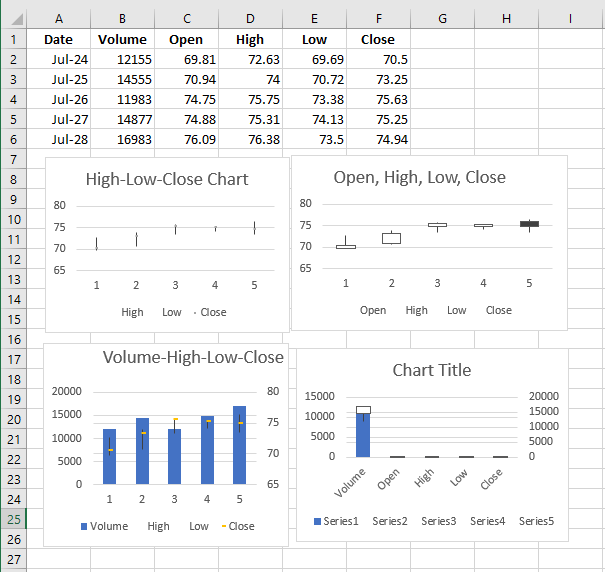
The two bottom charts display trading volume and use two value axes. Daily volume, shown as columns, uses the left axis. The vertical bars (sometimes called candlesticks) represent the difference between opening and closing prices. A black bar indicates the closing price was lower than the opening price.
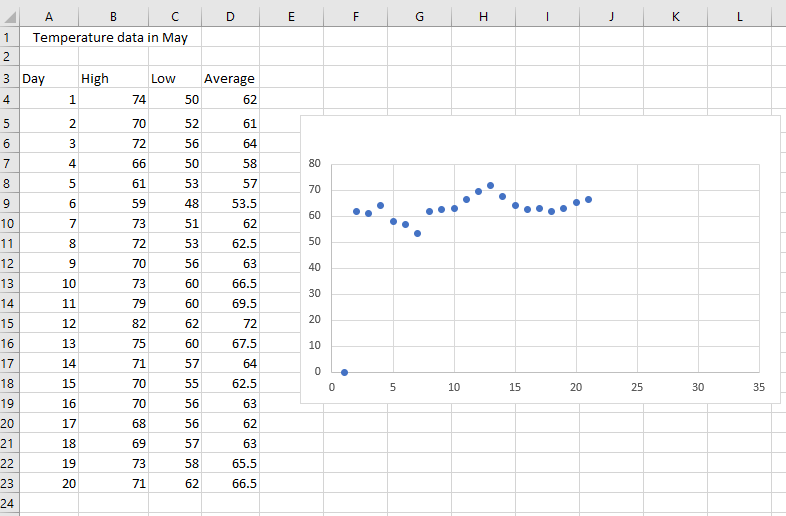
Stock charts aren’t limited to stock price data. The following figure shows a stock chart depicting daily high, low, and average temperatures for each day in May. This is a high-low-close chart.
Pareto Charts
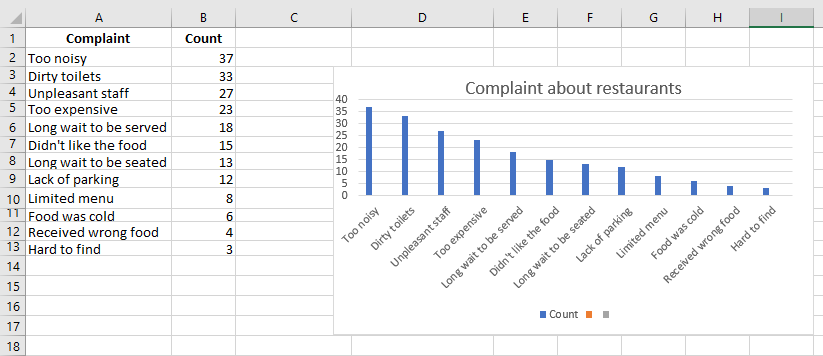
A Pareto chart is a combination chart in which columns are displayed in descending order and use the left axis. The line shows the cumulative percentage and uses the right axis.
The figure below shows a Pareto chart created from the data in range A2:B14. Note that Excel sorted the chart items. The line shows, for example, that about 50 percent of all complaints fall into the first three categories.
Waterfall Charts
A waterfall chart is used to show the cumulative effect of a series of numbers, typically including both positive and negative values. The result is a “staircase” style visual.
The following figure shows a waterfall chart based on the data in column D.
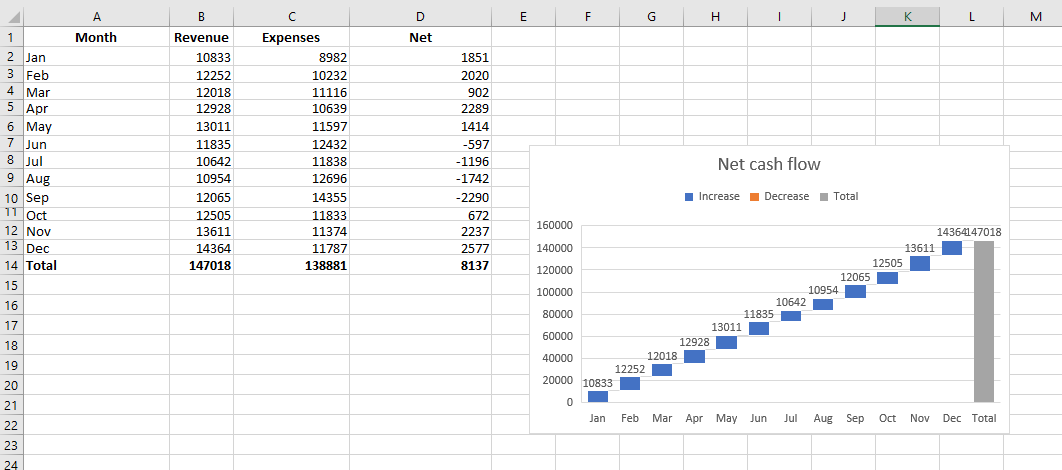
Waterfall charts typically display the final total as the last column, starting from zero. To correctly display the total column, select it, right-click, and choose Set as Total from the context menu.
Box and Whisker Charts
A box and whisker chart (also called a quartile chart) is often used to visually summarize data. In the past, such charts could be created in Excel, but doing so required a lot of setup. In recent versions of Excel, it’s simple.
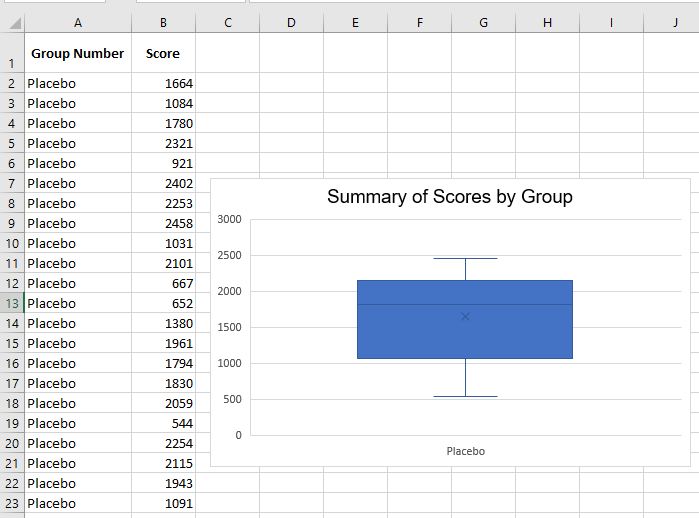
The data is in a two-column table. In the chart, the vertical lines extending from the box represent the numerical range (minimum and maximum values). The “box” represents the 25th to 75th percentile. The horizontal line within the box is the median (50th percentile), and the X represents the mean. This chart type allows quick comparisons between data groups.
As shown in the figure, the Series Options section of the Format Data Series pane contains specific settings for this chart type.
Sunburst Charts
A sunburst chart is like a multi-layered pie chart. This type of chart is particularly useful for hierarchically structured data. The figure below shows a sunburst chart representing a music collection.
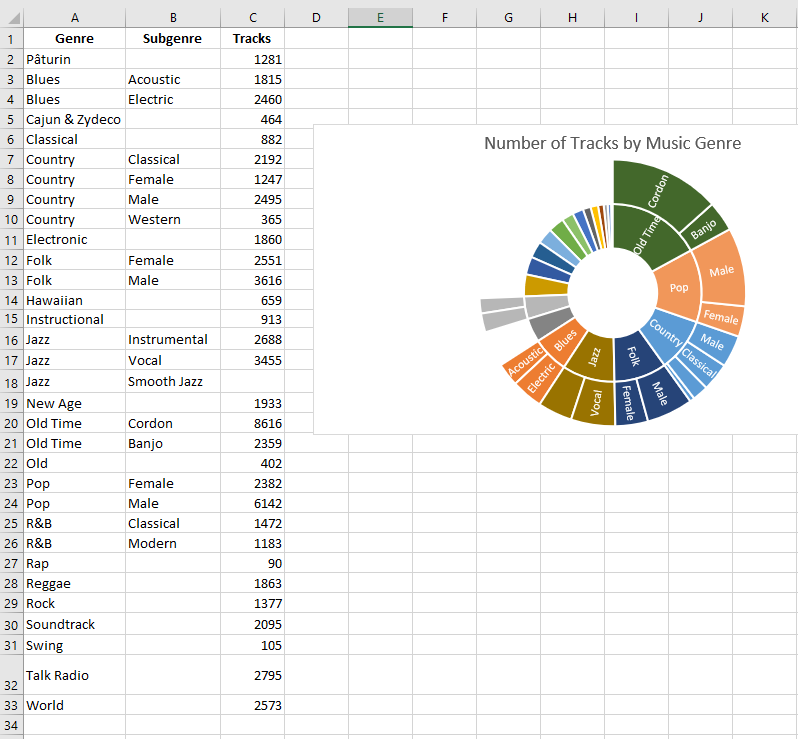
It displays the number of tracks per genre and subgenre. Note that some genres do not have subgenres.
A potential issue with this chart type is that some slices are too small for data labels to be displayed.
Treemap Charts
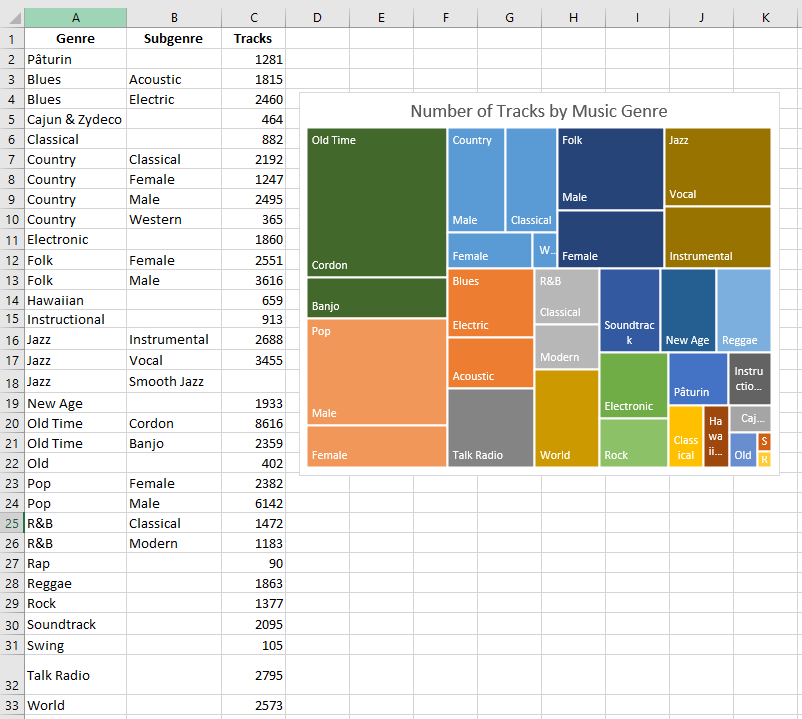
Like a sunburst chart, a treemap chart is suited for hierarchical data. However, the data is displayed as rectangles. The figure below shows the same example data as a treemap chart.