
Returns the largest value from a set of arguments, evaluating both numerical and non-numerical data types (including logical values and text representations of numbers).
Syntax
MAXA(value1; [value2]; …)
Arguments
- value1 (required): First value, cell reference, or range to evaluate
- value2,… (optional): Additional values or ranges
Key Features
- Data Type Handling:
- Numbers: Evaluated normally
- Logical values:
- TRUE = 1
- FALSE = 0
- Text representations of numbers: Converted to numerical values
- Text strings: Ignored (treated as 0)
- Empty cells: Ignored
- Comparison with MAX():
- Unlike MAX() which ignores non-numeric values, MAXA() attempts to convert and evaluate all supported data types
- Both return 0 if no valid values are found
- Error Handling:
- Returns errors if arguments contain unprocessable error values
Example
Scenario:
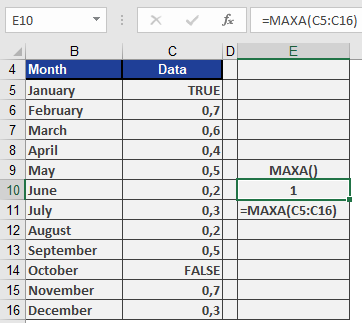
A dataset contains mixed values (numbers, logical values, and text):
| Data | Values |
| A1 | 0.5 |
| A2 | TRUE |
| A3 | « 0.8 » |
| A4 | FALSE |
| A5 | « Text » |
Formula:
=MAXA(A1:A5)
Evaluation:
- Converts values:
- 0.5 → 0.5
- TRUE → 1
- « 0.8 » → 0.8
- FALSE → 0
- « Text » → ignored (treated as 0)
- Compares converted values: (0.5, 1, 0.8, 0)
- Returns: 1 (from TRUE)
Practical Applications
- Analyzing datasets with mixed data types
- Processing survey data containing logical (Yes/No) responses
- Evaluating conditional results where TRUE/FALSE represent meaningful values
Complementary Functions
- MINA(): Returns smallest value with same conversion rules
- MAX(): Numeric-only maximum function
- COUNT(): Counts numeric values only
Note: For accurate results, ensure text representations of numbers use consistent decimal formats (e.g., « 0.8 » not « 0,8 »).