
Returns the rank of a specified number within a dataset, indicating its relative size compared to other values. The rank represents the number’s position if the dataset were sorted.
Syntax:
RANK(number; ref; [order])
Arguments
| Argument | Description |
| number (required) | The value to rank. |
| ref (required) | The dataset (array or range) containing numbers to compare against. Non-numeric values are ignored. |
| order (optional) | Controls ranking direction: |
- 0 (or omitted): Descending order (highest value = rank 1).
- Non-zero: Ascending order (lowest value = rank 1).
Key Features
- Tied Values:
- Duplicate numbers receive the same rank.
- Subsequent ranks are skipped (e.g., two values tied for rank 3 will omit rank 4).
- Correction for Ties:
To adjust ranks for identical values, use this formula:
text
[COUNT(ref) + 1 – RANK(number, ref, 0) – RANK(number, ref, 1)] / 2
Applies to both ascending and descending rankings.
- Efficiency:
Ideal for large datasets where manual ranking is impractical.
Example: Sales Performance Ranking
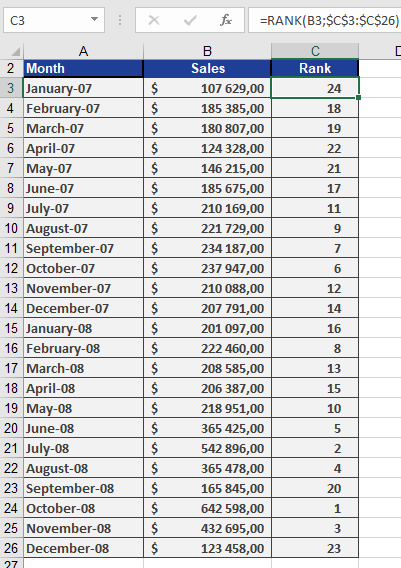
Scenario: A software company analyzes monthly sales over two years (24 months).
Steps:
- Data: Column A lists sales figures for each month.
- Ranking:
- Use =RANK(A2, $A$2:$A$25, 0) to rank sales in descending order (highest sale = rank 1).
- If sales are unique, ranks span 1–24 without gaps.
Result:
- Column B displays each month’s rank (see Figure below).
- Tied sales would share a rank.
Practical Notes
- Alternatives: Modern Excel versions use RANK.EQ() (identical to RANK()) and RANK.AVG() (assigns average rank to ties).
- Visualization: Combine with conditional formatting to highlight top/bottom performers.