
When you create a new workbook, Excel includes a single worksheet that you can use to build a spreadsheet template or store data. If you want to create a new template or store a different dataset that is related to the existing data in the workbook, you can create a new worksheet to contain the new information. Excel supports multiple worksheets in a single workbook, so you can add as many worksheets as needed for your project or template. In most cases, you’ll insert a blank worksheet, but Excel also provides several built-in templates.
Insert a Blank Worksheet
To insert a blank worksheet in a workbook, go to the Home tab, navigate to the Cells group, click the Insert command, and then choose Insert Sheet.

Excel inserts the worksheet.
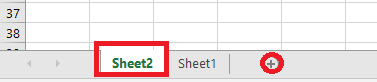
NOTE:
You can also insert a blank worksheet by pressing Shift + F11.
Another way to add a blank worksheet is by clicking the plus (+) icon, as shown in Figure 1.1.3-b.
Insert a Worksheet from a Template
To insert a worksheet from a template, open the workbook to which you want to add the worksheet. Then, right-click on a worksheet tab and click Insert.
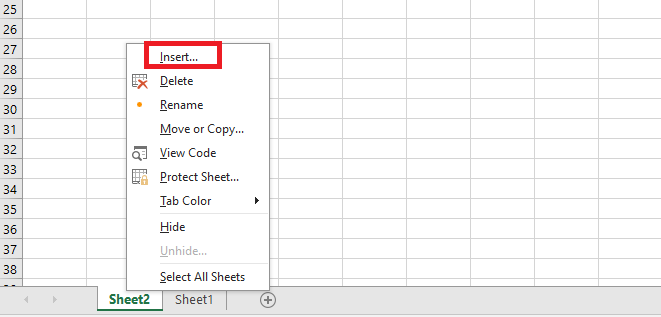
The Insert dialog box appears.
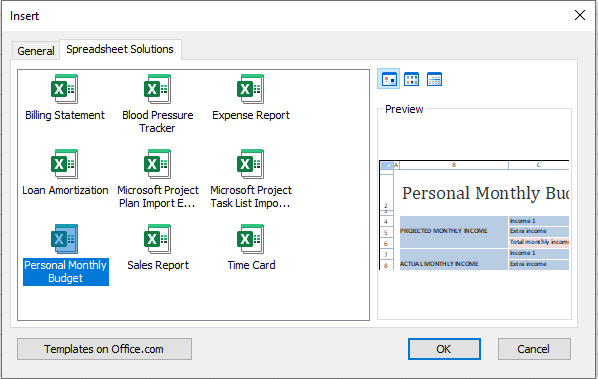
Click the Spreadsheet Solutions tab, select the type of worksheet you want to add, and then click OK.
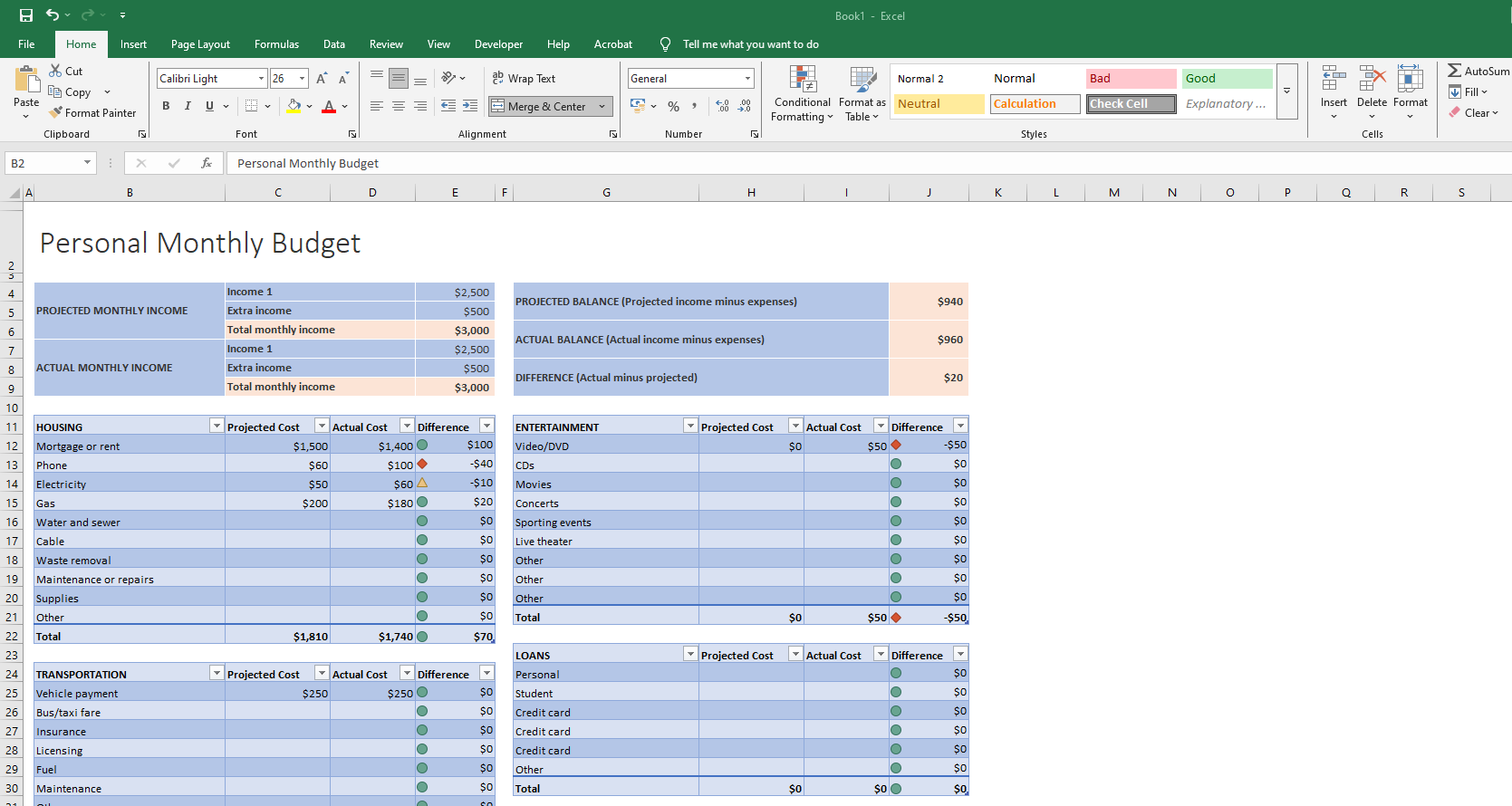
Excel inserts the worksheet.
NOTE:
You can also click Templates on Office.com to download spreadsheet templates from the web.
Set the Default Number of Worksheets for New Workbooks
If you usually add worksheets to new workbooks, you can save time by configuring Excel to always include your preferred number of worksheets in every new file.
By default, Excel includes one blank worksheet in each new workbook you create. However, you may find that you typically use three, four, or more worksheets in most of your workbooks. If that’s the case, you may be wasting time adding additional sheets manually. You can save time by telling Excel how many worksheets you want in your new workbooks.
To do this, click the File tab, then Save As, and finally click Options.
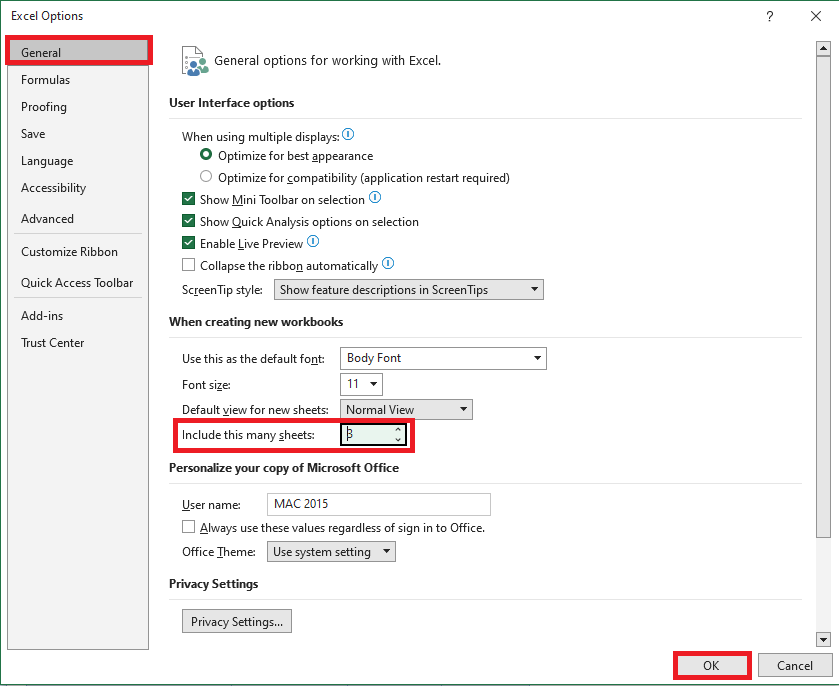
The Excel Options dialog box appears with the General tab displayed. Use the Include this many sheets box to specify how many worksheets you want in each new workbook. Click OK. From now on, whenever you create a new workbook, Excel will include the number of worksheets you’ve specified.