
After creating a chart, you may need to add a data series to it. A data series is a row or column of numbers entered in a worksheet and plotted in your chart—for example, a list of the company’s quarterly profits.
Office charts are always linked to an Excel worksheet, even if you created your chart in another program such as Word. If your chart is located on the same worksheet as the data used to create it (also called the source data), you can quickly drag the pointer around the new data in the worksheet to include it in the chart. If your chart is on a separate sheet, you’ll need to use the Select Data Source dialog box to add a data series.
Quickly Adding Data Series
To quickly add a data series to a chart on the same worksheet:
In the worksheet that contains your chart’s data, in the cells directly next to or below your existing chart data, enter the new data series you want to add.
In this example, we have a chart that shows 2019 and 2020 quarterly sales data, and we’ve just added a new 2021 data series to the worksheet. Note that the chart does not yet display the 2021 series.
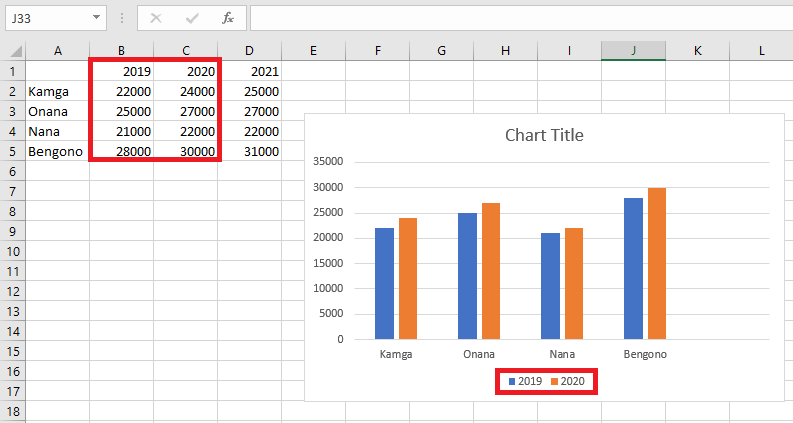
Click anywhere on the chart.
The currently displayed source data is selected in the worksheet, with resizing handles visible.
You’ll notice that the 2021 data series is not selected.
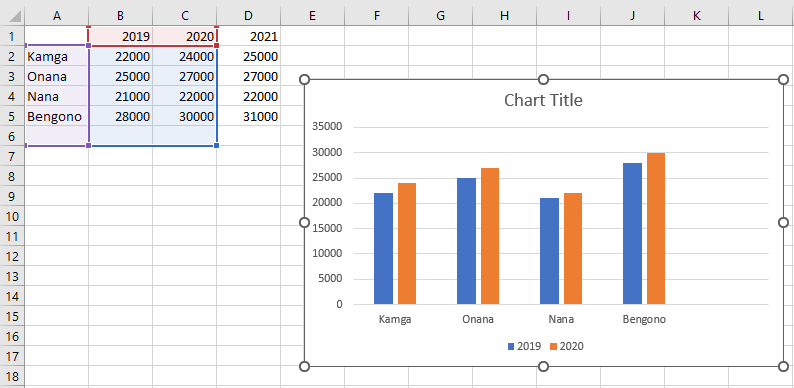
In the worksheet, drag the resizing handles to include the new data.
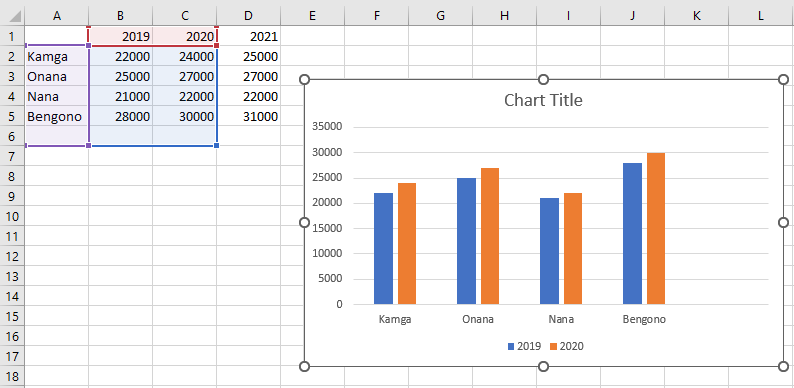
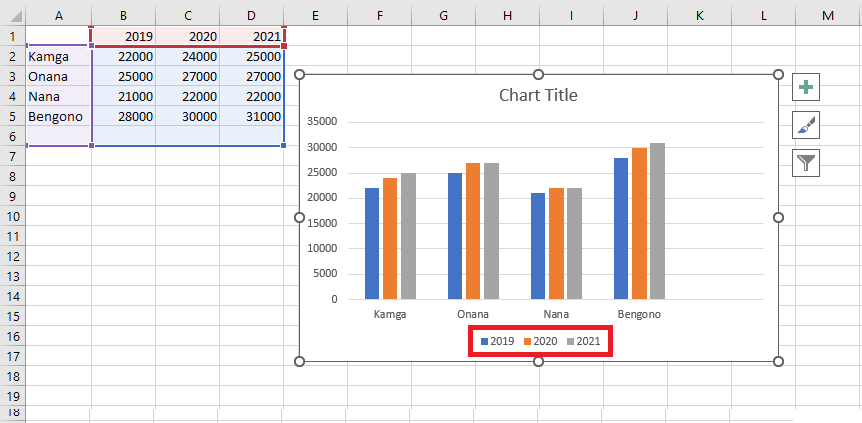
The chart updates automatically and displays the new data series you added.
Other Methods to Add Data Series
To add another data series to your chart, right-click the chart and select Select Data.
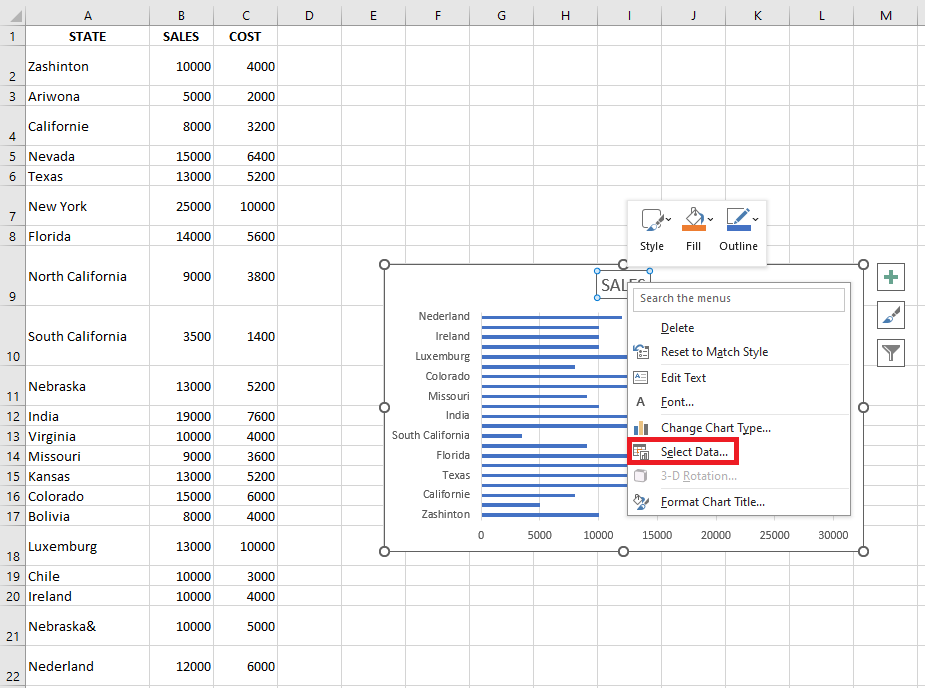
The following dialog box appears.
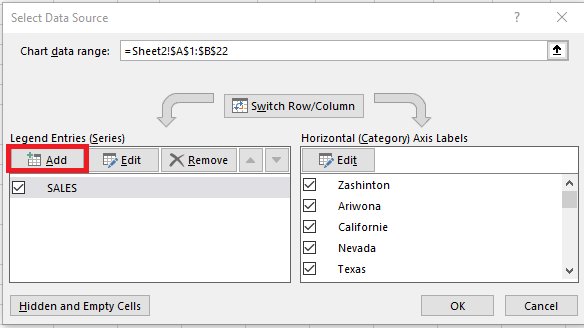
Click the Add button. The next window will open:
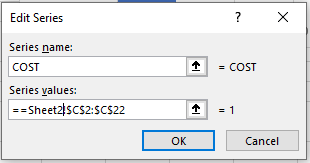
This allows you to select a new series name and reference the cells that contain the new series data. Click OK to update the chart.

Deleting Data from a Chart
To remove a data series, select it and then click the Remove button.
For example, I will remove the data series I just added:
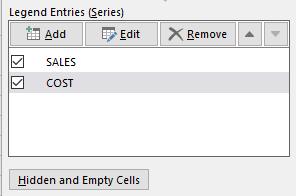
Then click OK to update the chart.
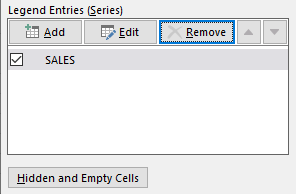
Note: I re-added the data series for Costs for the remainder of the tutorial.
Editing Data in a Chart
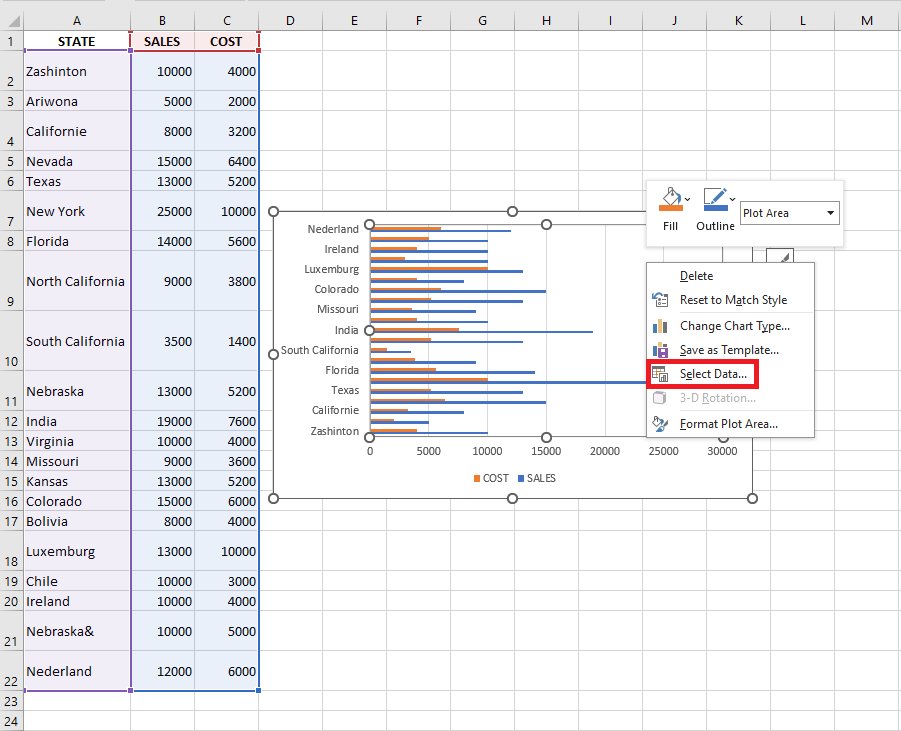
To edit another data series in your chart, right-click the chart and select Select Data.
The following dialog box will appear.
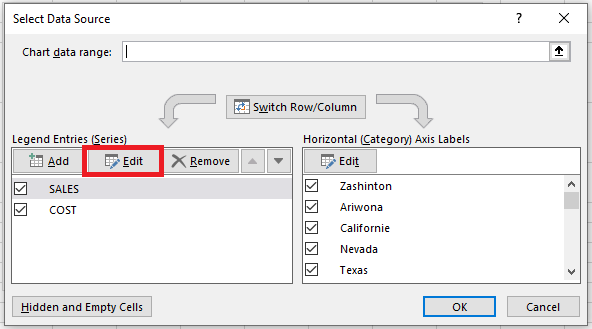
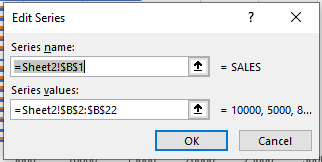
Click the Edit button. The following window will open, allowing you to edit the series name and the referenced data:
Moving Data Series Up/Down
To move a series up or down, select it and then click the up/down arrows to rearrange it.
For example, I will move the Costs data series upward:
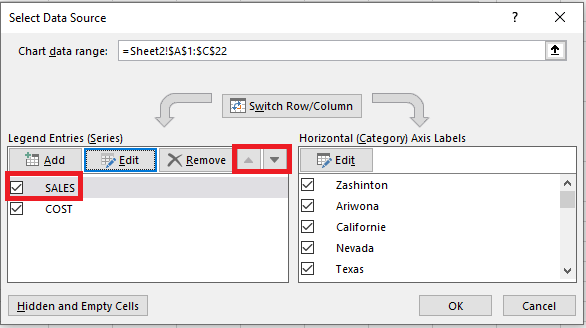
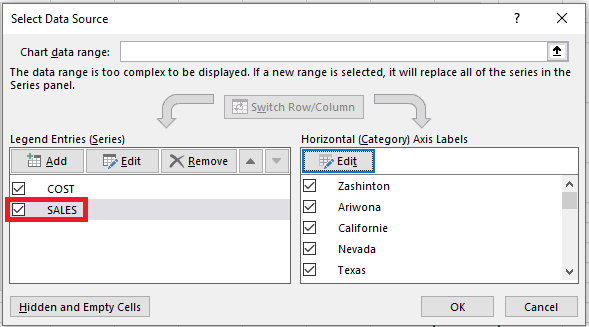
Then click OK to update the chart.
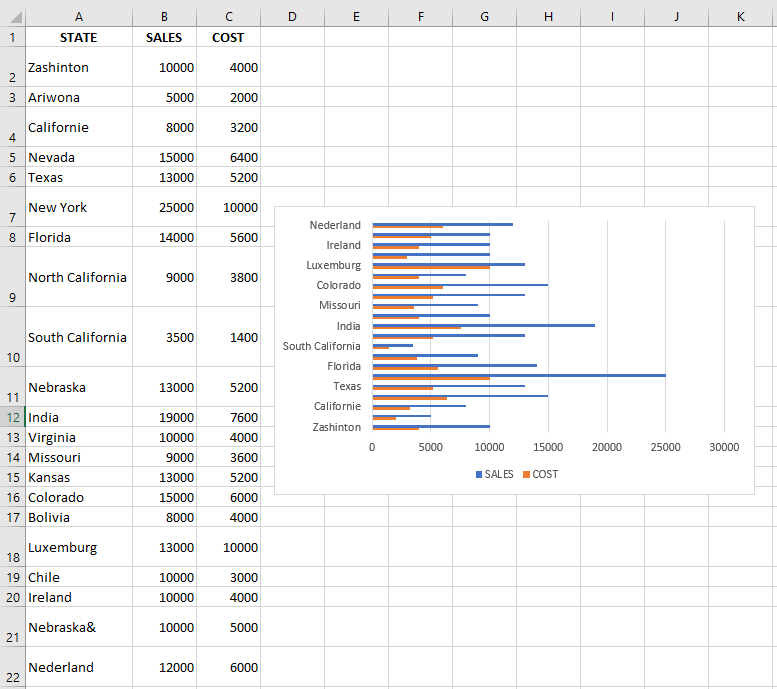
Notice how the bars have reversed order.