If you find it necessary to increase or decrease the widths of columns or the heights of rows in Excel, there are several methods available to make these adjustments. The table below shows the minimum, maximum, and default sizes for each, based on a point scale.
| Type | Min. | Max. | Default |
|---|---|---|---|
| Column | 0 (hidden) | 255 | 8.43 |
| Row | 0 (hidden) | 409 | 15.00 |
Pressing Ctrl+N also creates a new workbook using the Book.xltx template.
By default, Excel columns are 8.43 characters wide, but each individual column can be widened up to 255 characters. If the data entered in a cell is either wider or narrower than the default column width, you can adjust the column width to make it wide enough to display the data.
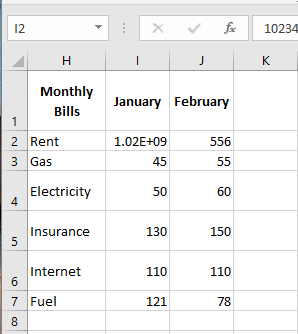
You can adjust column width manually or by using AutoFit.
To manually adjust column width:
-
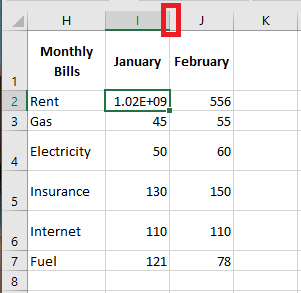
Position your mouse pointer on the right edge of the gray column header.
-
The pointer changes into a resizing tool (a double-headed arrow).
-
Drag the resizing tool to the left or right until the desired width is reached, then release the mouse button.
To automatically adjust column width:
-
Position your mouse pointer on the right edge of the column header.
-
The pointer changes into a resizing tool.
-
Double-click the border of the column header.
-
Excel automatically resizes the column, making it slightly wider than the widest cell entry it contains.
Adjusting row height works similarly to adjusting column width.
There will be times when you want to increase the height of a row to visually provide space above or below it.
To adjust the height of a single row:
-
Position your mouse pointer on the bottom edge of the row header you want to adjust.
-
The pointer changes into a resizing tool.

-
Drag the resizing tool up or down until the desired height is reached, then release the mouse button.

To automatically adjust row height:
-
Position your mouse pointer on the bottom edge of the row header you want to adjust.
-
The pointer changes into a resizing tool.
-
Double-click to adjust the row height automatically based on the font size.
-
Excel automatically resizes the row, making it slightly taller than the tallest content within the row.
To set a specific column width:
-
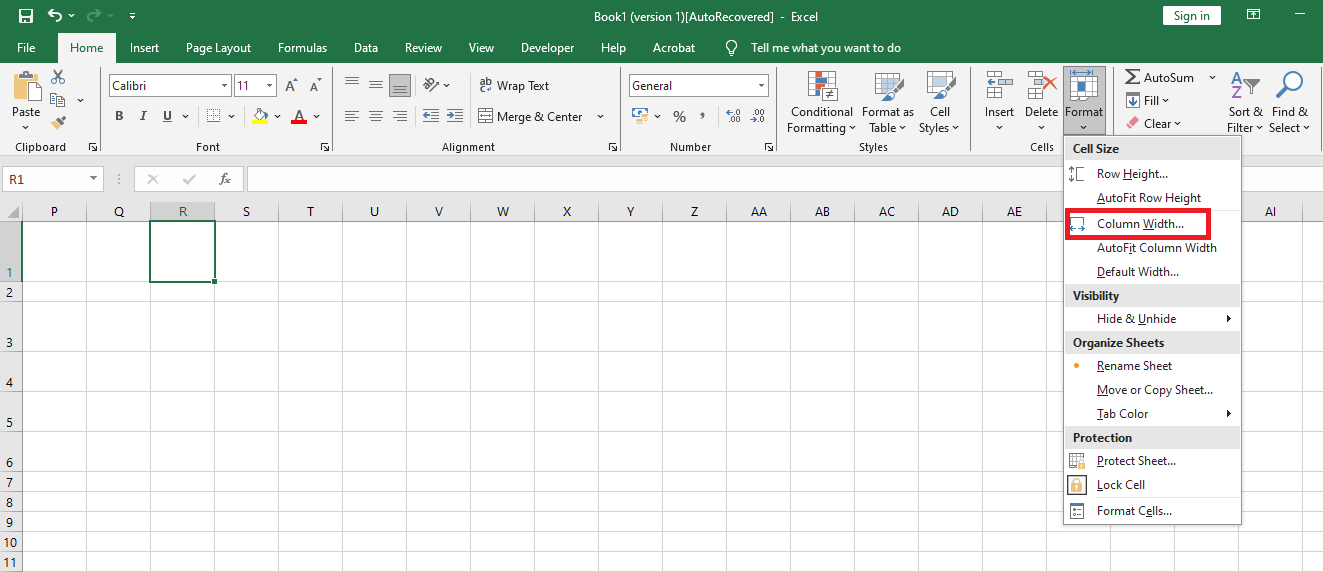
Select the column(s) you want to modify.
-
In the Cells group on the Home tab, click Format.
-
Under Cell Size, click Column Width.
-
In the Column Width box, enter the desired value.
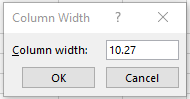
-
Click OK.
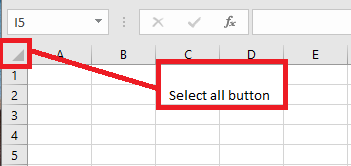
To quickly and automatically adjust all columns in a worksheet, click the Select All button, then double-click a border between any two column headers.