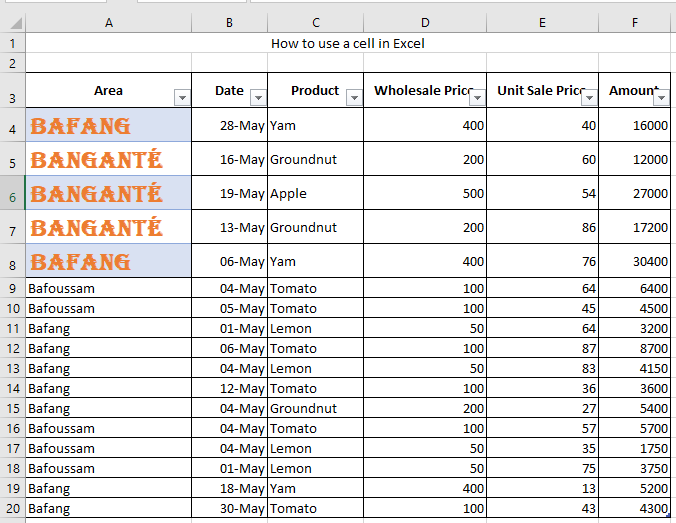
To apply multiple formatting attributes in a single step and ensure consistency across your cells, you can use a cell style. A cell style is a predefined set of formatting characteristics, such as font and font size, number formats, cell borders, and shading.
To prevent changes to specific cells, you can also use a cell style that locks the cells.
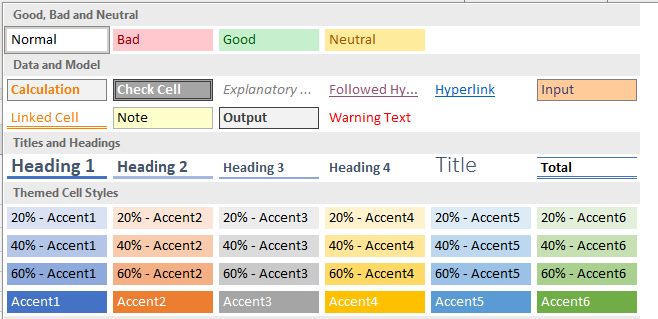
Microsoft Excel includes several built-in cell styles that you can apply or modify. You can also edit or duplicate a cell style to create your own custom style.
NOTE
Cell styles are based on the document theme applied to the entire workbook. When you change the document theme, the cell styles are automatically updated to match the new theme.
We use cell styles to apply consistent formatting such as fonts, font sizes, cell borders, cell shading, and number formats. In this tutorial, we’ll learn how to apply, create, and delete a cell style.
How to Apply a Cell Style
We can apply a Title or Total cell style using the following steps:
■ Select the cells, rows, or columns you want to format.
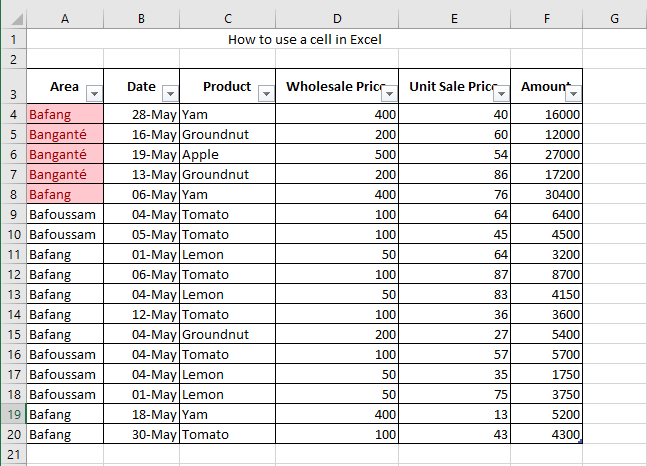
In this case, we select A4:A8 from our data.
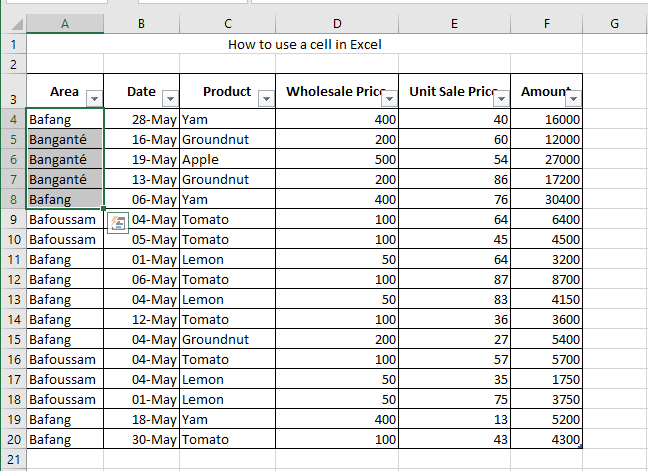
■ Go to the Home tab and click More in the Styles group.
■ In the drop-down list, choose the style you want and click Apply.
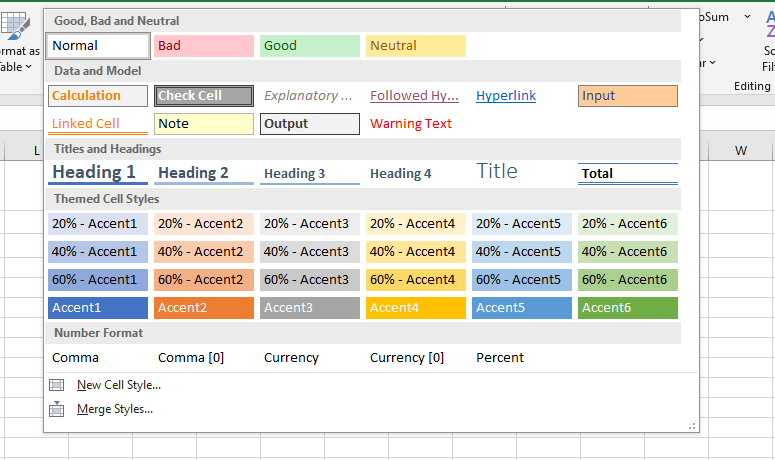
■ We will apply the Bad cell style, and the result will look like this:
How to Create a Custom Cell Style
■ Select the cells where you want to apply the custom style.
In this case, we select A3:A8.
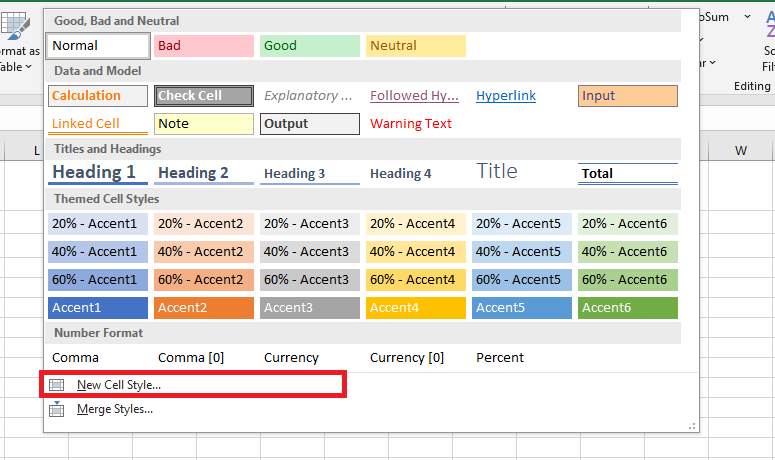
■ Go to the Home tab and click the More drop-down arrow in the Styles group.
■ At the bottom, click New Cell Style.
■ In the Style name box, enter an appropriate name for the new style.
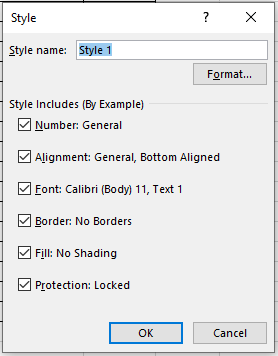
■ Then, under the style name, click Format.
In the Format Cells dialog box, choose the font and colors you want, then click OK.
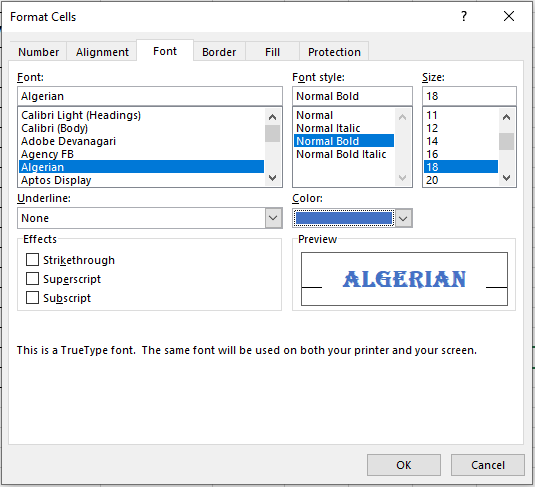
■ In the Style dialog box, under Style includes (example), uncheck any formatting you don’t want included.
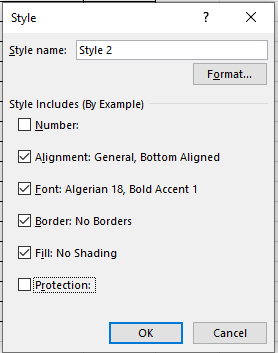
■ Click OK.
You can now apply your new custom cell style, just like any other built-in style.
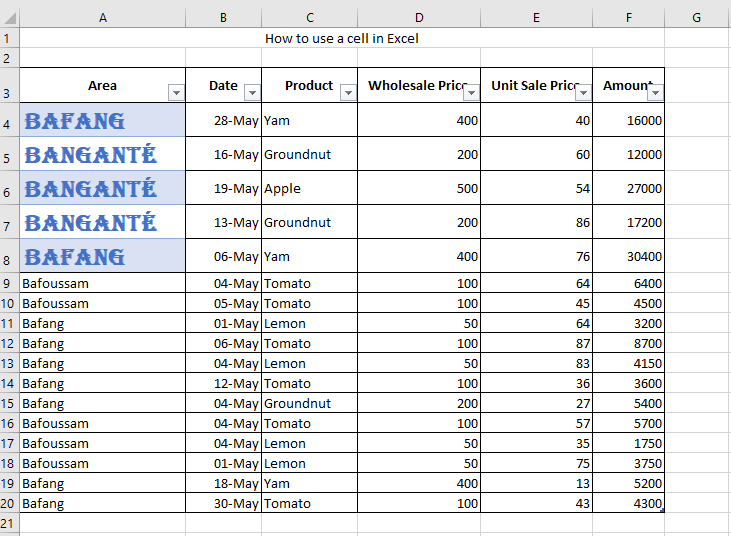
How to Create a Cell Style by Modifying an Existing One
■ In the Home tab, click the More drop-down arrow in the Styles group.
■ Then do one of the following:
- Right-click on an existing cell style and choose Modify.
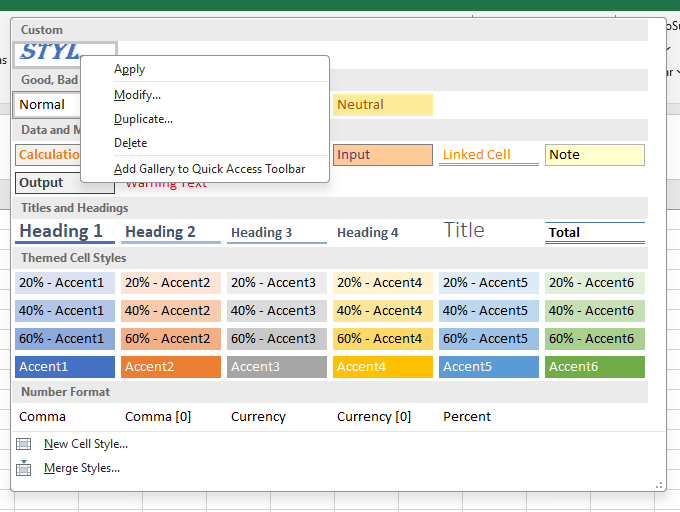
- Or right-click on a style and select Duplicate to create a copy.
■ In the Modify Cell Style dialog box, click Format.
In the various tabs of the Format Cells dialog box, choose the desired formatting and click OK.
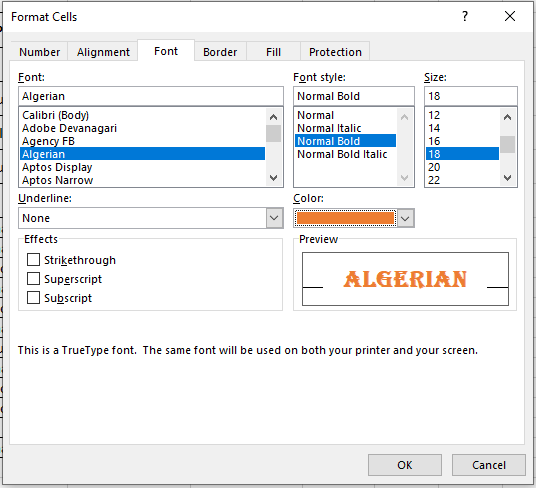
■ In the Style dialog box under Style includes, check or uncheck the boxes for any formatting you want to include or exclude.