
Microsoft Office Excel 2010 also has a full set of various controls: button, combo box, option button, checkbox, etc., which can be placed on a worksheet as needed (Fig. 1.18). To see the list of available controls, go to the Developer tab, and in the Controls group, click the Insert dropdown button.
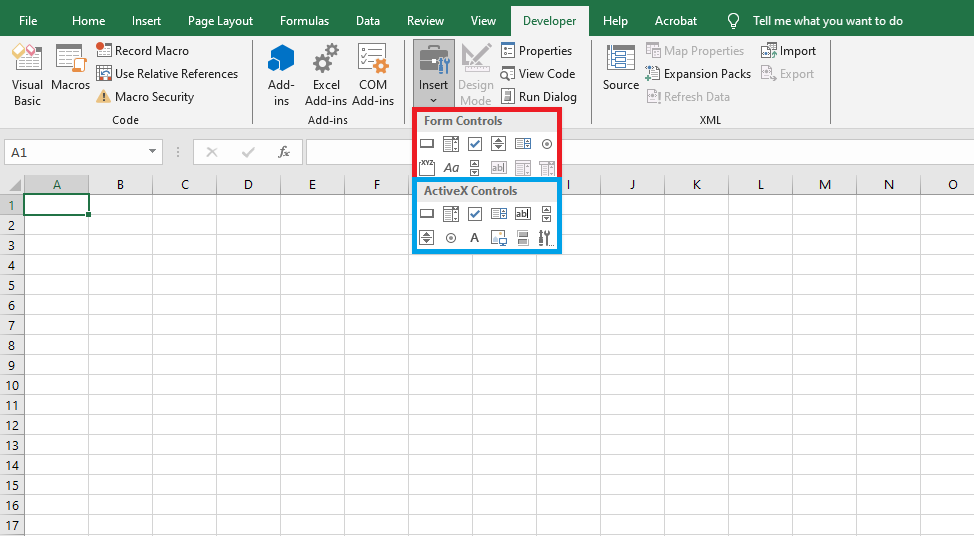
It should be noted that the controls located in the Form Controls group are primarily intended to ensure compatibility with files from older versions of Excel (prior to Excel 97), which use these controls. They have significantly fewer capabilities compared to the controls in the ActiveX Controls group.
Some of these controls cannot be used at all in the latest versions of Excel — these include Edit Box, Combo List-Edit, and Combo Drop-Down Edit. However, these controls also have certain advantages that ActiveX controls do not have — for example, they can be placed on chart sheets.
Controls in the ActiveX Controls group are independent components of various applications and can also be used in Microsoft Excel. This group also includes controls similar to many from the Form Controls group but unavailable in Microsoft Office Excel 2010.
In addition to standard controls, additional controls can be used. Excel comes with a number of such controls, for example, multimedia controls that allow playing audio or video directly from a worksheet. Moreover, it is possible to connect controls used in other programs or separately created custom controls.
In a worksheet module, you can create procedures that handle various events triggered by controls. For example, pressing a button, selecting an item from a list, choosing an option button, or checking a checkbox can automatically lead to calculations, chart creation, changing chart types, and so on.
Later, we will study controls and worksheet automation in detail (see Chapter 6). Here, we will give only a small example using a CommandButton control and its associated Click event, which is triggered when the button is pressed.