
The Range object has a large collection of methods that allow the developer to program a series of actions, from copying a range to the clipboard to finding the root of a nonlinear equation, including formatting the range. The most commonly used methods for the Range object are:
- Activate
- AddComment
- AutoFill
- AutoFit
- BorderAround
- Clear
- ClearComments
- ClearContents
- ClearFormats
- ClearNotes
- Copy
- CopyPicture
- Cut
- DataSeries
- Delete
- FillDown
- FillLeft
- FillRight
- FillUp
- Find
- FindNext
- FindPrevious
- FunctionWizard
- GoalSeek
- Insert
- PasteSpecial
- Replace
- Select
- Show
In addition to methods, the Range object also has properties. These properties allow you to control its appearance and automate behavior. The main properties of the Range object are:
- Address
- AllowEdit
- Areas
- Borders
- Cells
- Characters
- Column
- Columns
- ColumnWidth
- Comment
- Count
- CurrentRegion
- End
- EntireColumn
- EntireRow
- Font
- Formula
- FormulaArray
- FormulaHidden
- FormulaLocal
- FormulaR1C1
- FormulaR1C1Local
- HasFormula
- Height
- Hidden
- HorizontalAlignment
- Hyperlinks
- Interior
- Left
- Locked
- Name
- NumberFormat
- Offset
- Orientation
- Resize
- Row
- RowHeight
- Rows
- ShrinkToFit
- Top
- UseStandardHeight
- UseStandardWidth
- Value
- VerticalAlignment
- Width
- Worksheet
- WrapText
You can find detailed information on how to use the methods and properties of the Range object in the VBA Help system.
Using the Range and Cells objects, you have many options for accessing individual cells or entire cell ranges in a worksheet. The currently active cell is referred to as ActiveCell. With the Range object, both contiguous and non-contiguous cell ranges can be selected. A letter designates the column and a number the row. Some possibilities are shown in the following table:
| Range | Description |
|---|---|
| Range(« A3 »).Select | Selects a single cell |
| Range(« A3:F7 »).Select | Selects a contiguous range |
| Range(« A3, C5, E2 »).Select | Selects multiple non-contiguous cells |
| Range(« A8, B2:C4, E2 »).Select | Selects multiple non-contiguous cells/ranges |
Ranges can also be entire columns or rows, as shown below:
| Range | Description |
|---|---|
| Range(« A:A »).Select | Selects entire column A |
| Range(« C:E »).Select | Selects multiple contiguous columns |
| Range(« B:D, F:F, H:I »).Select | Selects multiple non-contiguous columns |
| Range(« 3:3 »).Select | Selects entire row 3 |
| Range(« 3:5 »).Select | Selects multiple contiguous rows |
| Range(« 3:5, 8:9, 12:12 »).Select | Selects multiple non-contiguous rows |
| Range(« A2:B4, 7:8, D:E, G2:H4 »).Select | Combination of options |
Activating, Selecting, and Filling a Range of Cells
Selecting a Range Using the Range Object
The Activate method of the Range object activates the range, and the Select method selects it.
Sub ActivationSelection()
    ' Step 1: Activate the worksheet named "Feuil1" in the current workbook
    ThisWorkbook.Worksheets("Feuil1").Activate
    ' Step 2: Activate cell A3
    Range("A3").Activate
    ' Step 3: Enter the value 5 into the active cell (A3)
    ActiveCell.Value = 5
    ' Step 4: Select the range A4:A10
    Range("A4:A10").Select
    ' Step 5: Enter the value 11 into the selected range
    Selection.Value = 11
End Sub
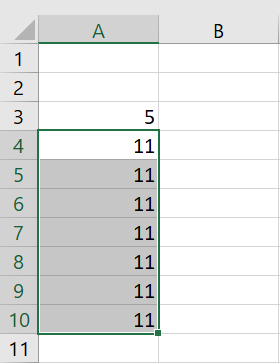
Comments:
- The Range object uses « A3 » and « A4:A10 » as arguments.
- A3 is activated using
Activate, then value 5 is inserted usingValue. - The range A4:A10 is selected using
Select, and value 11 is inserted. - The
Valueproperty sets content for both A3 and A4:A10.
Inserting a Value Using the Cells Property
The Cells property allows access to all worksheet cells, individually or as ranges. It specifies a row and column number. Using Cells has the advantage of working with variables to define row and column numbers.
Sub SelectionCells()
    ' Step 1: Activate worksheet "Feuil1"
    ThisWorkbook.Worksheets("Feuil1").Activate
    ' Step 2: Insert "bac" into cell F2
    Cells(2, 6).Value = "bac"
    ' Step 3: Insert "eck" into range F4:I6
    Range(Cells(4, 6), Cells(6, 9)).Value = "eck"
End Sub
Comments:
"bac"is inserted intoCells(2, 6)→ Row 2, Column 6 = F2"eck"is inserted intoRange(Cells(4, 6), Cells(6, 9))→ Range F4:I6
Entering Values and Formulas
Sub InsertionValeursFormules()
    ThisWorkbook.Worksheets("Feuil1").Activate
    ' Numbers
    Range("B1").Value = 14
    Range("B2").Value = 245.17
    Range("B3").FormulaLocal = "=SOMME(B1:B2)"
    ' Dates
    Range("B4").Value = "2019/11/23"
    Range("B5").Value = "2009/08/18"
    Range("B6").FormulaLocal = "=B4-B5"
    ' Percentage
    Range("B7").Value = 0.215
End Sub
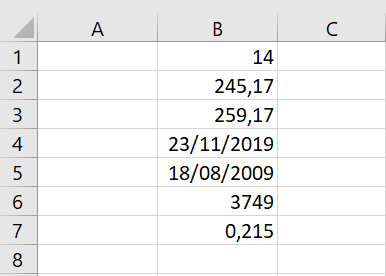
Comments:
- Numeric values are inserted into B1 and B2
- Decimal point must be used (not a comma)
- FormulaLocal assigns the SUM formula
- Dates are enclosed in quotes
- B6 computes the difference between B4 and B5
- B7 holds a percentage value
Fill a Range with a Value
FillDown: fills from top to bottomFillUp: fills from bottom to topFillLeft: fills from right to leftFillRight: fills from left to right
Sub RemplirFillUp()
    Range("A1:A10").FillUp
End Sub
AutoFill
AutoFill allows cells to be filled automatically with data, such as lists or sequences. You can trigger it using the black fill handle in the bottom-right corner of the cell selection or the Fill button on the Home tab → Editing group.
Useful for:
- Copying values across cells
- Generating number or date sequences
Fill a Range with a Progression
DataSeries method creates a progression with syntax:
DataSeries(RowCol, Type, Date, Step, Stop, Trend)
RowCol: xlRows or xlColumnsType: xlDataSeriesLinear, xlGrowth, xlChronological, xlAutoFillDate: xlDay, xlWeekday, xlMonth, xlYearStep: step sizeStop: end valueTrend: True/False (trend vs. static list)
Examples:
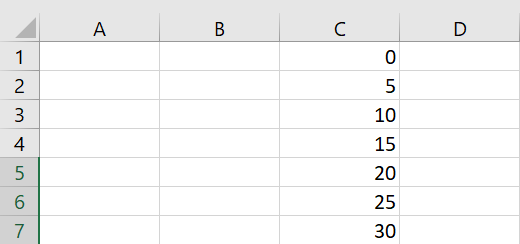
Sub ProgressionPas()
    Range("C1").Value = 0
    Range("C1").DataSeries Rowcol:=xlColumns, Type:=xlDataSeriesLinear, _
    Step:=5, Stop:=30
End Sub

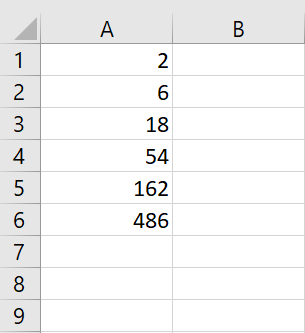
Sub RrogressionGeometrique()
    Range("A1").Value = 2
    Range("A1:A6").DataSeries Rowcol:=xlColumns, Type:=xlGrowth, Step:=3
End Sub

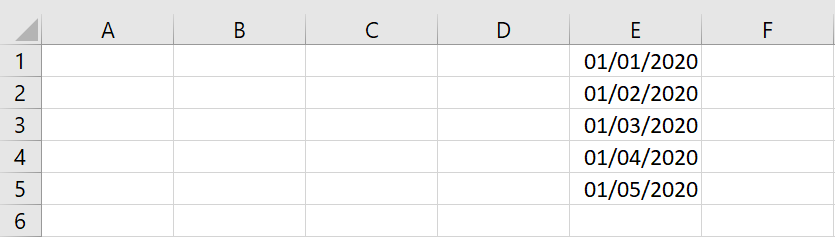
Sub ProgressionDate()
    Range("E1").Value = "1/01/2020"
    Range("E1:E5").DataSeries Rowcol:=xlColumns, Type:=xlChronological, _
    Date:=xlMonth
End Sub
Automatically Fill a Range with Sequence Elements
AutoFill method syntax:
expression.AutoFill(Destination, Type)
expression: source rangeDestination: target range (must include the source)Type: optional fill type (xlFillSeries, xlLinearTrend, xlGrowthTrend, etc.)
Examples:
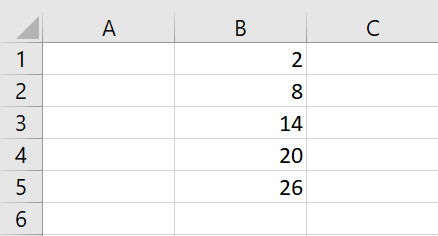
Sub ProgressionArith()
    Range("B1").Value = 2
    Range("B2").Value = 8
    Range("B1:B2").AutoFill Destination:=Range("B1:B5"), Type:=xlLinearTrend
End Sub

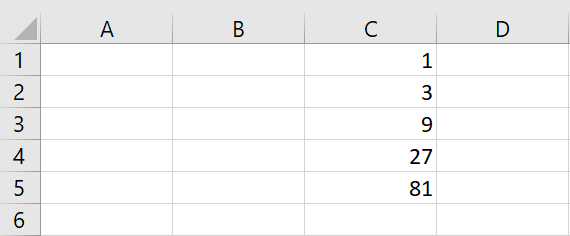
Sub ProgressionGeo()
    Range("C1").Value = 1
    Range("C2").Value = 3
    Range("C1:C2").AutoFill Destination:=Range("C1:C5"), Type:=xlGrowthTrend
End Sub

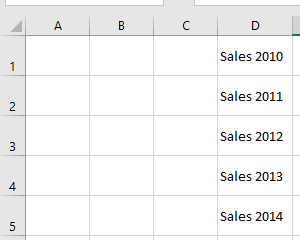
Sub ProgressionAuto()
    Range("D1").Value = "Ventes 2010"
    Range("D1").AutoFill Destination:=Range("D1:D5"), Type:=xlFillSeries
End Sub