
Excel offers three workbook views: Normal, Page Layout, and Page Break Preview.
Normal View
You can return to Normal View at any time.
- On the View tab, in the Workbook Views group, click Normal.
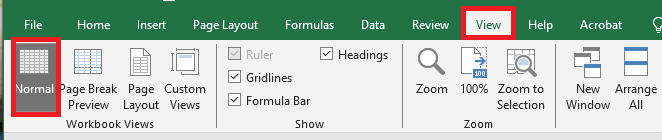
Result:
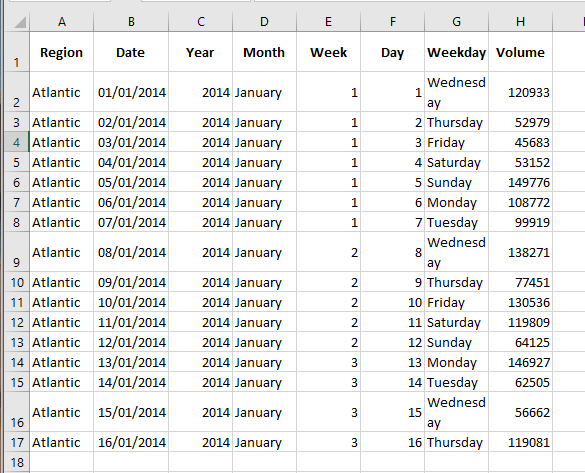
If you switch to another view and then return to Normal View, Excel may display page breaks. To hide these page breaks, close and reopen the Excel file.
To permanently hide page breaks for that worksheet:
- Go to File > Options > Advanced
- Scroll down to Display options for this worksheet
- Uncheck Show page breaks
Page Break Preview
Page Break Preview gives you a good overview of where pages will break when printing your document.
Use this view to easily click and drag page breaks.
- On the View tab, in the Workbook Views group, click Page Break Preview.

Result:
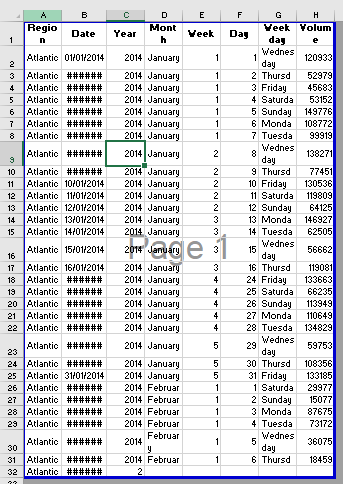
You can drag the page breaks to fit all your content onto a single page.
⚠️ Caution: Excel does not warn you if the print becomes unreadable.
By default, Excel prints down first, then over.
In other words, it prints all rows in the first set of columns, then all rows in the next set of columns, and so on.
Page Layout View
Use Page Layout View to see where pages begin and end, and to add headers and footers.
- On the View tab, in the Workbook Views group, click Page Layout.

Result:
